This section describes the main features and views of the Smart Bowl Console web application, that can be activated and customized from the Smart Bowl Cloud settings page on the Preferences section.
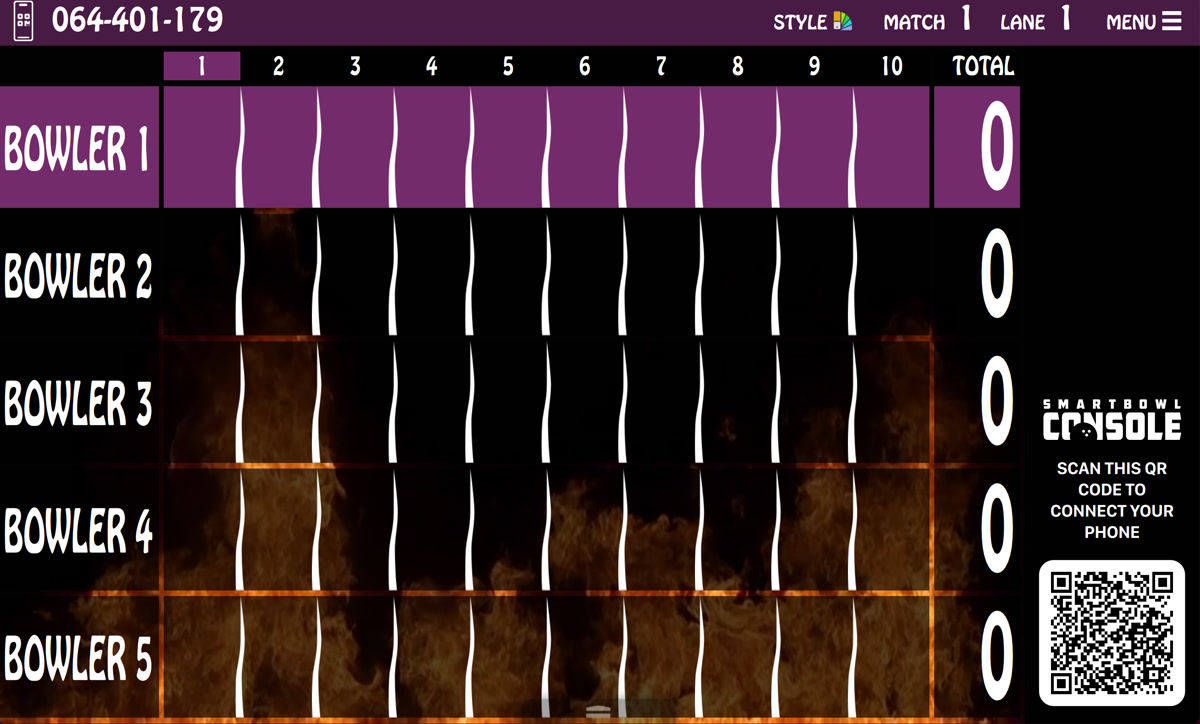
The Smart Bowl Console webapp can be accessed by scanning the qr code shown on the scoreviewer. Qr code is visible in two possible moments:
-
It is shown on the scoreviewer grid after a specific interval of time
-
From the console menu if the relative button is pressed
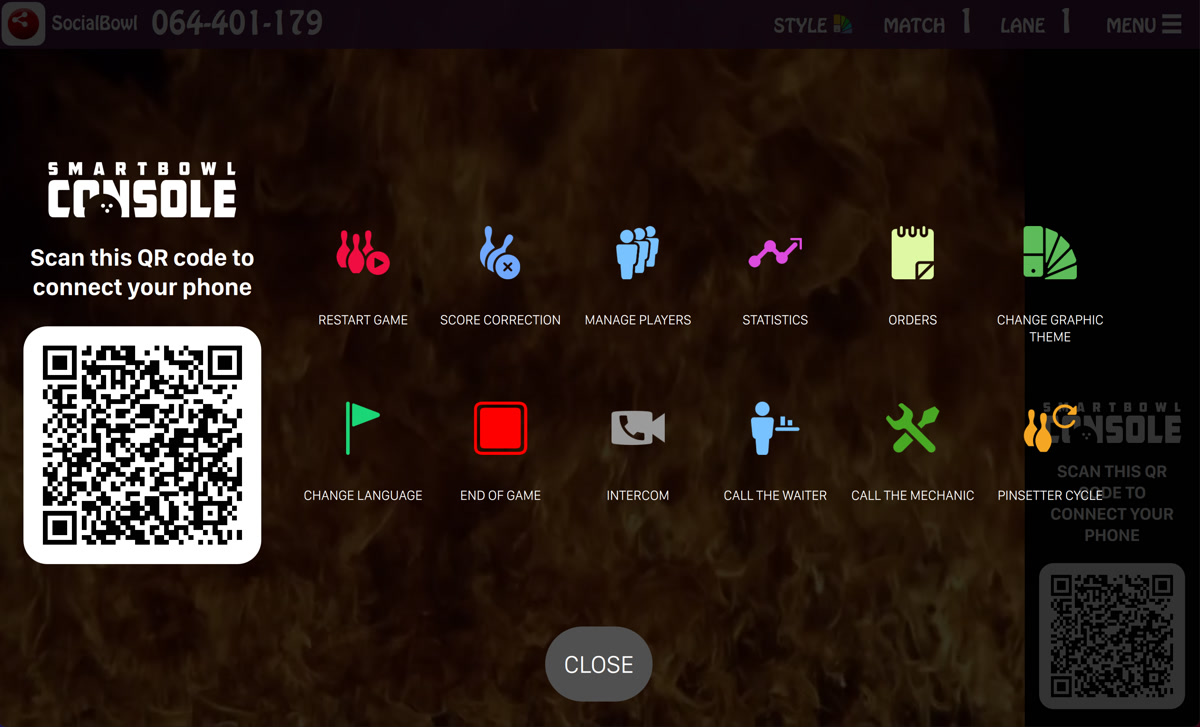
Customers can scan the qr code with their smartphone and start using the Smart Bowl Console features.
F.1 Pairing
The first step for using Smart Bowl Console features is to pair the customer’s device with the curent game.
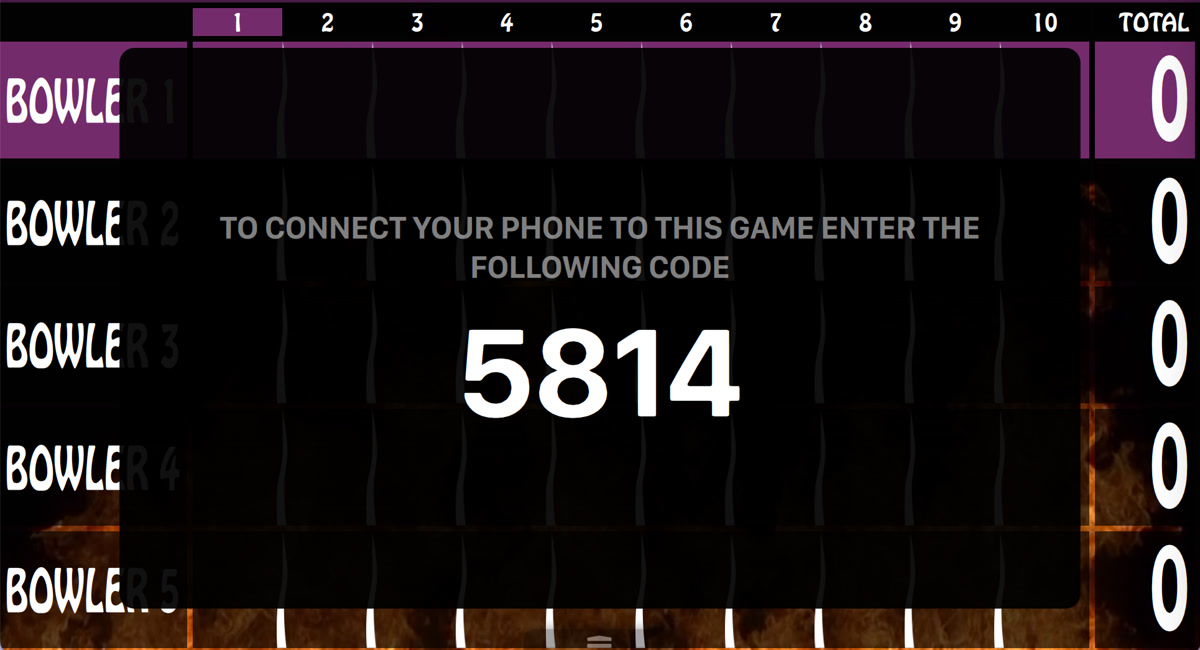
Once the qr code has been scanned the console will show the pairing code:
At the same time on the customer’s smartphone will be shown a page where he must enter the code:
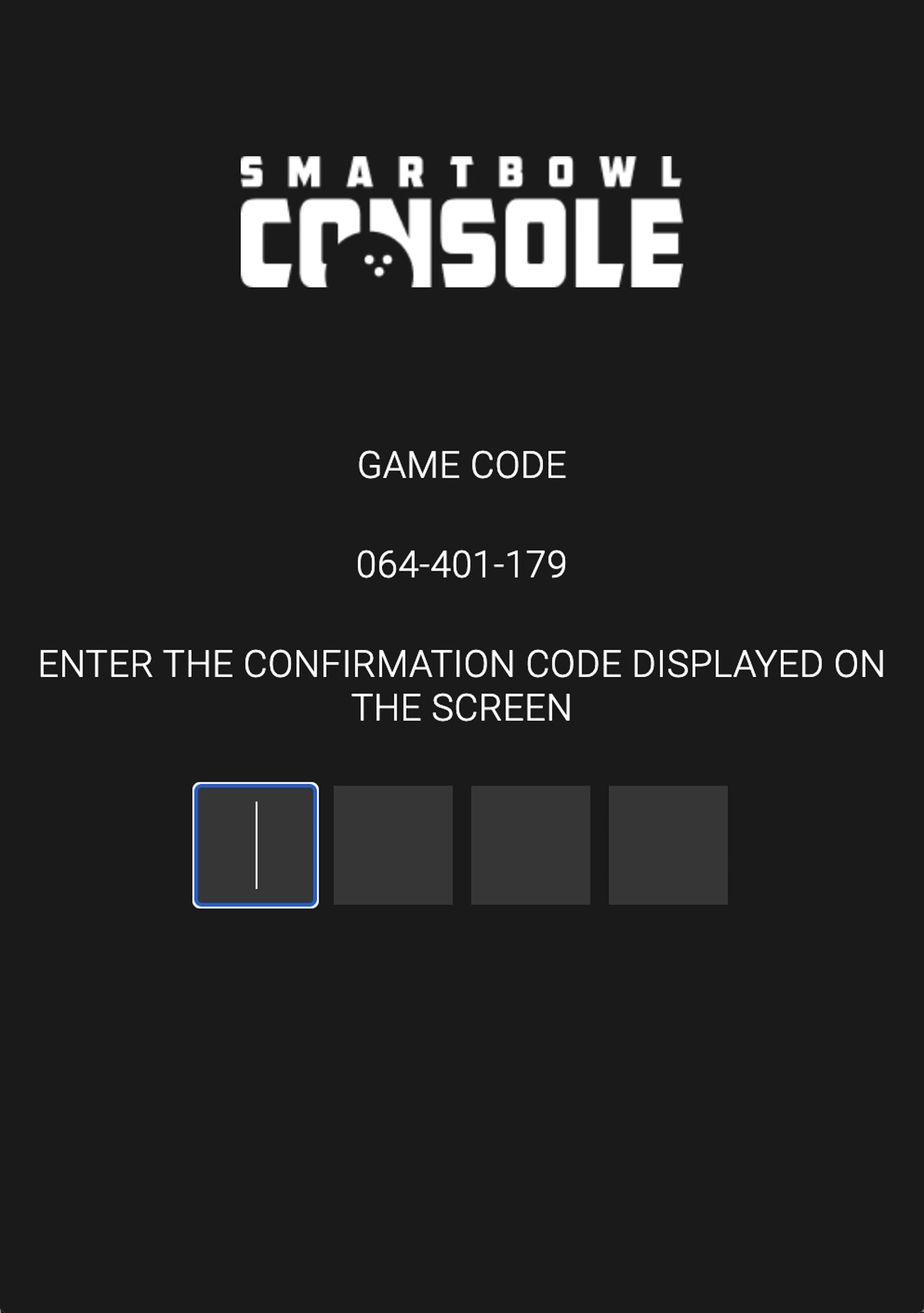
If the code match with the one shown on the scoreviewer the the pairing is completed.
F.2 Secure code option
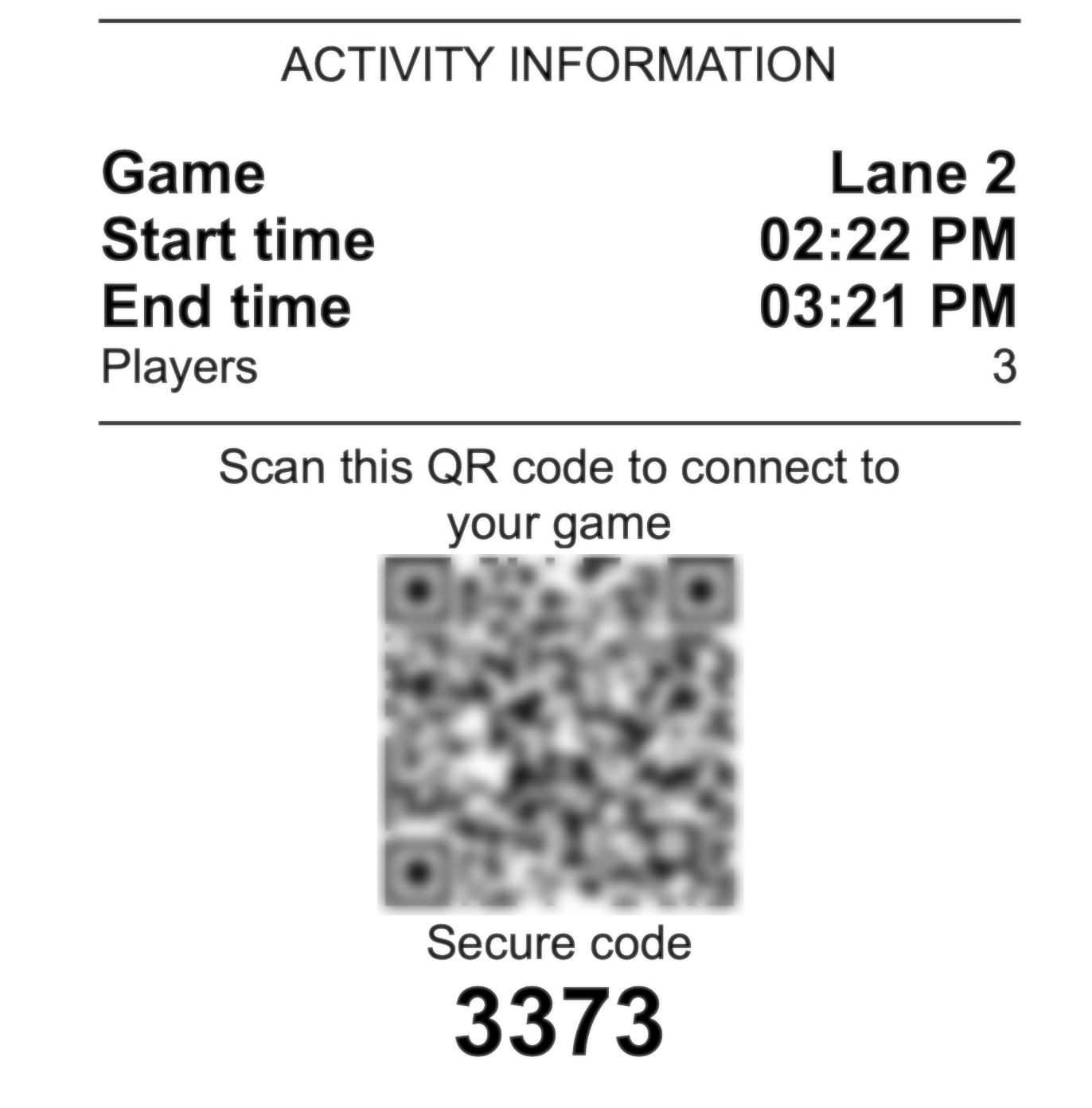
In the settings section called Smart Bowl Cloud Settings and selecting the part called Smart Bowl Console, you can enable the Secure Code function.

This will make sure to avoid showing the pairing code in the viewers but the pairing code will be printed in the activity receipt. you can also make sure to have the Frontdesk print the secure code as well.
F.3 Scoring grid
The first page that is displayed on the web application is the scoring grid. From this page you can see the current score for all the players and teams of the bowling game.
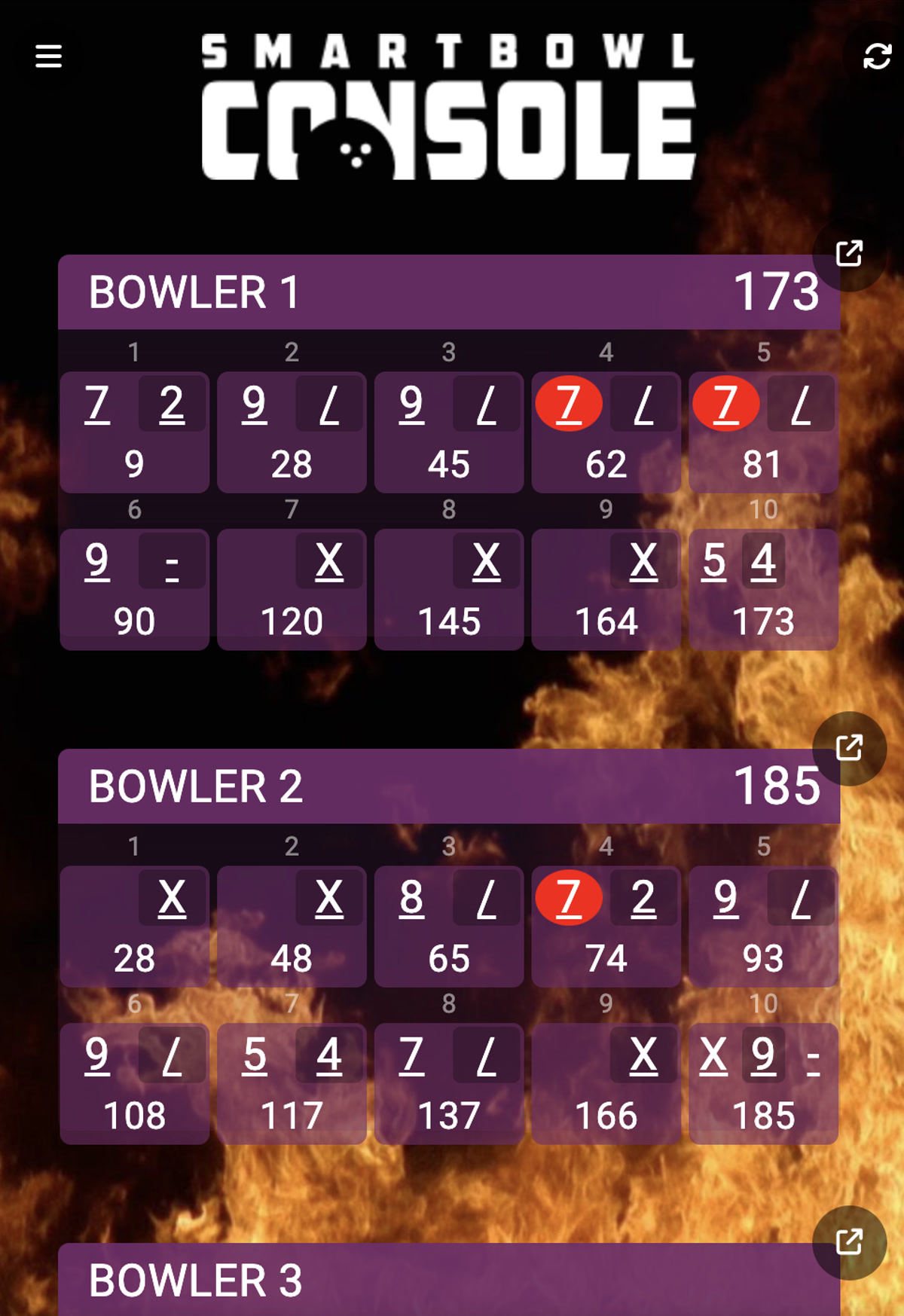
The grid will update automatically but it is also possible to trigger a manual update by clicking the refresh icon at the top right of the screen.
For each bowler section it is also possible to share the score by clicking the relative icon located at the top right of each player.
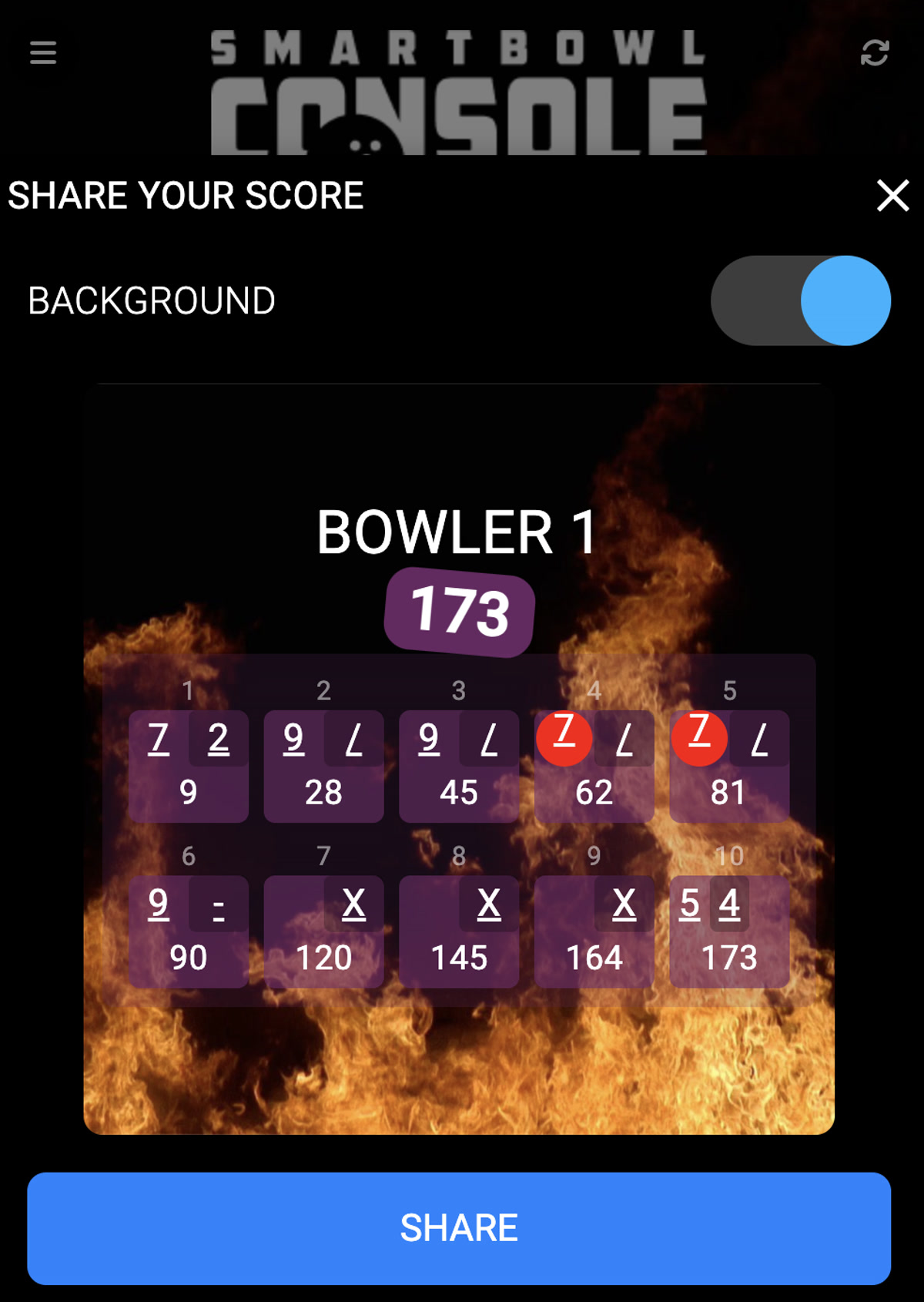
You can choose whether to show or hide the background. Click on the share button to share the image with on your preferred social media account or application.
F.4 Edit players
From this section it is possible to edit all the details of each player of the game.
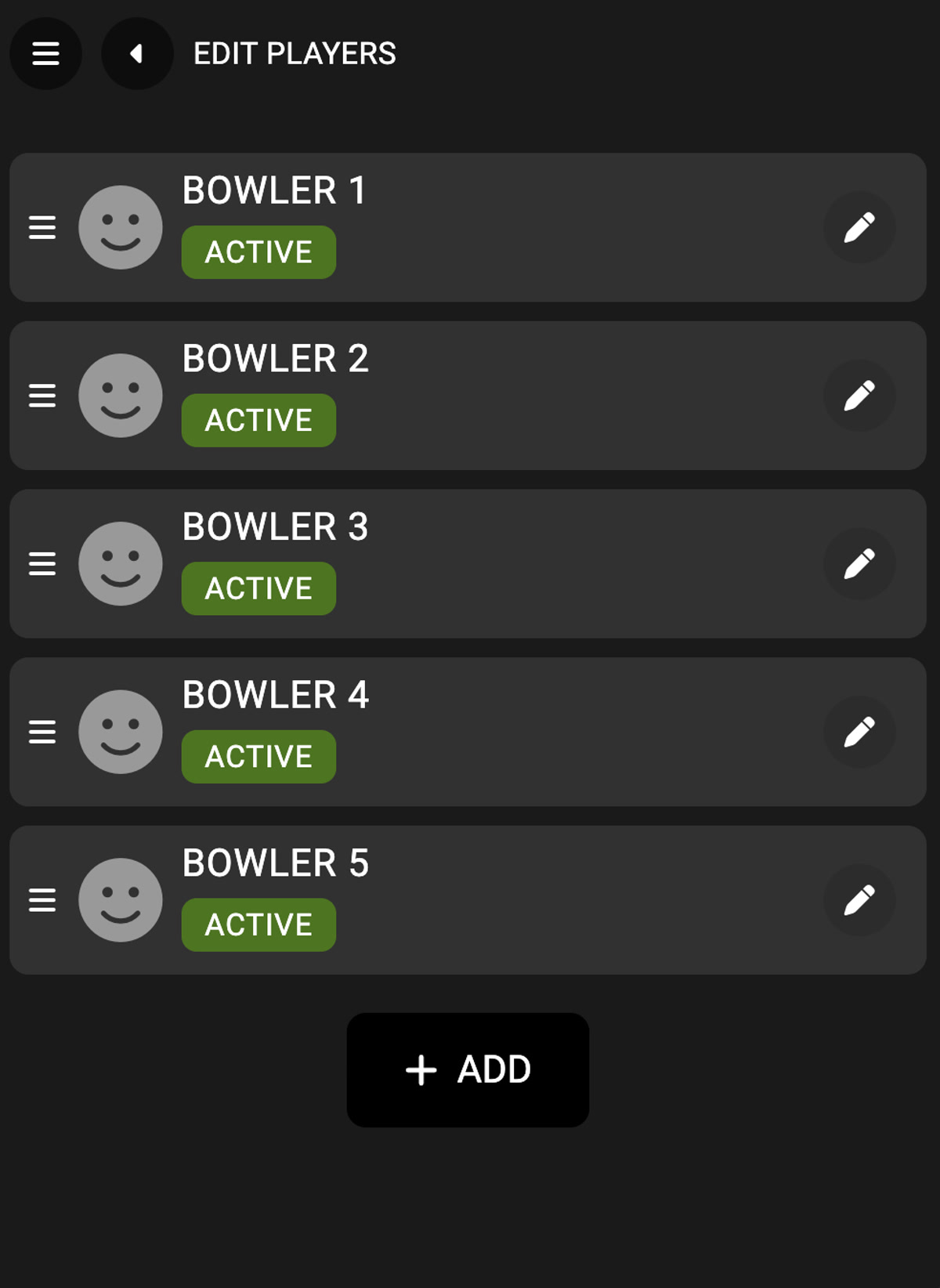
You can see the list of players and all the information about the name, the status and the picture. Drag and drop on the burger icon to update the order of the players.
Click on the edit button to enter to the player edit page or click on the add button to add a new one.
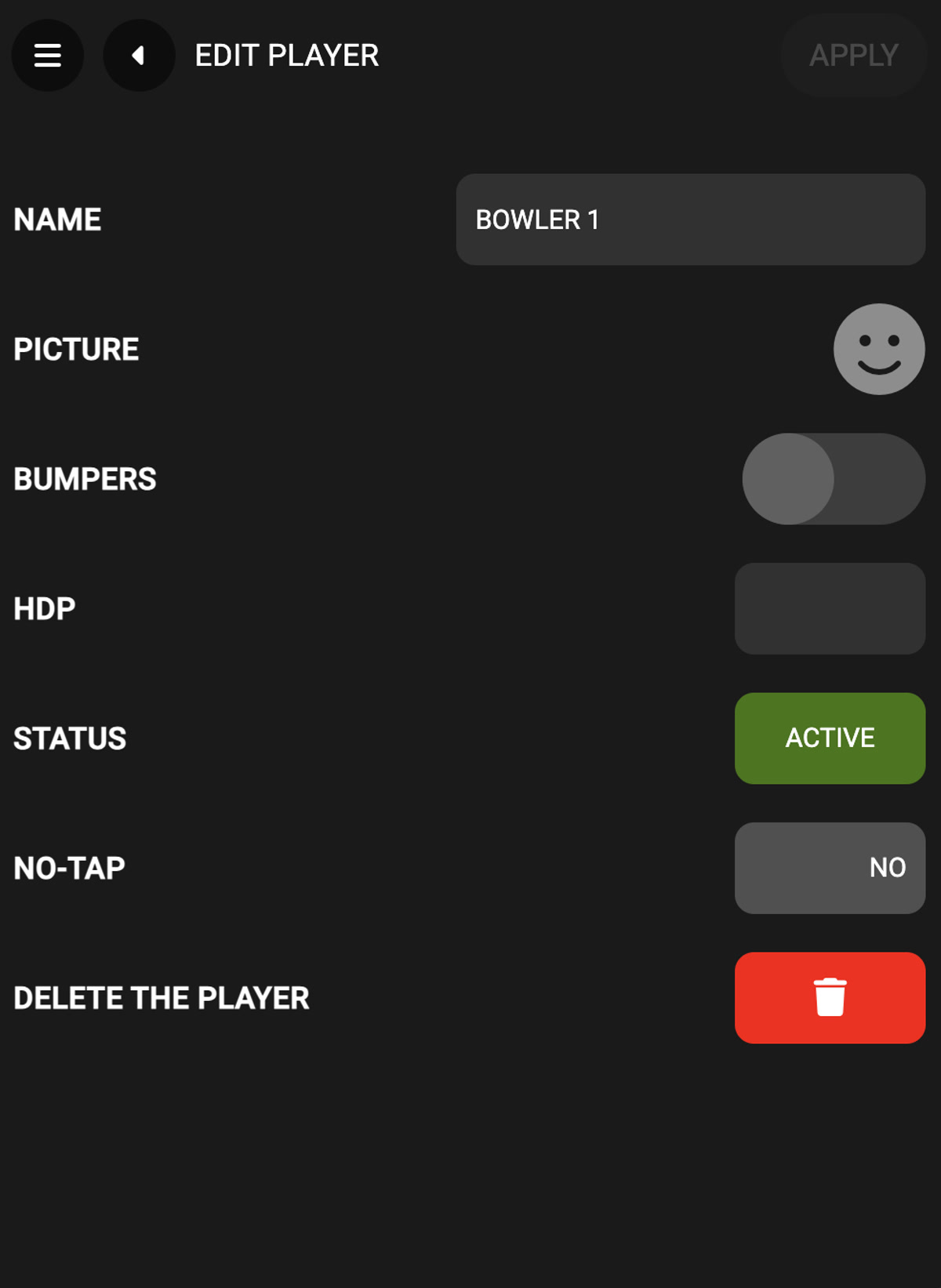
From this page it is possible to edit:
-
Name: enter the player name
-
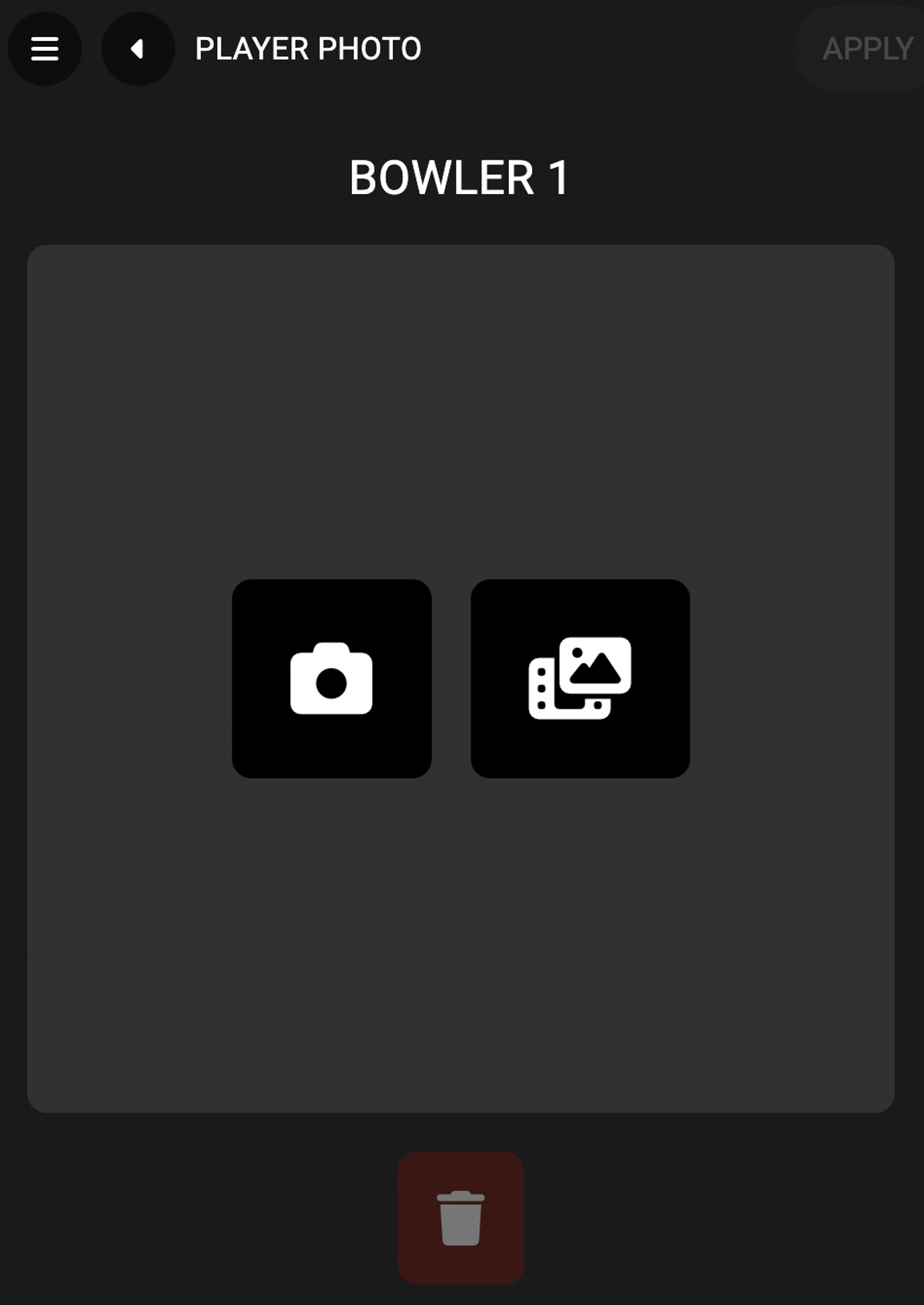
Picture: select the player picture by taking a picture with the phone or selecting a file from the gallery.
-
Bumpers: check this option to activate the bumpers for the selected player
-
HDP: set the handicap value
-
Status: set the status of the player
-
No-tap: set the no-tap value
-
Delete the player: click this icon to remove the player
F.5 Score correction
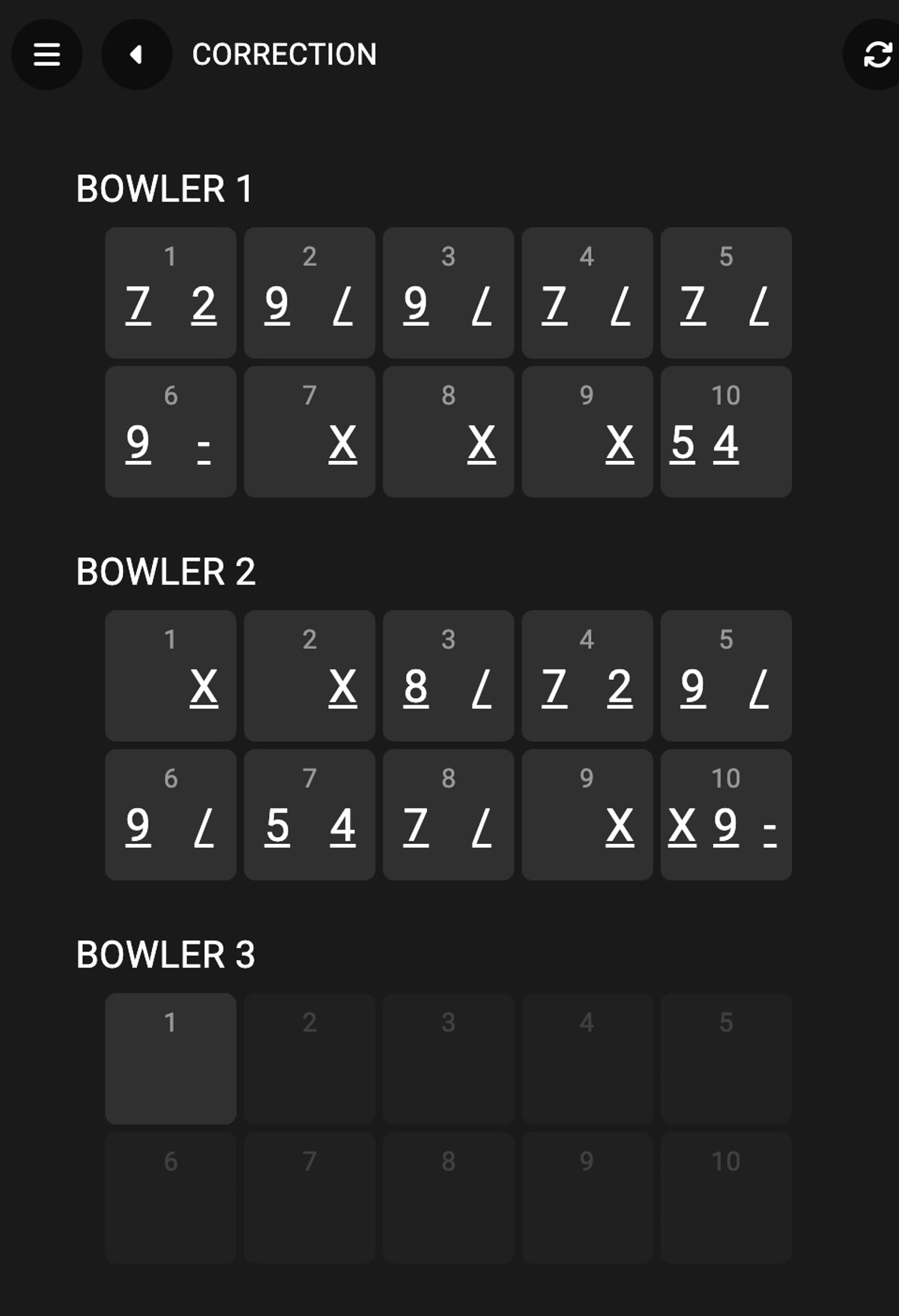
This section allows you to see all the scoreing of the current match and apply a correction.
Click on a frame rectangle and the correction dialog will appear:
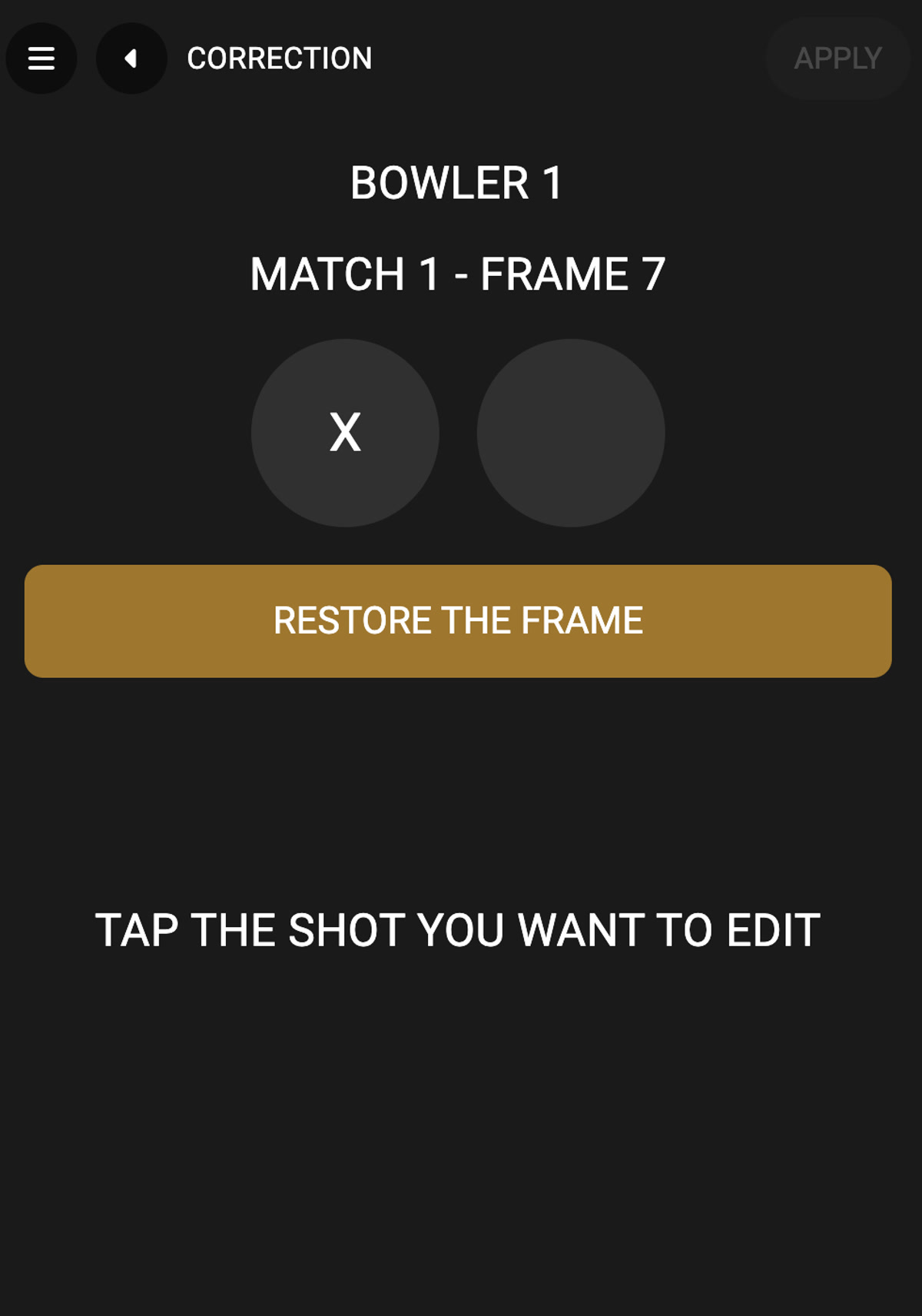
Click on the throw you want to modify, select the value and then click on the apply button at the top right of the screen.
Click on the restore the frame button to restore the frame to its previous value.
F.6 Customize the appearance
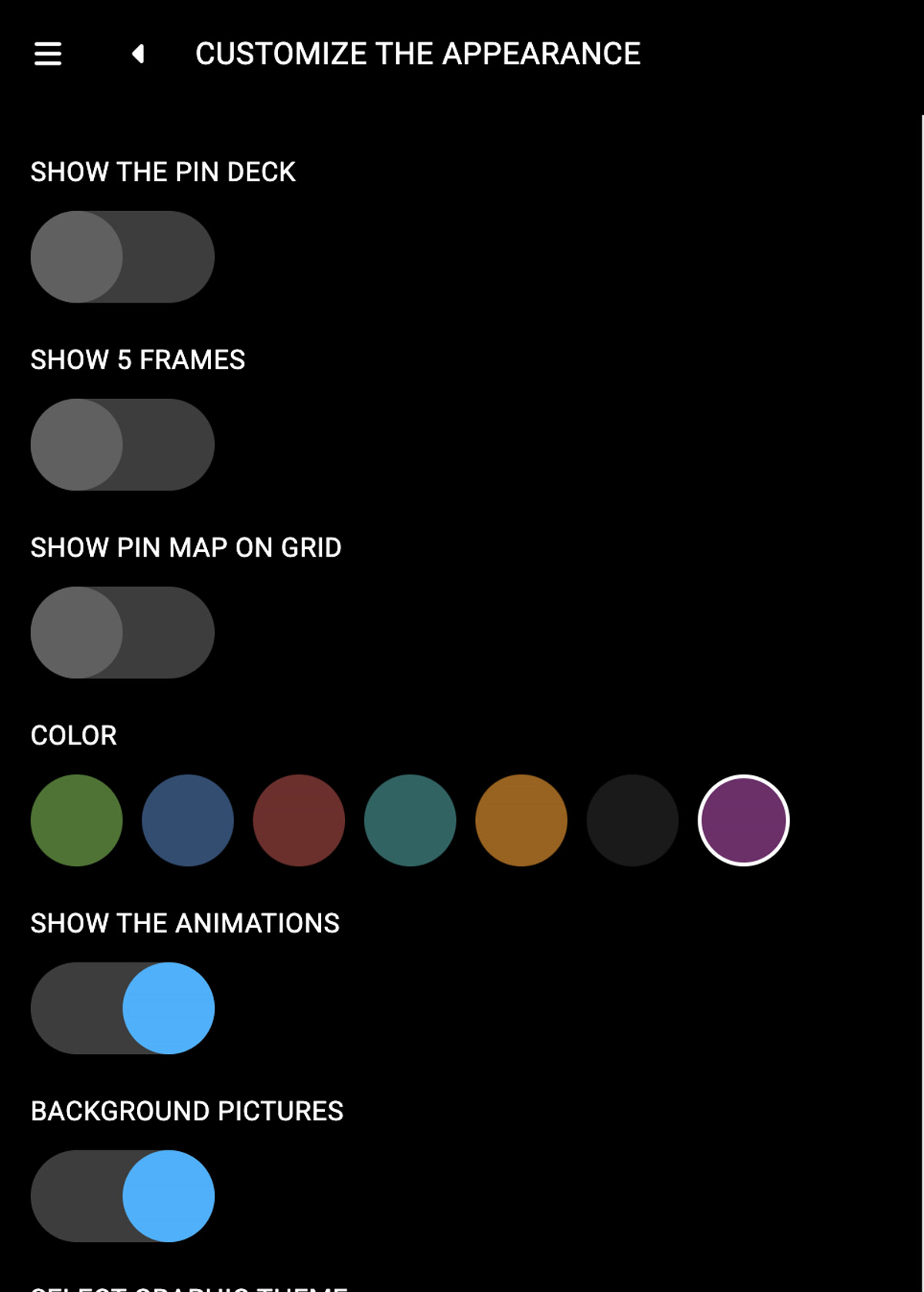
From this section is is possible to customize the appearence of the web console.
-
Show the pin deck: check this option to show or hide the pin deck
-
Show 5 frames: check this option to activate the 5 frames layout of the grid
-
Show pin map on grid: check this option to show the pin map on the grid
-
Color: select the theme color
-
Show the animations: check this option to show or hide the animations
-
Background pictures: check this option to show or hide the background pictures
-
Select graphic theme: select the graphic theme from the list
F.7 Orders
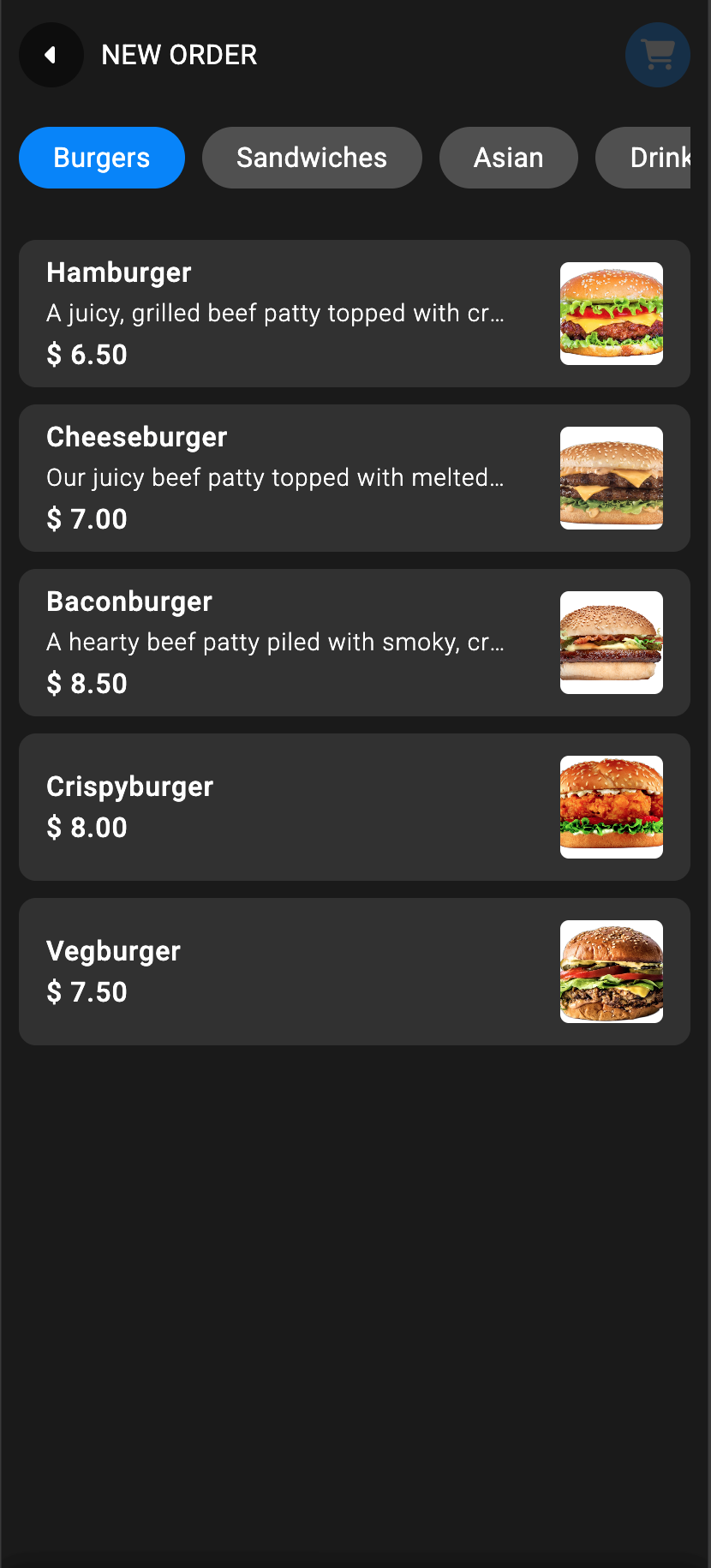
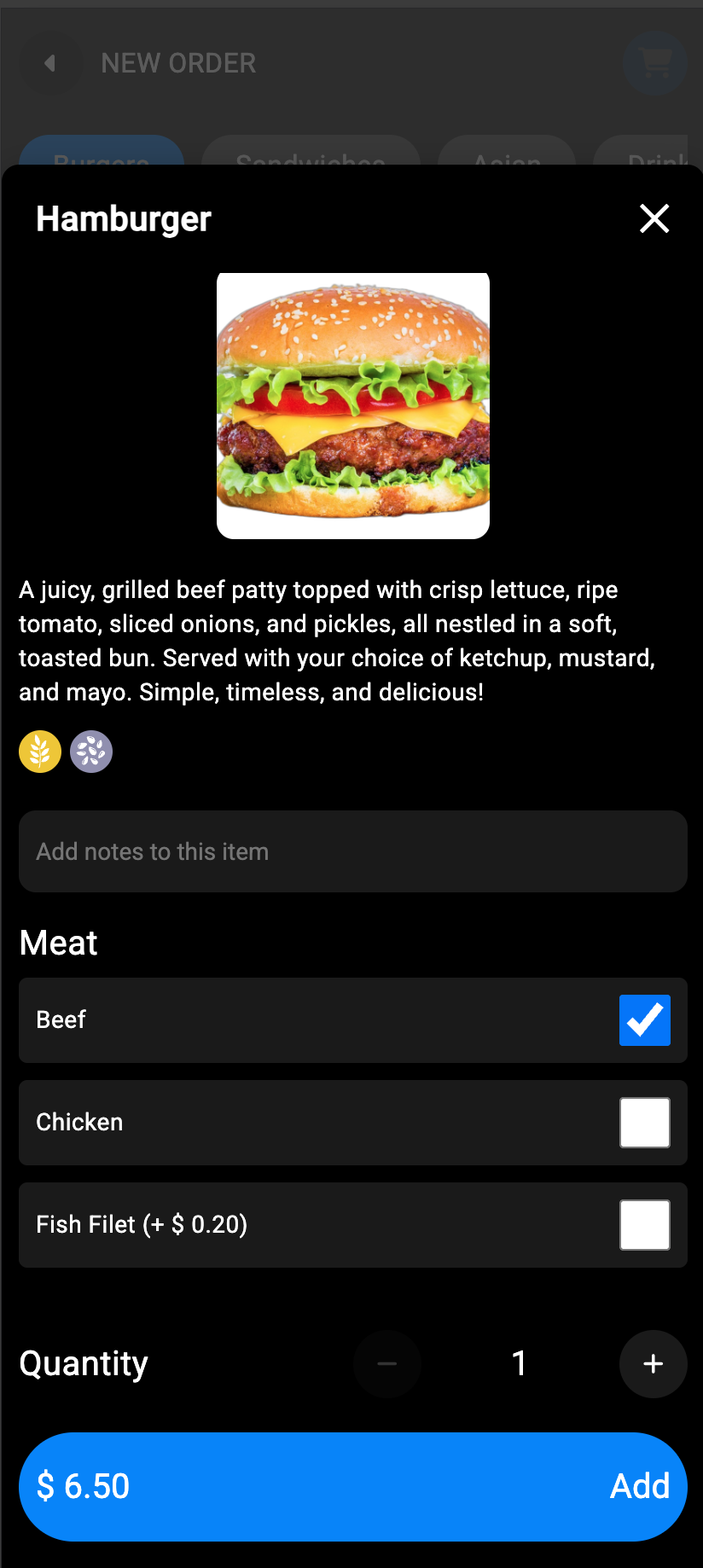
From this section you can order food and drinks with the same procedure as the Kiosk.
F.8 Payment
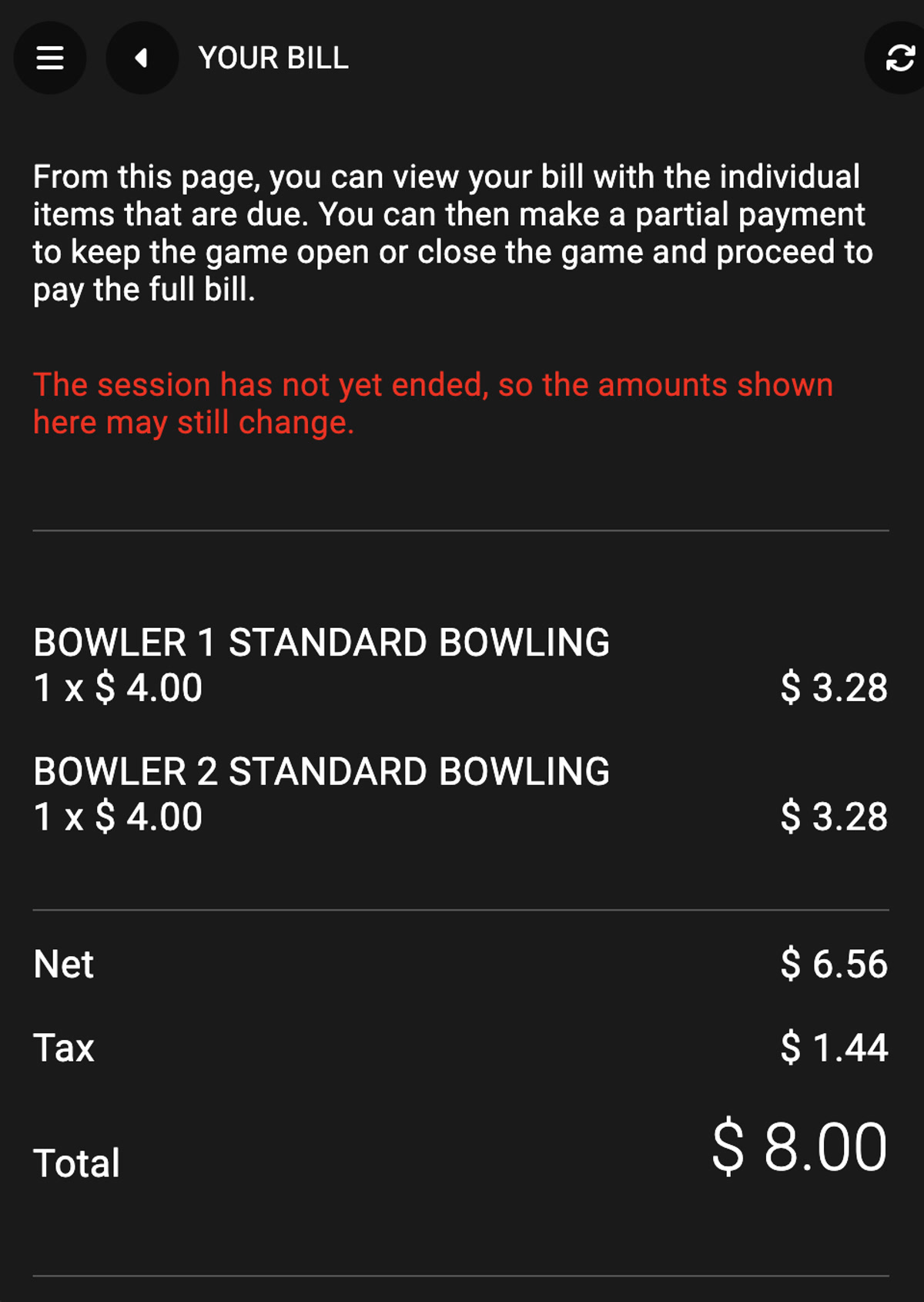
From this page you can view the bill related to the bowling game with the individual items that are due. You can then make a partial payment to keep the game open or close the and proceed to pay the full bill.
Click on the Pay and close the game button and confirm the operation.
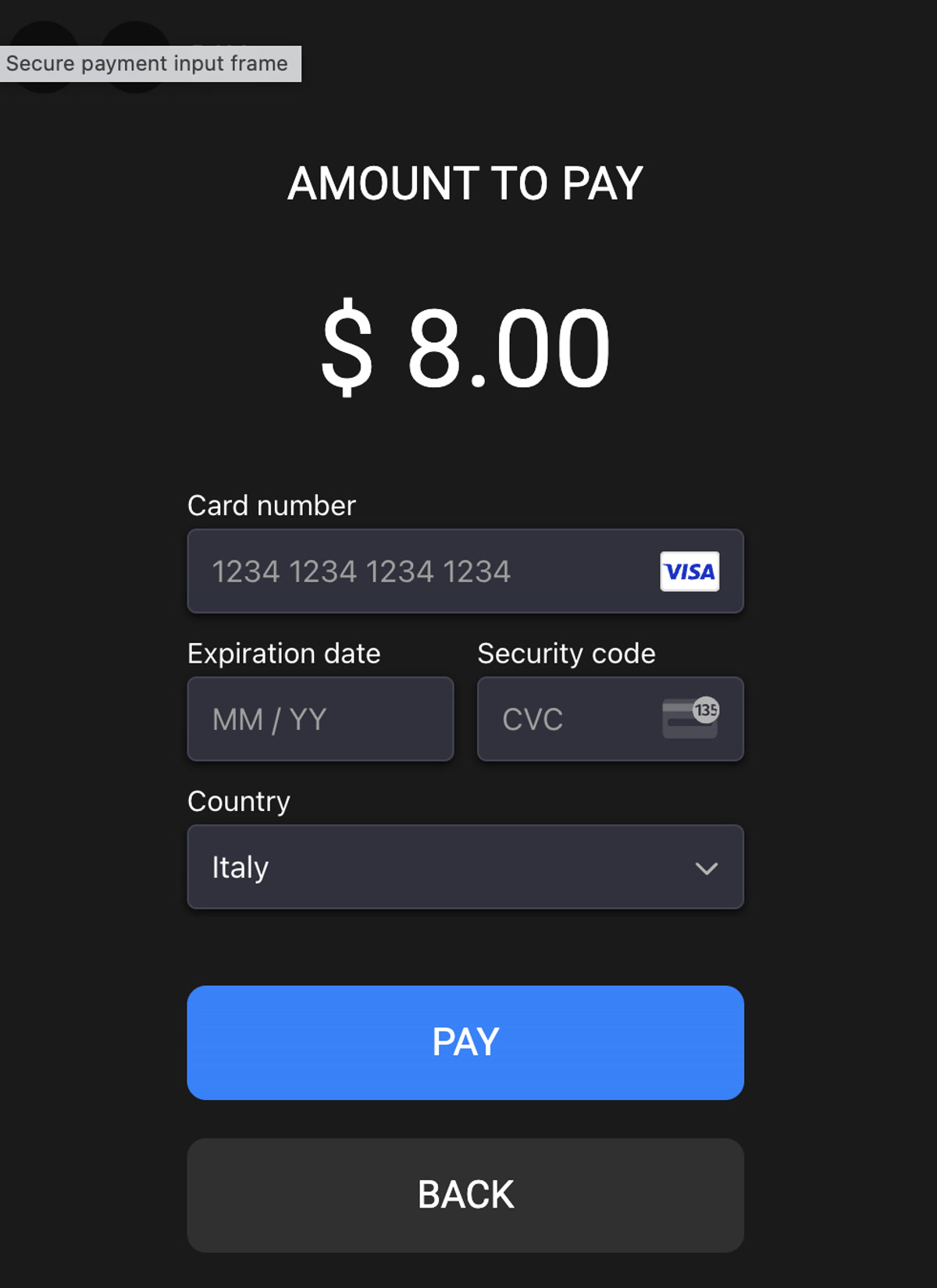
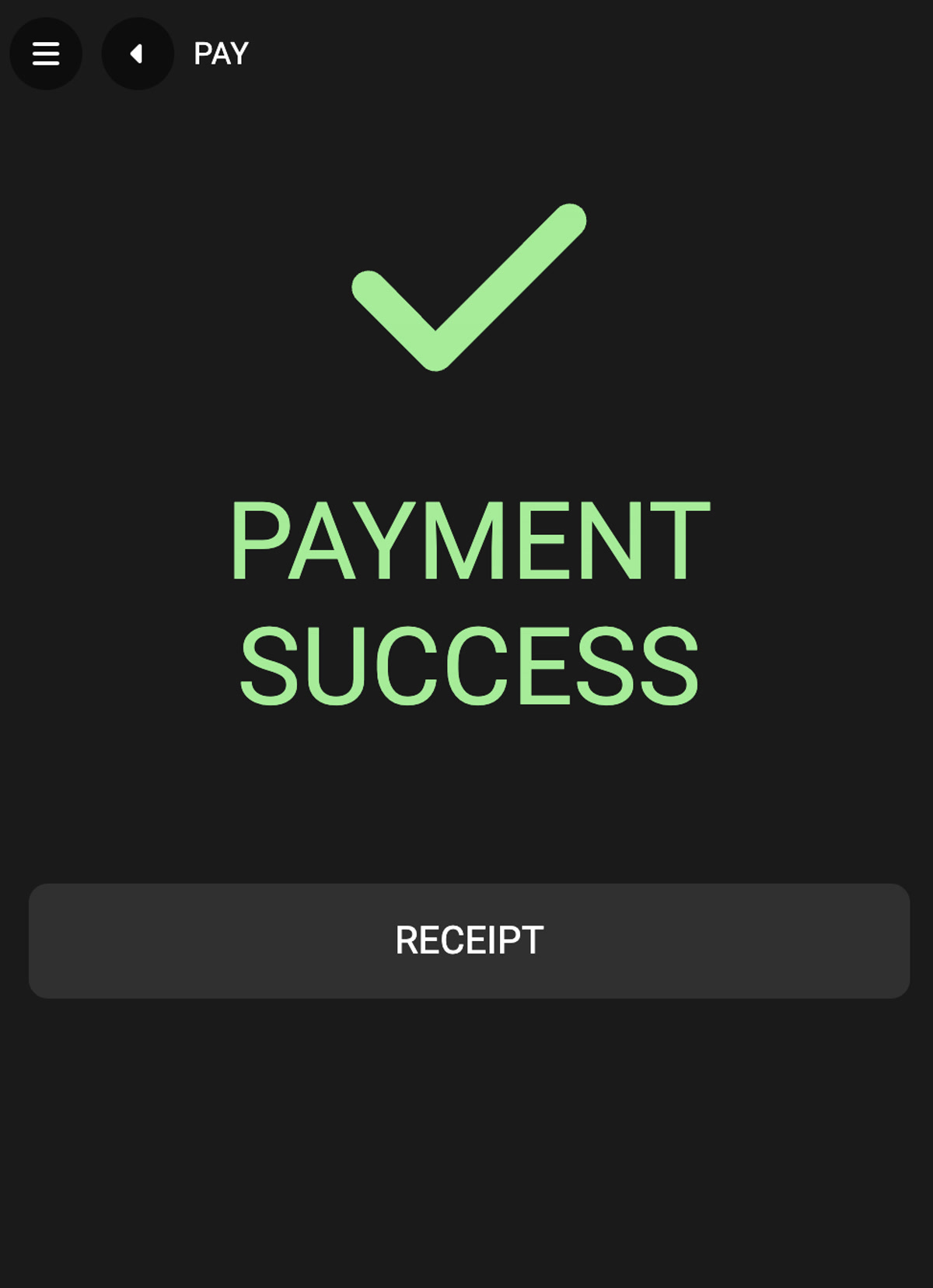
You will be asked to enter your credit card information or use a digital wallet if available. Click on the Ok button to proceed with the payment. Once the payment has succeeded a confirmation page will appear:
It is also possible to do a partial payment:
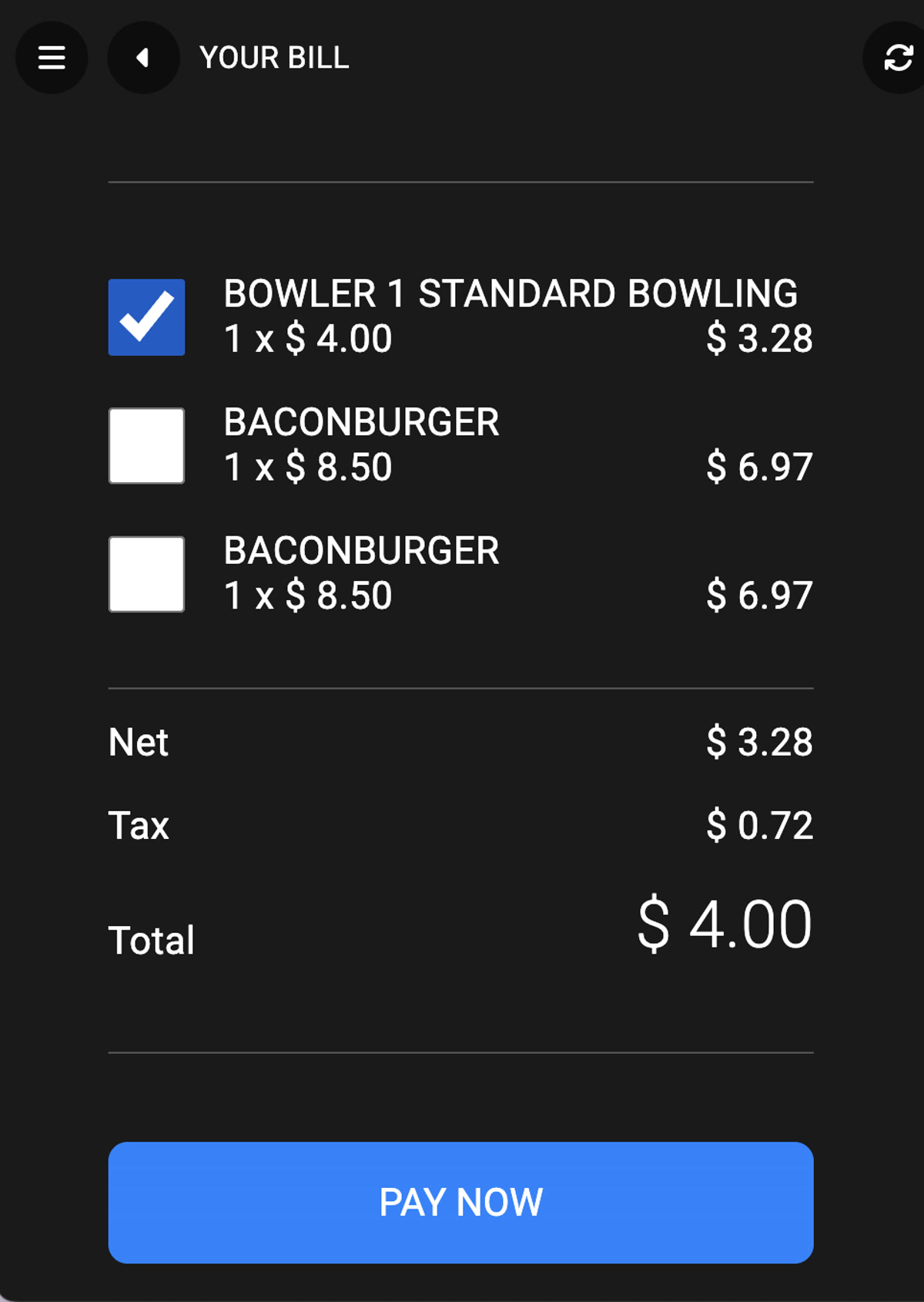
Select the items you want to pay and click on the Pay now button to proceed with the payment.
F.9 Your Purchases
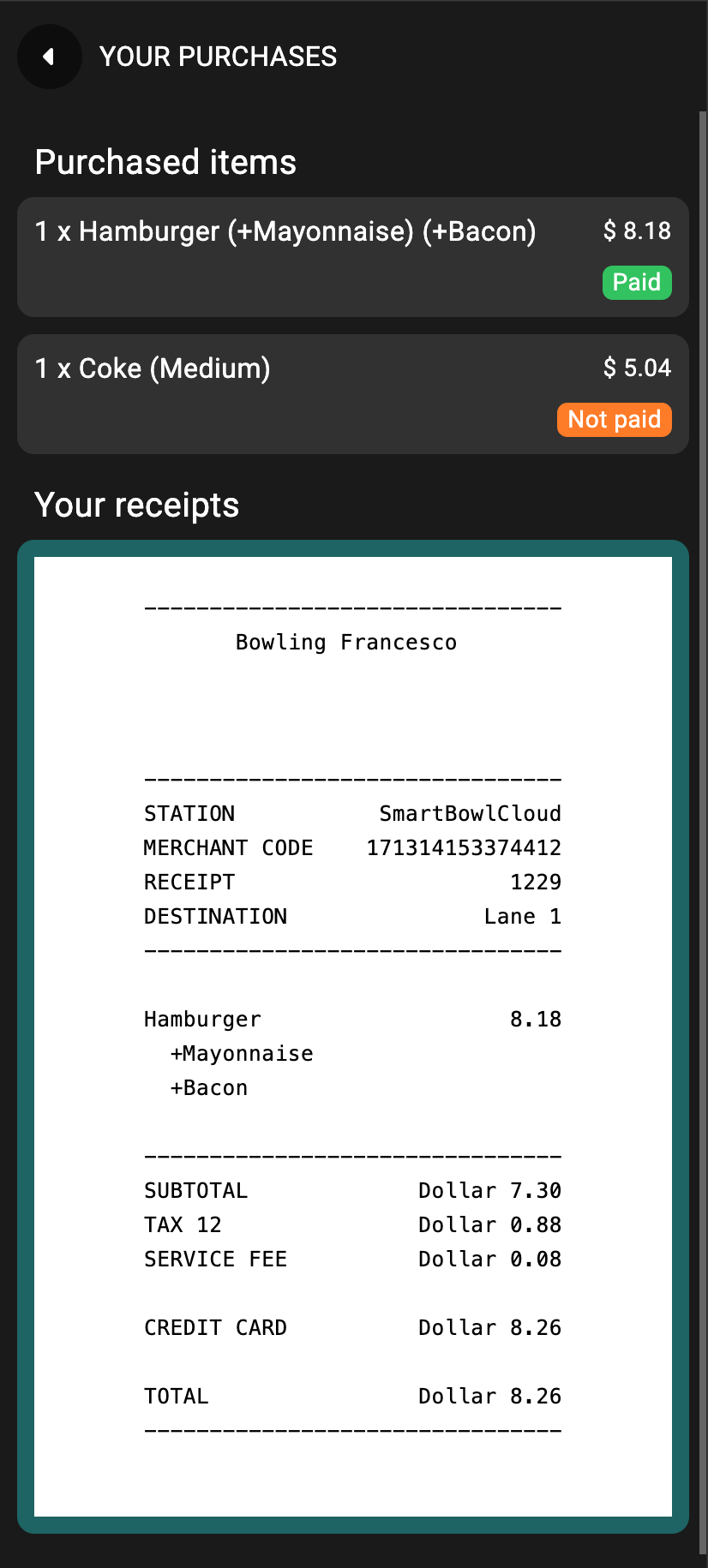
From this section you can see the list of the receipts regarding the items you have already bought or that you have to still pay for.
F.10 Statistics
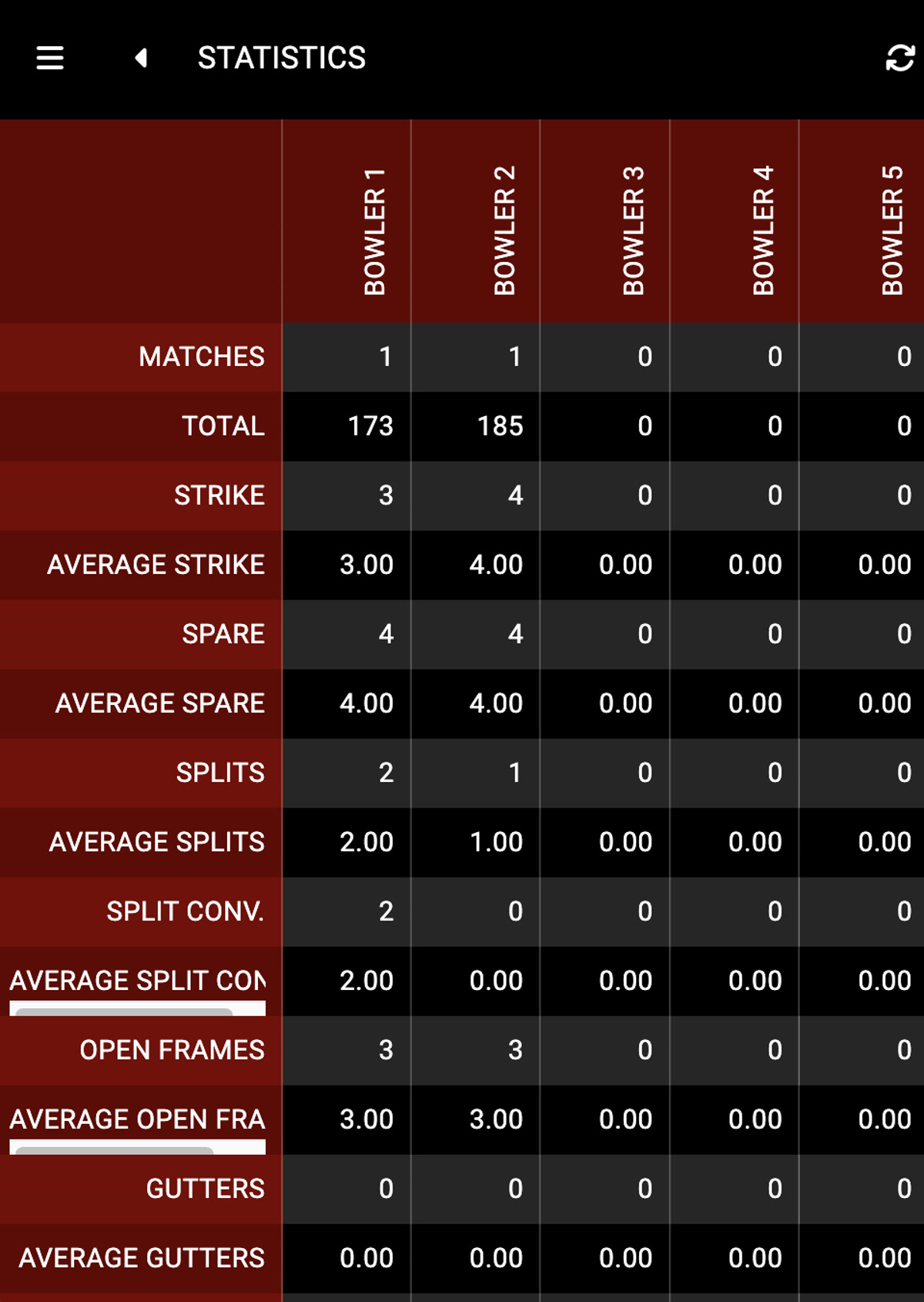
From this section it is possible to see all the statistics related to bowlers. Each row represents a specific statistic value while each column represents a player.
F.11 Call the waiter
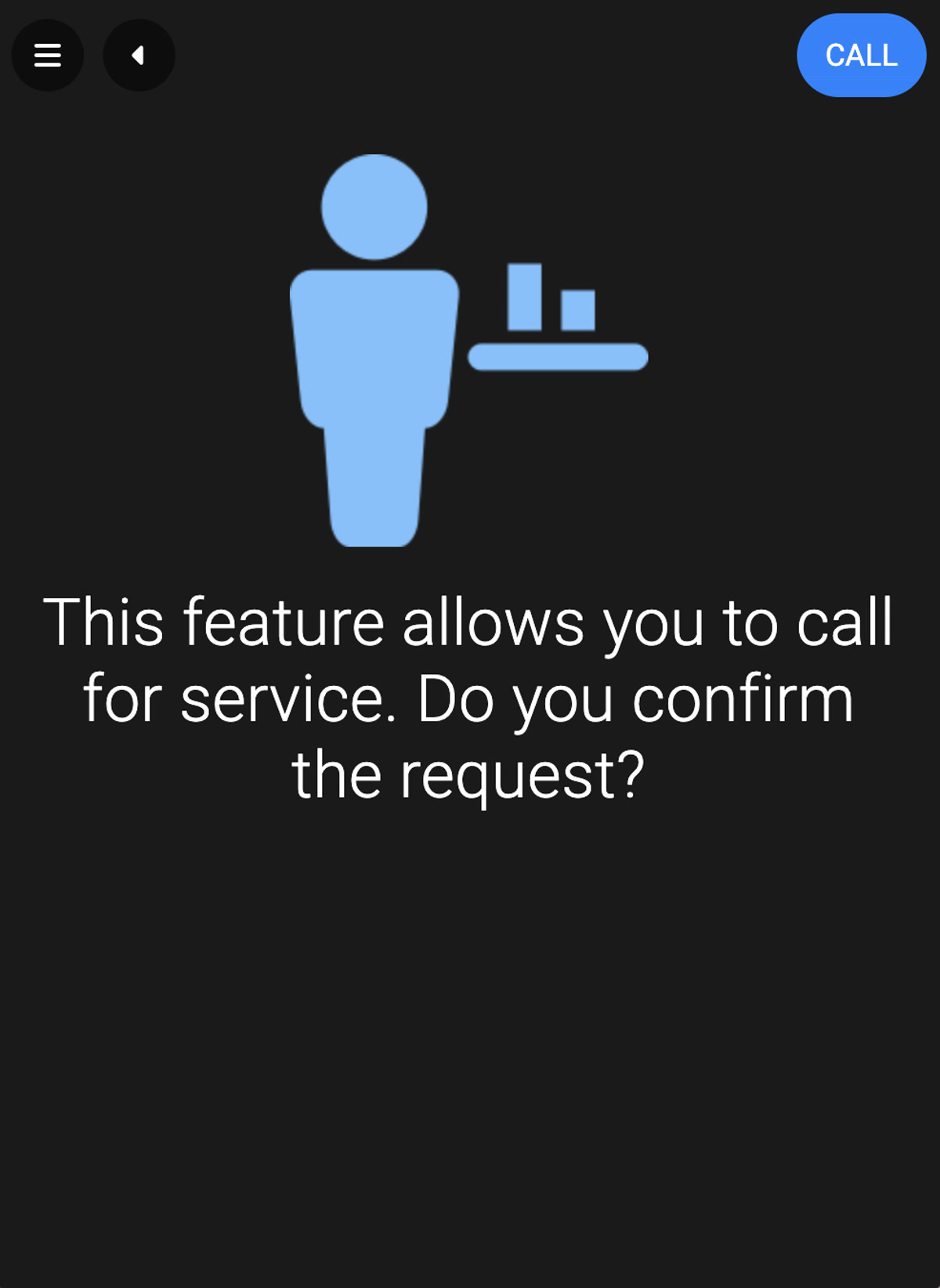
With this action it is possible to call the waiter for service. Click on the Call button to confirm the call.
F.12 Call the mechanic
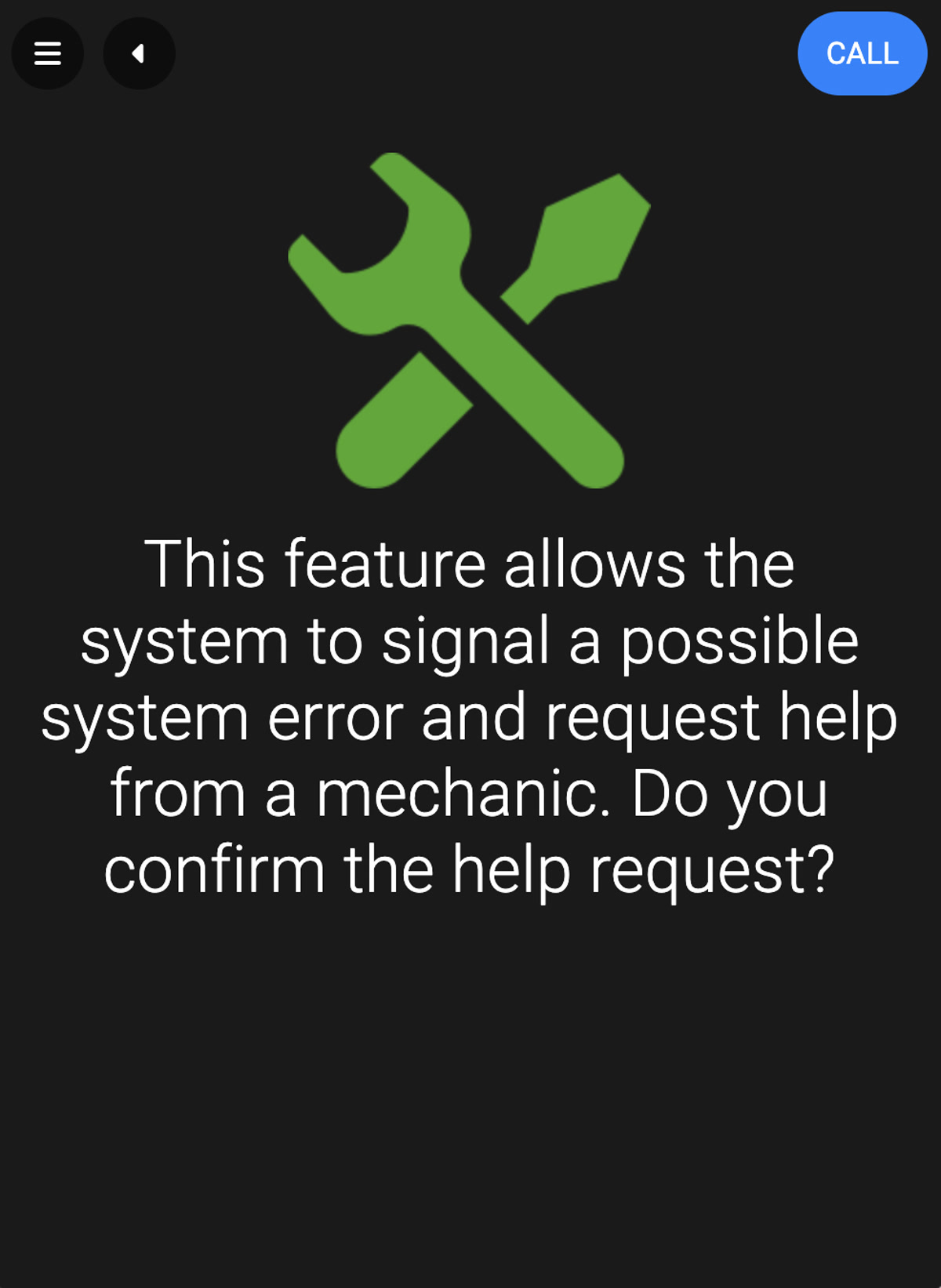
This feature allows the system to signal a possible system error and request help from a mechanic. Click on the Call button to confirm the call.