Genie allows the operator to define and manage a variable number of leagues. Each league can be composed of one or more weeks, usually played once per week. Each week can be defined through a certain number of teams which play on a set of games on one or more lanes. Genie can manage a series of standard rules related to the team movement on the lanes during the league. For instance, it is possible to define that, after a certain sequence of games, each team move right or left on lanes.
The course of a league is automatic. Genie will take care of creating new games and move teams, when necessary. However it is possible to disable the automatic progress of the league and keep it going manually.
Genie is also able to display the standings on the lane monitors during the league progress, and it is normally shown after each team has finished at least one game. Standings can be also displayed as a sliding text on the lower part of the lane monitors or with a full screen window at the end of games.
It is possible to enable a recap, which will be visualized on the lane monitors at the end of the league and at the end of a series of games without team movements.
14.1 League window
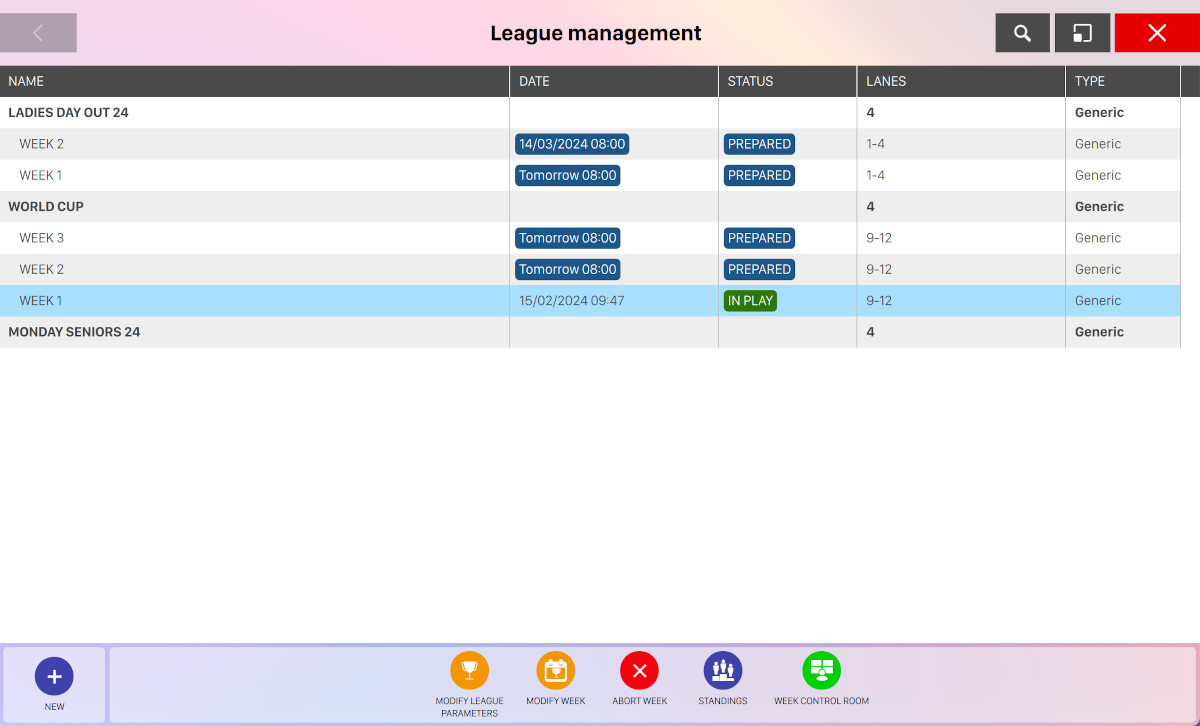
The league window allows you to create new leagues, manage weeks, participants and standings. Each league is listed on the main section of the window. Each row shows the name of the league and the list of created weeks. Each row heas the following columns:
-
Name: indicates the name of the league or the relative week
-
Date: indicates the start date of the week
-
Status: indicates the status of the week
-
Prepared: the week has been prepared and it is ready to be started
-
In play: the week is currently being played on the selected lanes
-
Finished: all the games of the week have been played so the week has been completed
-
On hold: the week has been suspended, it has been interrupted before its conclusion and can be resumed at a later time
-
-
Lanes: indicates the lanes where the week is being played
-
Type: indicates how the league has been created
-
Generic: the league has been manually created by the operator from the frontdesk
-
BLS: the league has been imported from a file exported by BLS software
-
By clicking on a league row a list of buttons will appear at the bottom of the window:
-
New: open a popover with three additional buttons
-
New league: allows to create a new league
-
New week: allows to create a new week
-
Create league from BLS file: search for files exported by BLS in order to automatically build a league with rules defined in BLS software. This button is available only if the BLS module is enabled from
Preferences > Advanced settings > BLS Interface. Contact customer service in case of necessity. By clicking this link a popup will be shown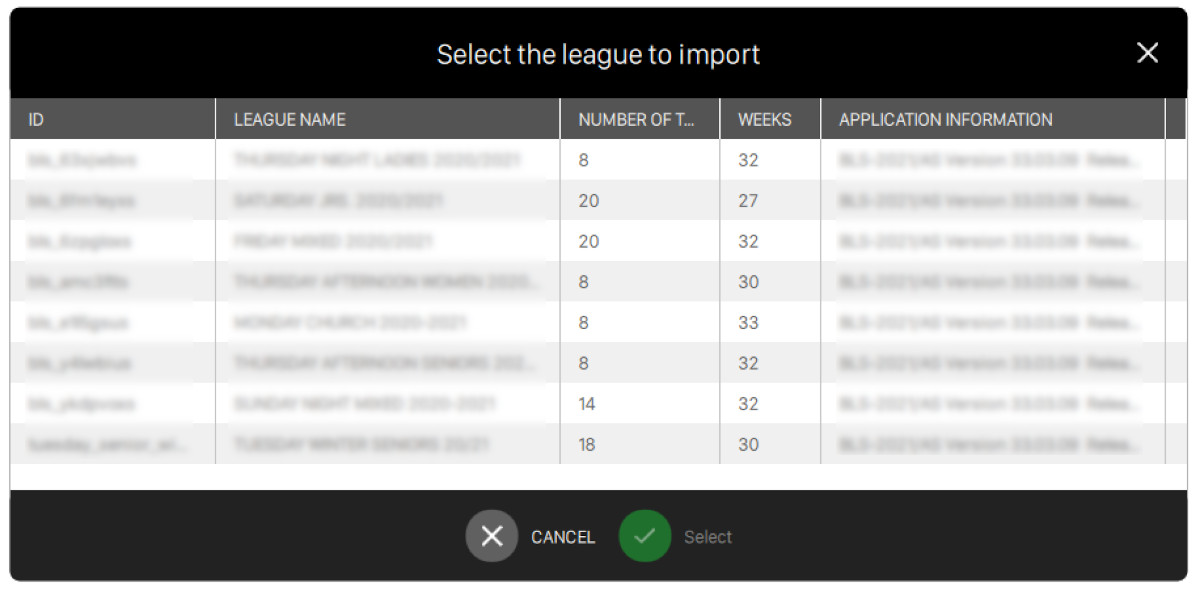
This window will show the list of BLS files that can be imported for creating a new league:
-
Id: the id of the file
-
League name: the name of the league
-
Number of teams: the amount of teams that will participate to the league
-
Weeks: the amount of expected weeks of the league. Please note that when you import from a BLS file you will import only one week
-
Application information: short summary about the software that exported the BLS file
-
-
-
Modify league parameters: allows to edit the selected league parameter
-
Delete: allows to remove the selected league or week. Note that it is not possible to remove a league with an active week
By clicking on a week row then a new set of buttons will appear at the bottom of the window:
-
Modify week: allows you to edit the week configuration
-
Restart week: resume the selected week if it is on hold. A confirmation popup will appear
-
Abort week: allows you to abort the selected week if the week has been already started
-
Standings: open the standings window
-
Week control room: open the week control window
-
Delete: if the week is not being played then allows to remove the selected week
-
Start week: if the week is not being played then allows to start the selected week
14.2 League definition
14.2.1 General settings
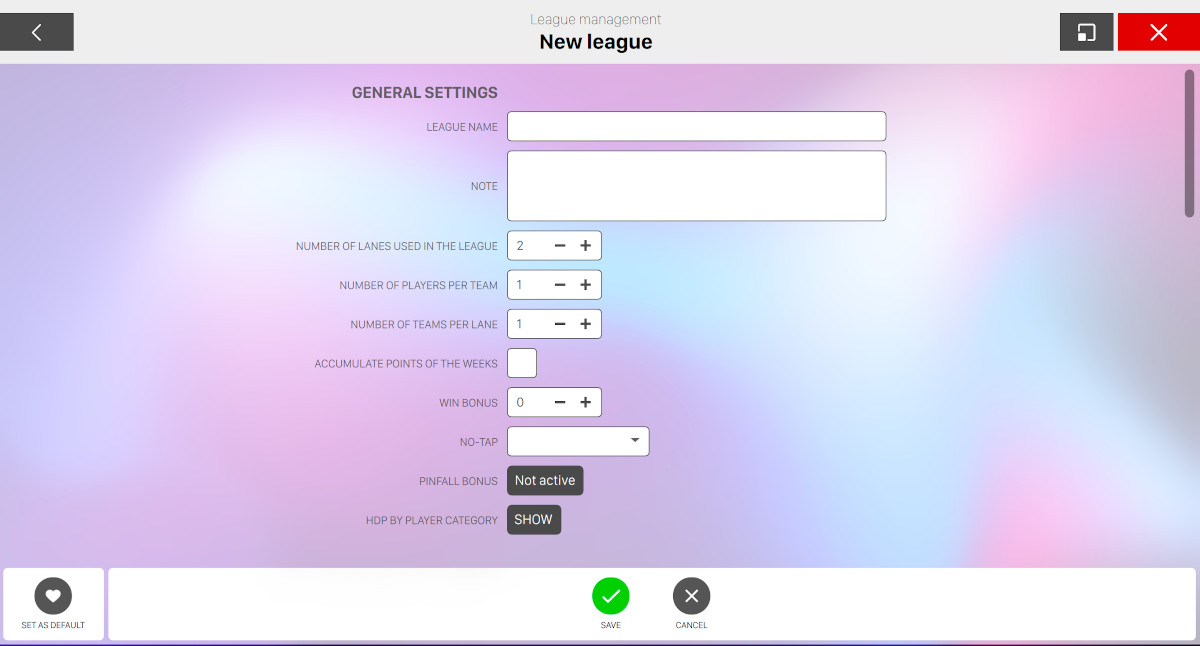
This window is used to configure the league general settings by by adding some parameters:
-
League name: this field is used to give the league a unique name and identification
-
Note: allows you to enter additional information and notes about the league
-
Number of lanes used in the league: determines the number of lanes used for the league. This value can be changed before each week is created
-
Number of players per team: determines the number of players for each participating team
-
Number of teams per lane: determines how many teams will be assigned to each lane for the week
-
Accumulate points of the week: if this option is checked the final standings of the league will be calculated by adding the scores from each previous week
-
Win bonus: (usually used when each team plays against all other teams) allows to award bonus pins to the score in the case of wins and draws. In case of draws the bonus will be splitted
-
No-tap: allows the ‘no-tap’ format to convert a specific number of pins knocked down to a strike (i.e. 9 pin no-tap, 8 pin no-tap, ...)
-
Pinfall bonus: in a league format where each participant plays one game against each of the other participants, it is possible to assign a bonus
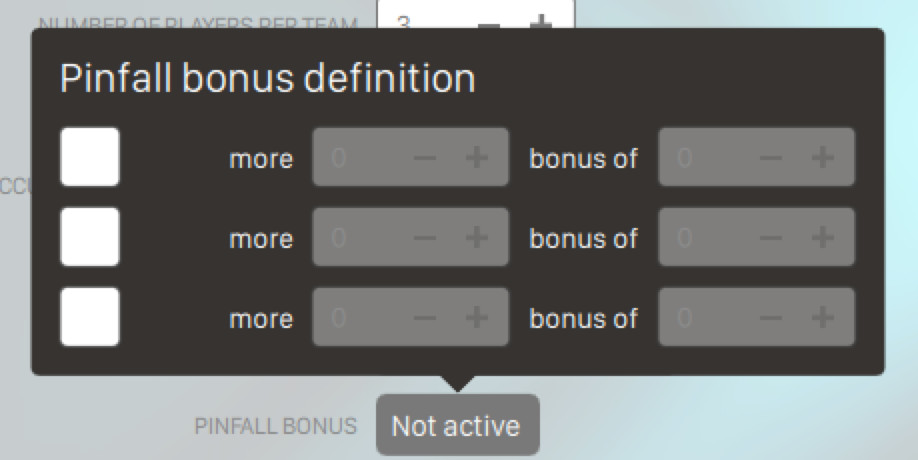
This window allows you to set pinfall bonus. Three bonus levels can be programmed and the amount of bonus pins can be selected for each level
-
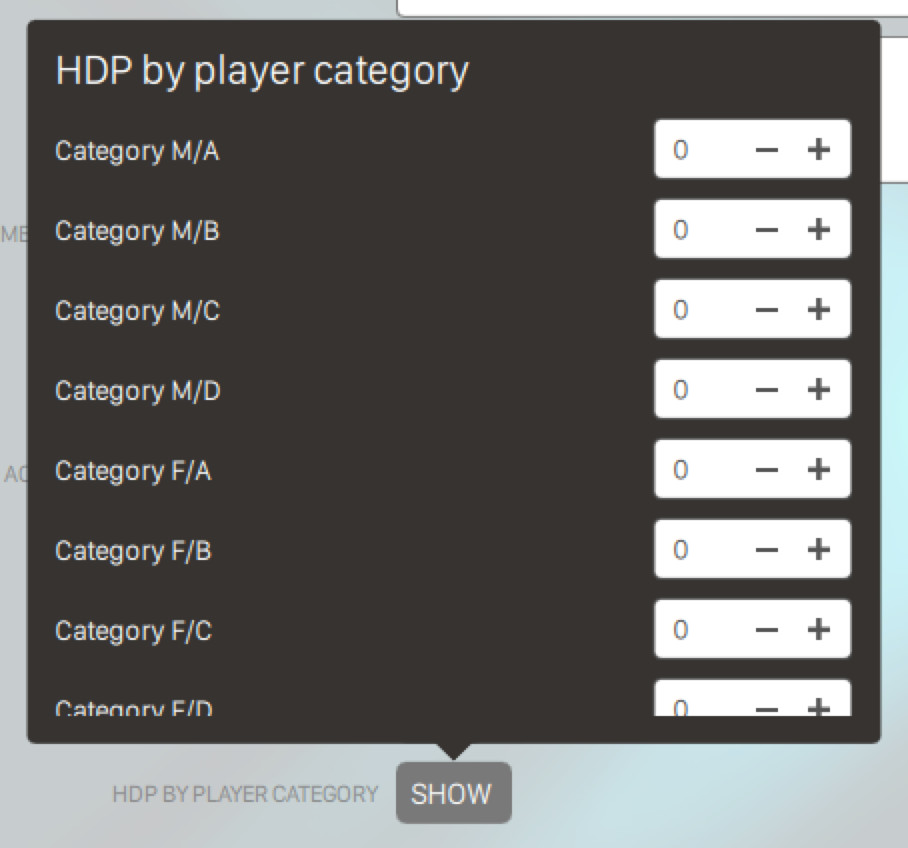
HDP by player category: allows to set handicap points to each player’s category for the specific league. For more informations about players categories see Players categories section
14.2.2 Lane Movement Parameters
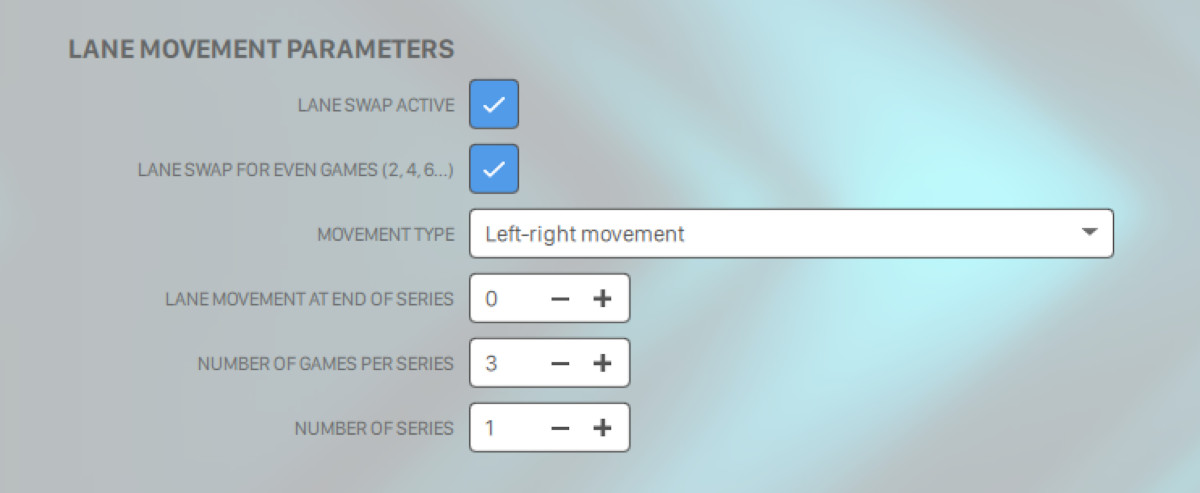
From this section you can customize parameters regarding the lane movements:
-
Lane swap active: indicates that alternate lanes will be used for each frame
-
Lane swap for even games (2, 4, 6, ...): indicates whether to swap on each even game
-
Movement type:
-
Left-right movement: indicates the movement direction of each player or of each team
-
Each team plays against all other teams: each team or player plays one game against all the other teams or players. A pin bonus is usually gained for wins and draws. Note that this option excludes all other lane swap parameters because the quantity of games and movements rules are calculated automatically. For instance if the week is set up with 8 teams, each team will play 7 games
-
Team on the left goes left, team on the right goes right: indicates the movement direction of each team/player
-
Team on the left goes right, team on the right goes left: indicates the movement direction of each team/bowler
-
-
Lane movement at end of series: shows the number of lanes that each team/bowler will be required to skip at the end of each series bowled. Note: negative values indicate to move to the left, positive values indicate to move to the right
-
Number of games per series: shows the number of games that will be played in each series
-
Number of series: shows how many series will be played. Note that movements will be made at the end of each series
14.2.3 Additional parameters
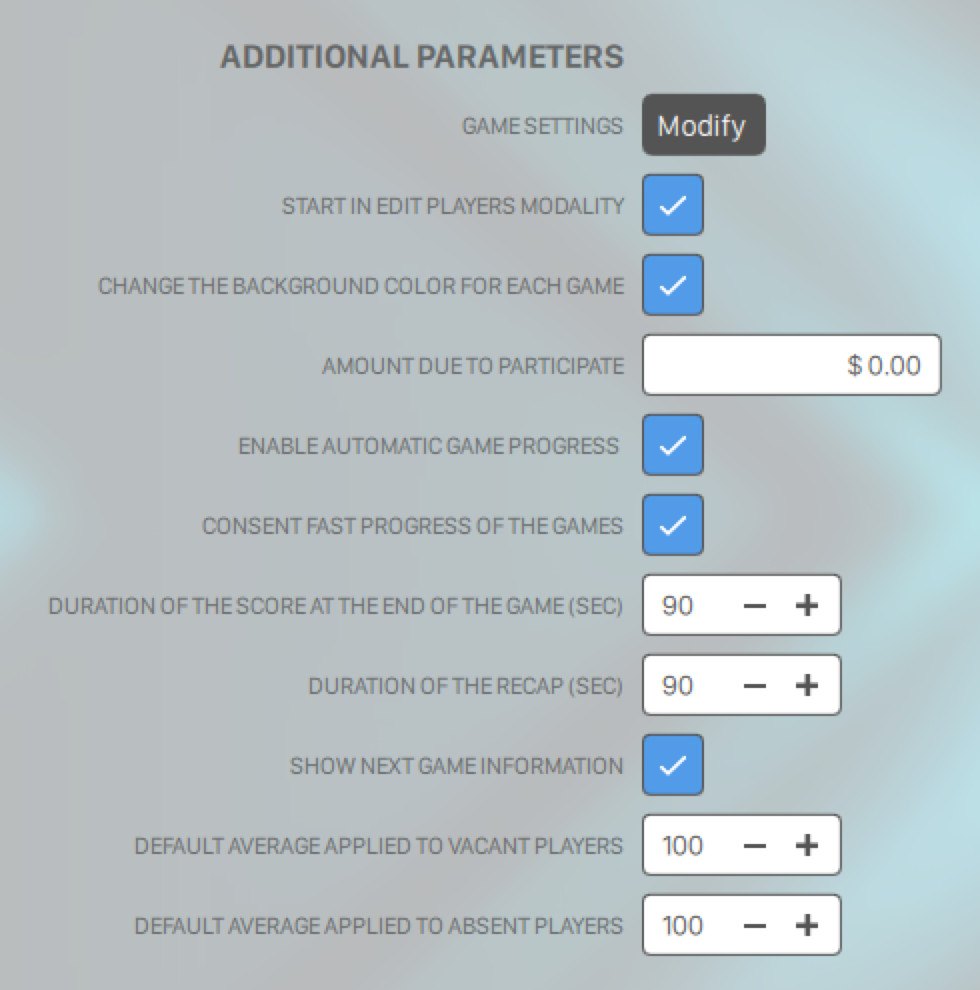
From this section you can customize additional parameters for the league:
-
Game settings: it takes to the Game settings screen window where it is possible to manage the lane monitor display and to enable special functions on the bowlers’ console. Note: the ‘Professional Graphic’ theme is automatically adopted by default for leagues. However, these settings can be modified
-
Start in edit players modality: set the league in ‘edit players’ mode. This mode allows players to change their own parameters (name, handicap, ...) from player console before the game starts. All games will be on this mode until ‘Start week’ button is pressed from ‘Week control’ page. If this flag is not active, games will be started automatically (or practice mode will be started if available) and in this case players will be able to update their data when the game is started
-
Change the background color for each game: allows you to have a different background for each game played
-
Amount due to participate: this indicates the amount of money that each players has to pay to participate to the league
-
Enable automatic game progress: this option allows the software to automatically start a new game at the end of each game. If this option is not selected the system will not continue automatically with the next game of the week; this must be done manually from the frontdesk in the week control window
-
Consent fast progress of the games: when a team has finished a game this option allows the team to proceed to the next lane and to start bowling immediately when the next lane is free. If this option is not selected, each team has to wait for all the other teams to finish the same game before playing the next one
-
Duration of the score at the end of the game (sec): indicates for how many seconds the score remains on the monitor at the end of a game, before showing the recap or standings page
-
Duration of the recap (sec): indicates for how many seconds the recap remains on the monitors at the end of a series of games
-
Show next game information: it shows on the monitor the lane number for the next game
-
Default average applied to Vacant players: represents the default score assigned to vacant players
-
Default average applied to Absent players: represents the default score assigned to absent players
14.2.4 Automatic standings
-
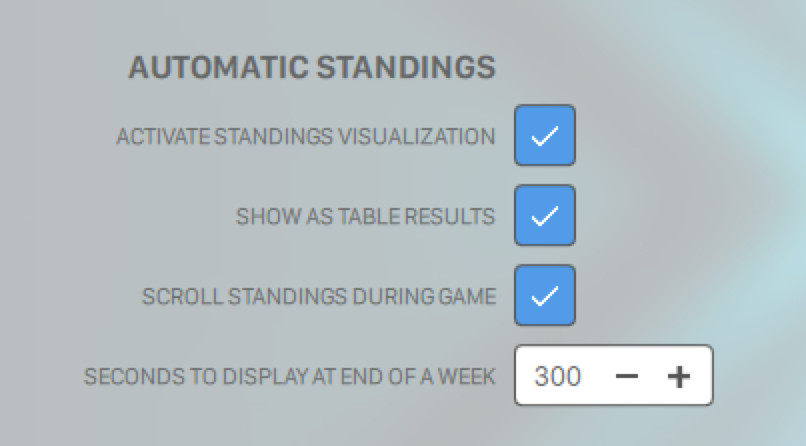
Activate standings visualization: enables the calculation of the standings and displays them on the monitors
-
Show as table result: shows the score on the monitor in a table format
-
Scroll standings during game: allows the current standings to be scrolled on the lower part of the monitors during the league
-
Seconds to display at end of a week: indicates how long the standings will be displayed on the monitors at the end of each week
14.2.5 Practice
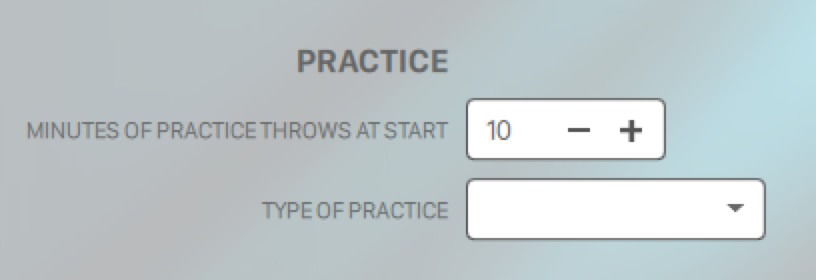
-
Minutes of practice throws at start: allows you to set the amount of time for practice before the start of the week
-
Type of practice: allows you to choose the type of practice from three options:
-
Strike cycle: the pinsetter spots a full rack of pins after each ball
-
Normal cycle: the pinsetter cycles after each ball
-
Pinsetter stopped: no pin on the lane
-
Once you have completed all the configurations, at the bottom section of the window you can click:
-
Save: saves the current changes
-
Cancel: discard the current changes
-
Set as default: (bottom left) set the configured parameters as default for next leagues creations
14.3 Week Definition
From the league management window click on a league row and then click on the New button and again on the New week button. A popup will appear:
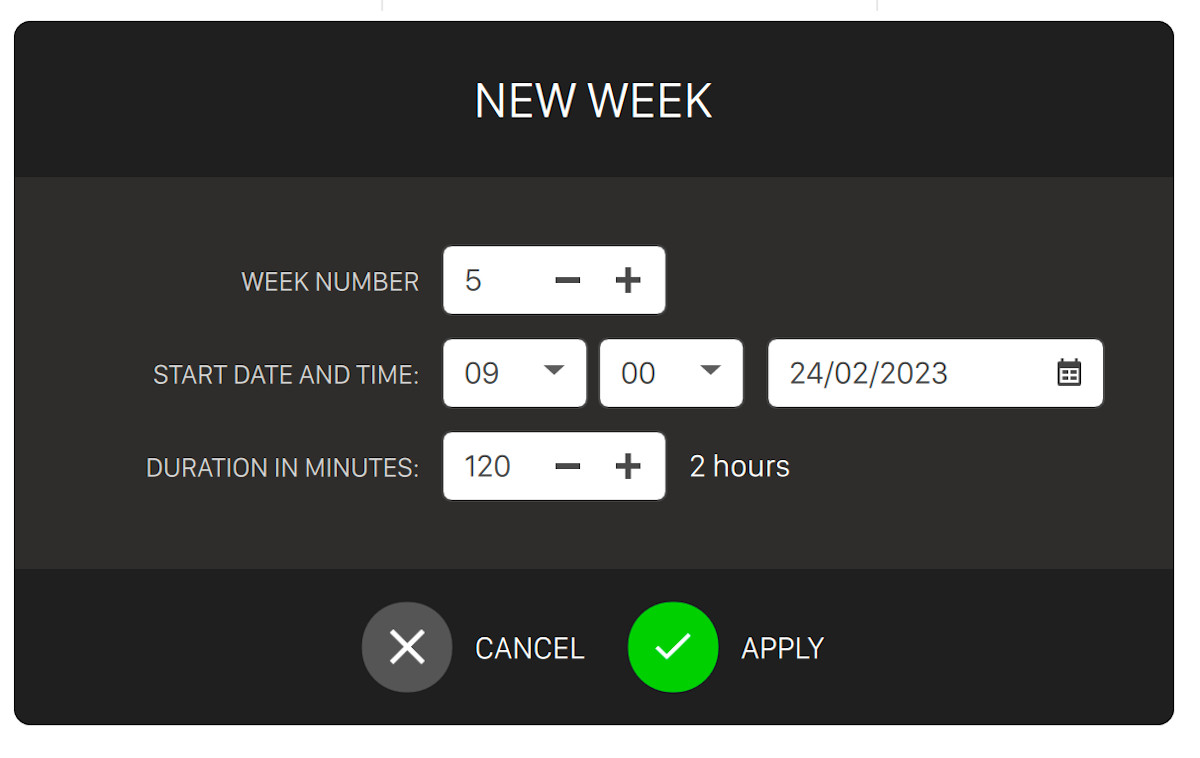
From this window you have to enter:
-
Week number: select a number to identify the week. Number usually should be progressive
-
Start date and time: set the date and time when the week will be started
-
Duration in minutes: set the duration of the week in minutes
Click on Apply button to create the new week or Cancel to discard the operation.
After a week has been created you can select it from the league management window and click on modify button. This will take you to the week definition page:
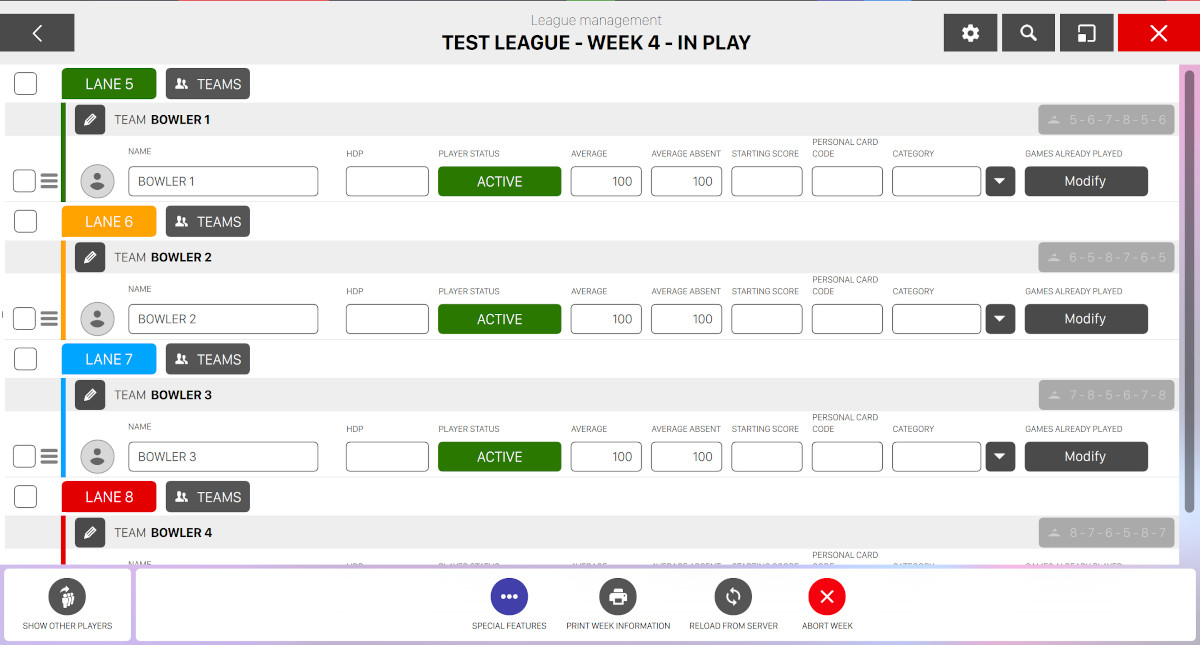
From this window you can setup all the information about players and team of the selected week. Right before each team name you can find a button with a pencil icon. Click it to open the team management popup:
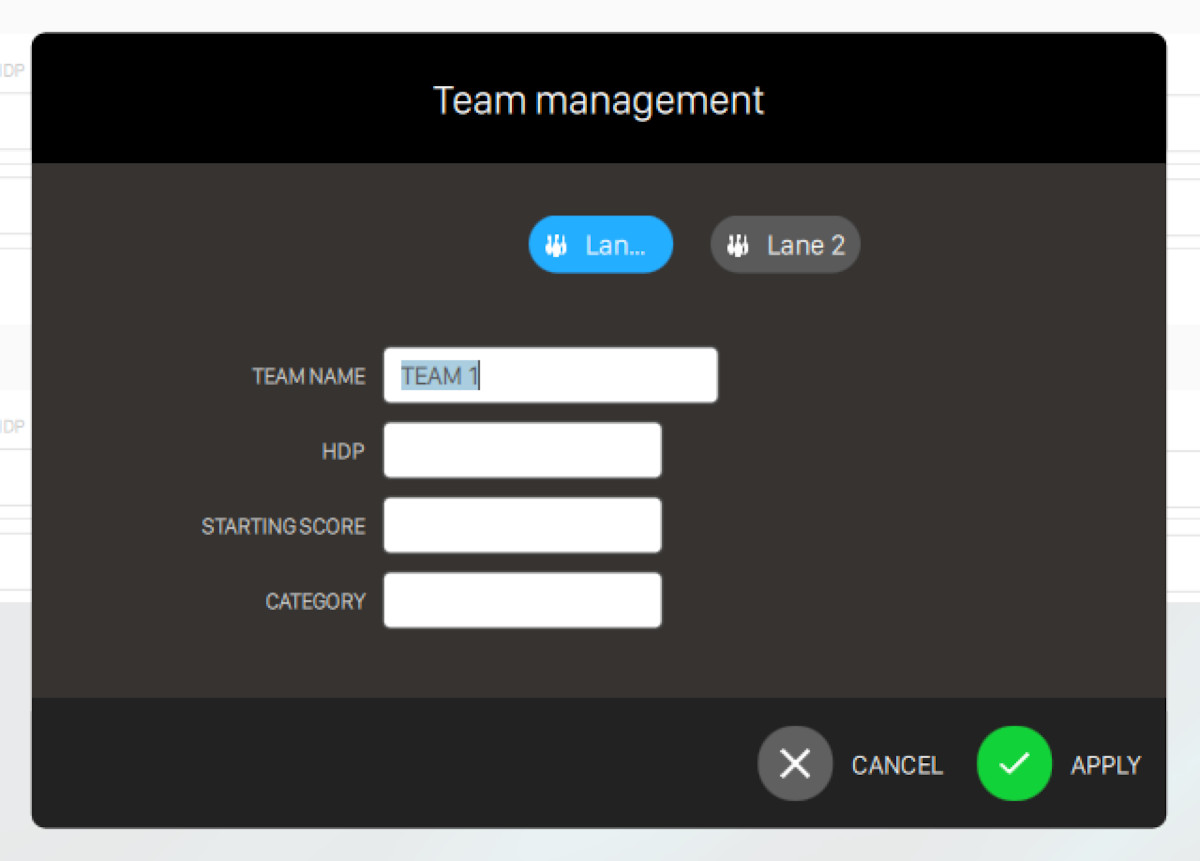
From this window you can switch from a lane to another by clicking on the relative button. Once you have selected the lane then you can customize the team settings:
-
Team name: set the name of the team
-
HDP: set the handicap points
-
Starting score: set the starting score
-
Category: set the category to the team. This will be useful on the standings page for filtering
Click on Apply button to confirm the changes or Cancel to discard them.
For each player on each team you can edit the following information:
-
Click on the checkbox to select multiple players at update the information at once
-
Click on the three lines icon to drag&drop the player and change its position or move him to another team
-
Click on the profile image to choose a player from the player archive or insert a new one
-
Name: set the name of the player
-
HDP: set the handicap value
-
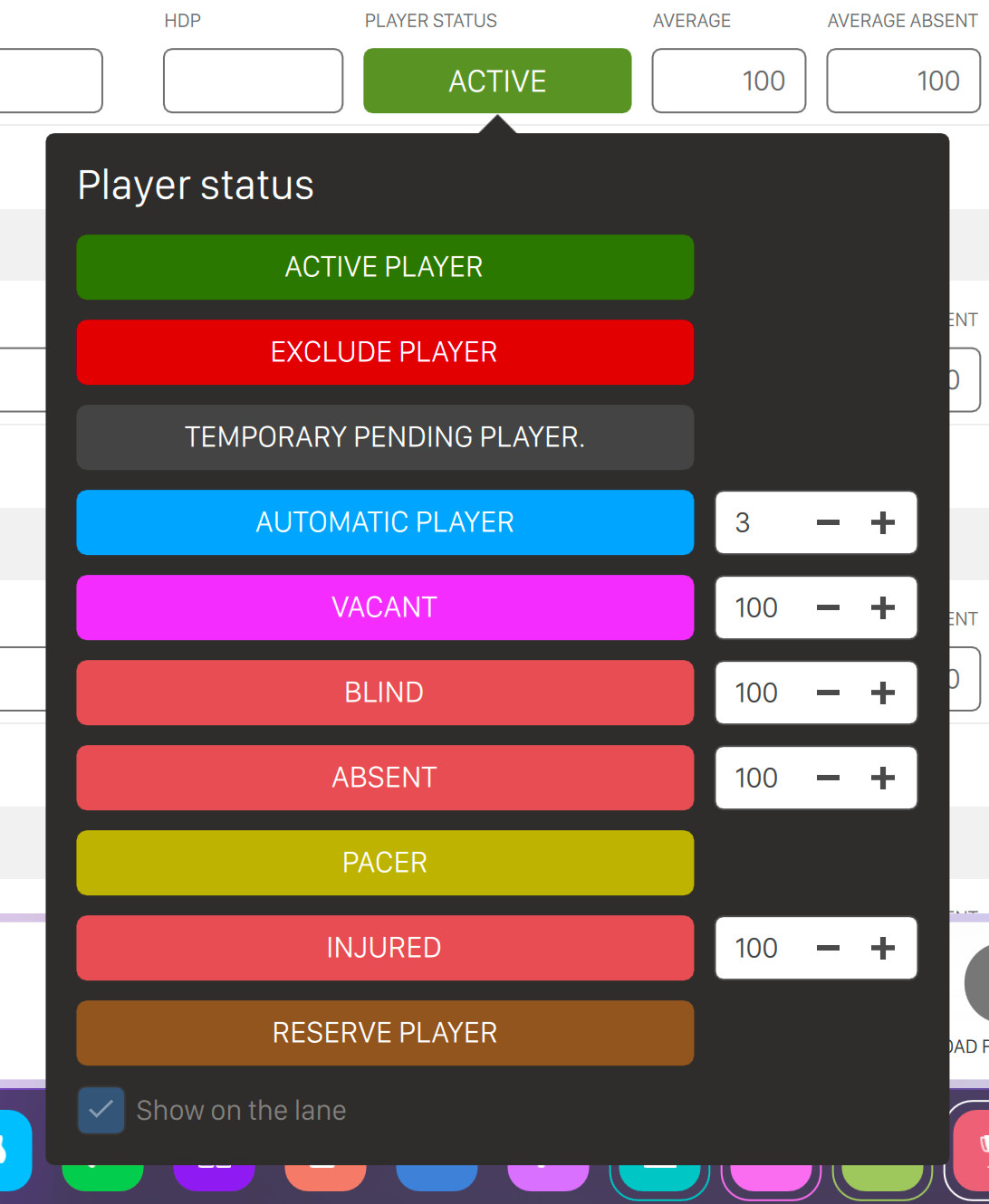
Player status: set the player status among the following options
-
Active
-
Excluded
-
Temporary pending
-
Automatic: with this status you can set the CPU level
-
Vacant: with this status you can set the average
-
Blind: with this status you can set the average
-
Absent: with this status you can set the average
-
Pacer
-
Injured: with this status you can set the average
-
Reserve
-
-
Average: set the average score of the player
-
Average absent: set the average score of the player when absent
-
Starting score: set the starting score of the player
-
Personal card code: card code that will be displayed on the reports
-
Category: set the category of the player. Click on the arrow-down button to choose the category from the list. For more information about player categories definition see section player categories
-
Participation fee: redirects to the income table window where it is possible to collect the required participation money for the selected player
-
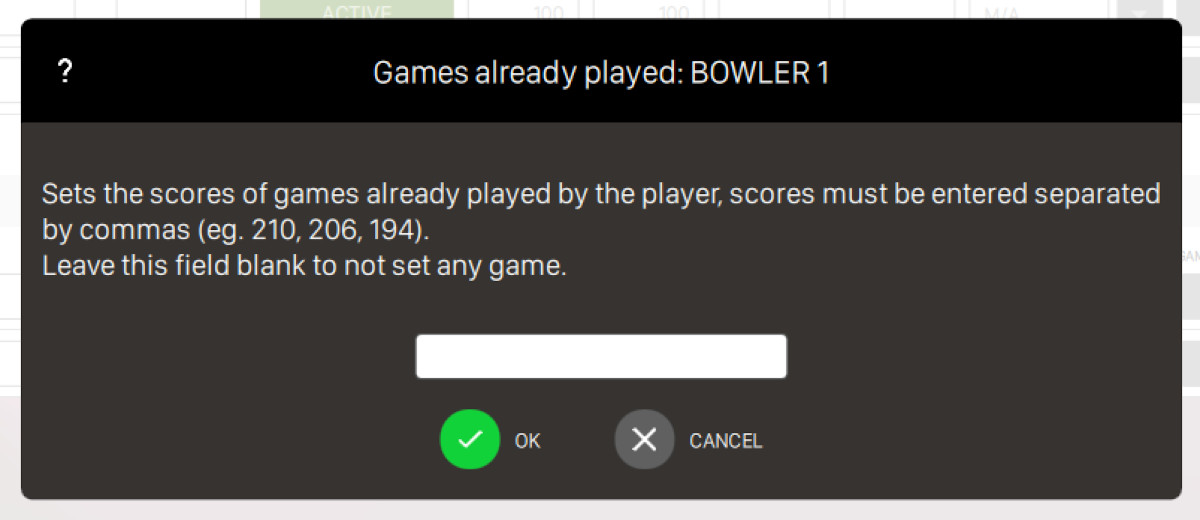
Games already played: if click on modify button then a popup will appear. Sets the score of games already played by the player. Scores must be entered separated by comma (e.g. 210,206,194). Leave this field blank to not set any game
On the bottom area of the window you can find a list of actions you can perform on the current page:
-
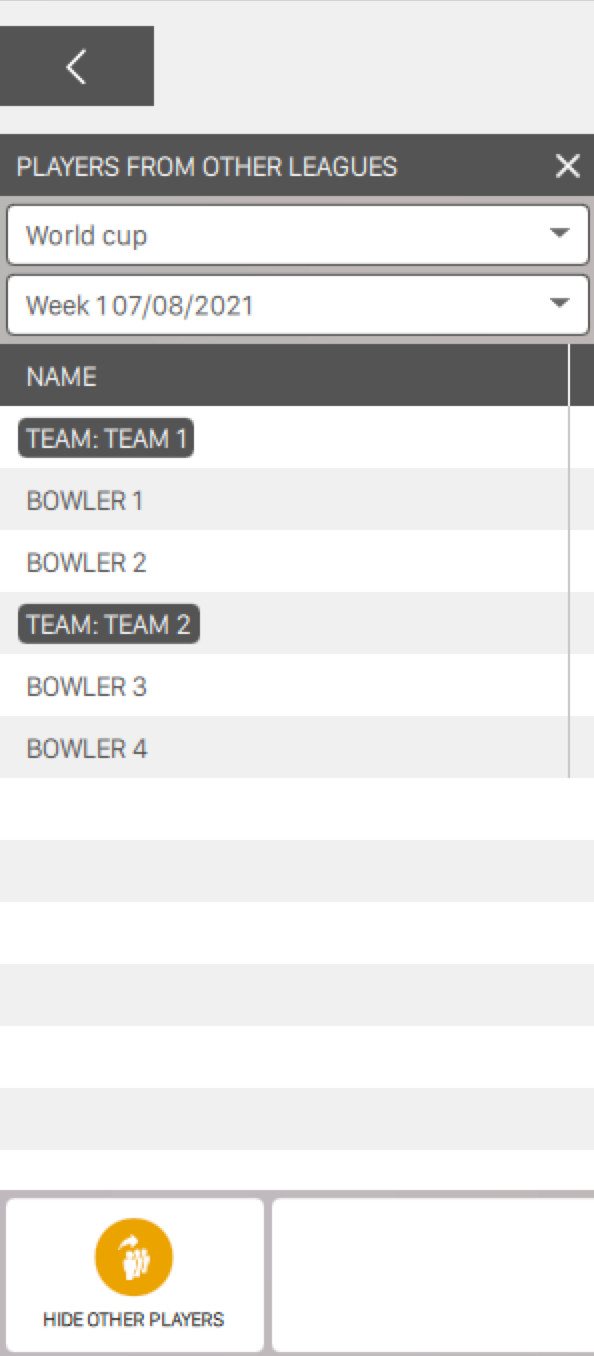
Show other players: open a sidebar on the left side of the window where it is possible to see players from other leagues or weeks
-
Select a league: click on the dropdown to select an existing league from the list
-
Select a week: after selecting the league click on the dropdown to select an existing week from the list
-
-
Special features: click on this button to open a popover with other actions:
-
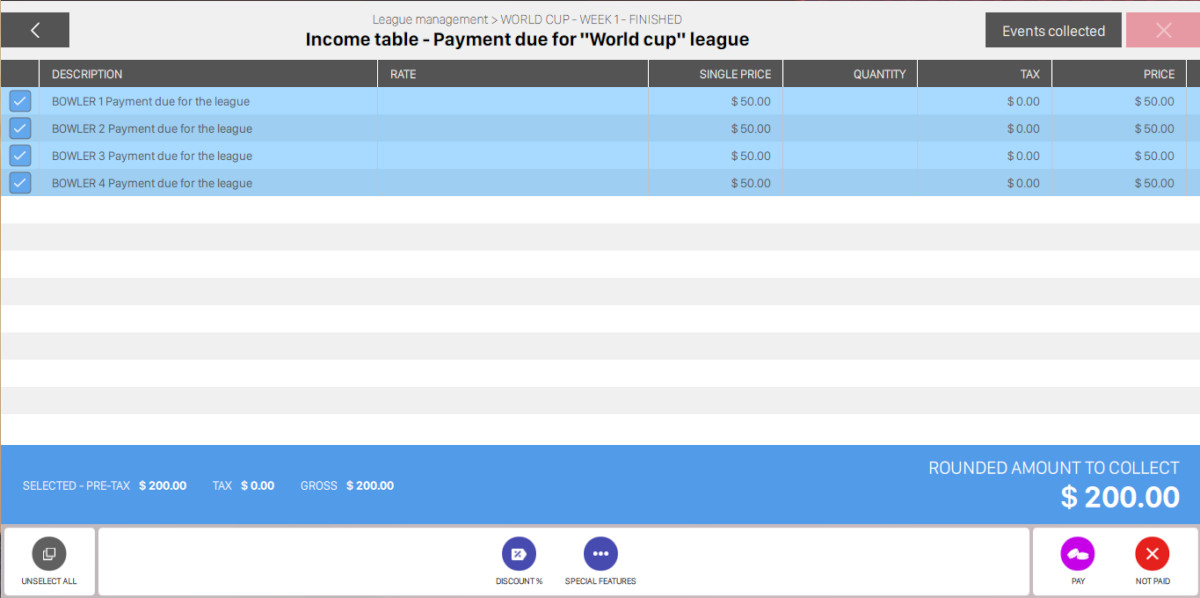
Take participation money: redirects to the income table window where it is possible to collect the required participation money for the league
-
Change the start date: allows to change the start date and time of the week if it has not been started yet. A popup will appear where it is possible to select a new date from a calendar
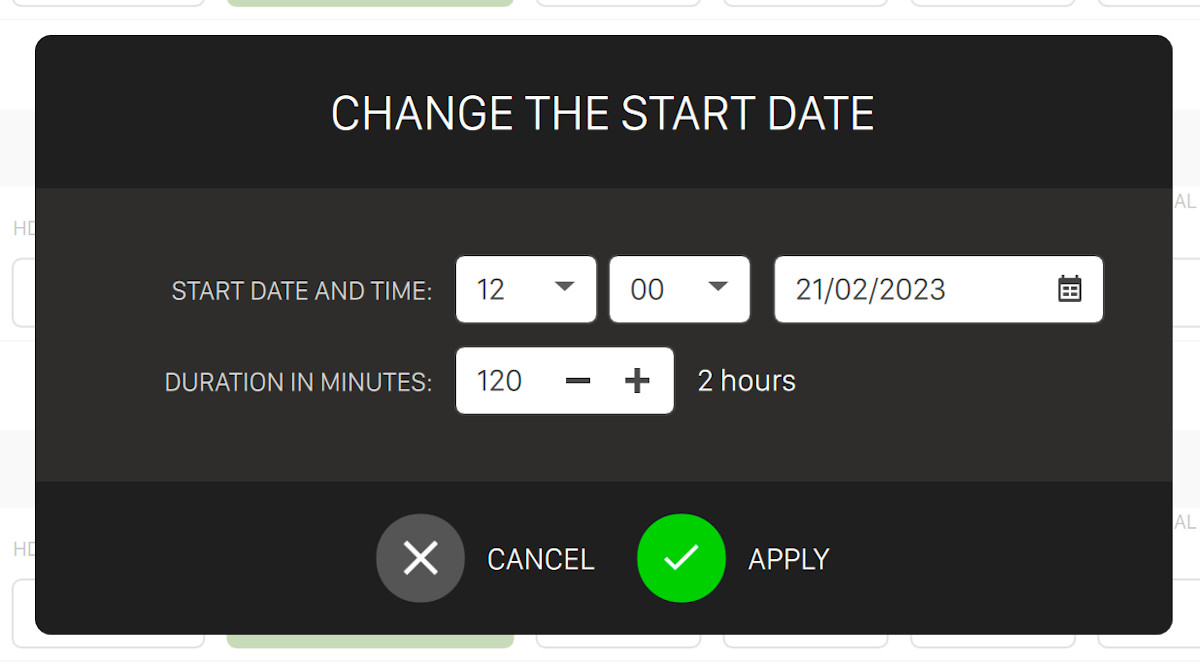
Click Ok button to confirm the start date change
-
Change lanes: allows you to change the lanes where the week will be played. A lane selector popup will be displayed
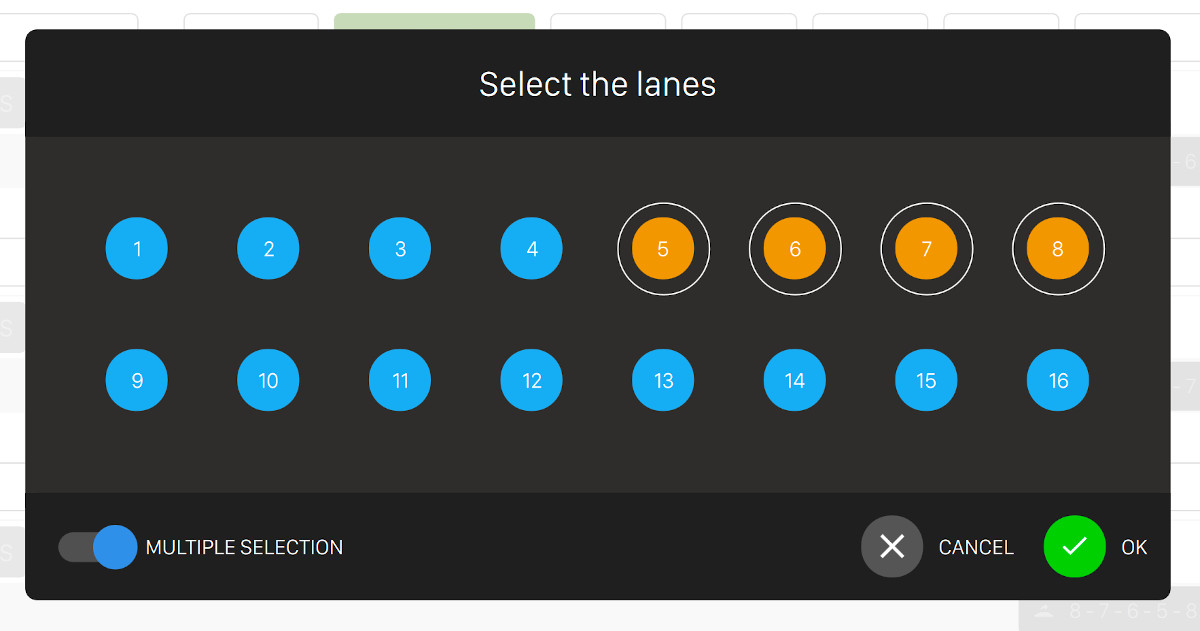
Select the lanes where you want the week to be played and press Ok button to confirm the changes
-
Movement rules: allows you to change the movement rules of the current week. A configuration popup will be displayed
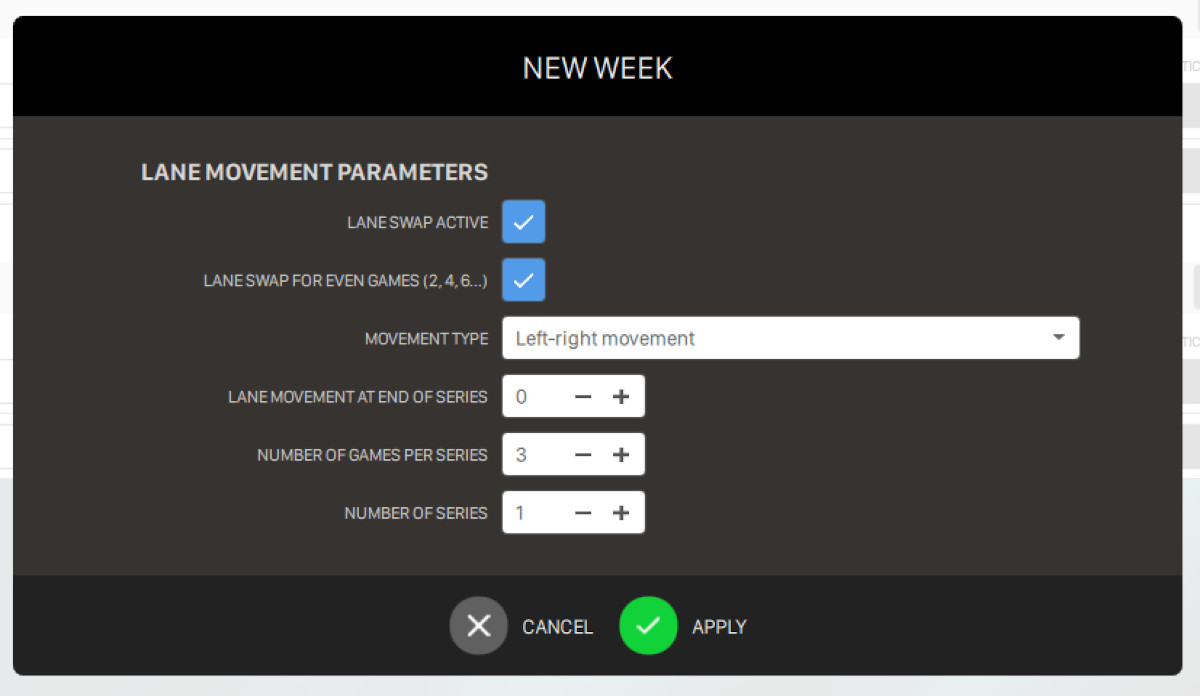
-
Lane swap active: check this option to enable the lane swap. This mean that each player will have to switch the lane after each throw
-
Lane swap for even games: means that each team must change the lean on each even game
-
Movement type: indicates the movement type for the lane swap among the following options:
-
Left-right movement
-
Each team plays against all other teams
-
Team on the left goes left, Team on the right goes right
-
Team on the left goes right, Team on the right goes legt
-
-
Lane movement at end of series: shows the number of lanes that each team/bowler will be required to skip at the end of each series bowled. Note: negative values indicate to move to the left, positive values indicate to move to the right
-
Number of games per series: shows the number of games that will be played in each series
-
Number of series: shows how many series will be played. Note that movements will be made at the end of each series
-
-
Random lane draw: randomly assign the lane number to the team
-
-
Print week information: allows you to generate a pdf report of the current week
-
Reload from server: refresh the current window and reload data from server
-
Start week: if the week has not been already started then this action allows you to start the current week
-
Abort week: if the week has been already started then this action allows you to abort the current week
14.4 League standings
From the league management main window select a week from the list. On the bottom area of the window the standings button will appear. Click this button to access the standings window:
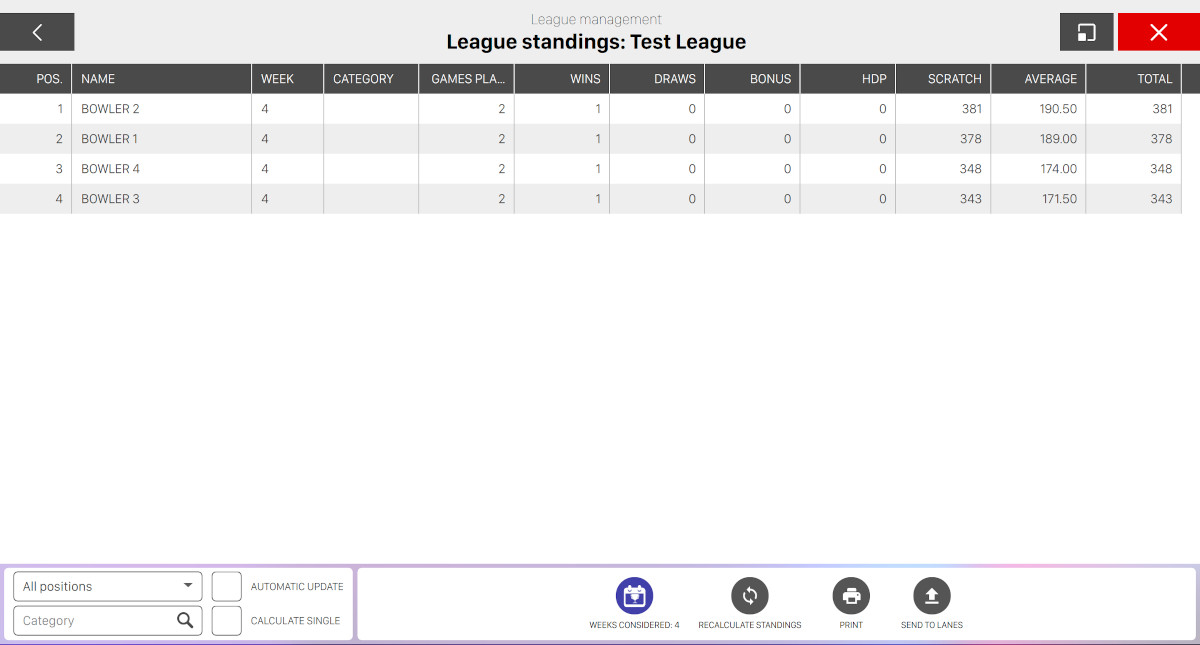
From this window you can see the standings for the current league and for the selected week(s). On the central area you can see a table containing the standings:
-
Position: indicates the position on the standing
-
Name: indicates the name of the team or the player
-
Week: indicates the week number
-
Category: indicates the category of the team or the player
-
Games played: indicates the amount of games played
-
Wins: indicates the amount of games won
-
Draws: indicates the number of games ended in a draw
-
Bonus: indicates the cumulative amount of bonus collected so far. Bonus points can be defined at the league configuration state
-
HDP: indicates the handicap of the team or the player
-
Scratch: indicates the amount of score collected without considering score modifiers like handicap or initial score
-
Average: indicates the average score of all games
-
Total: indicates the total score of all games
On the bottom left area of the window you can find some options to filter the standings:
-
Position: select how many positions to show on the standings
-
All positions: show all positions
-
First position: show only the first position
-
First 2 positions: show only the first two position
-
First 3 positions: show only the first three positions
-
First 5 positions: show only the first five positions
-
First 10 positions: show only the first ten positions
-
First 15 positions: show only the first fifteen positions
-
First 20 positions: show only the first twenty positions
-
First 30 positions: show only the first thirty positions
-
First 50 positions: show only the first fifty positions
-
-
Category: enter a category name. The standings will show only teams/players that match with the provided value
-
Automatic update: check this option to enable automatic update of the standings page
-
Calculate single: if this option is checked then the standings will show information related to the single player instead of the single team
On the bottom right area of the window you can find some actions you can perform on the standing window:
-
Weeks considered: click on this button to select which weeks of the league to consider for the standings
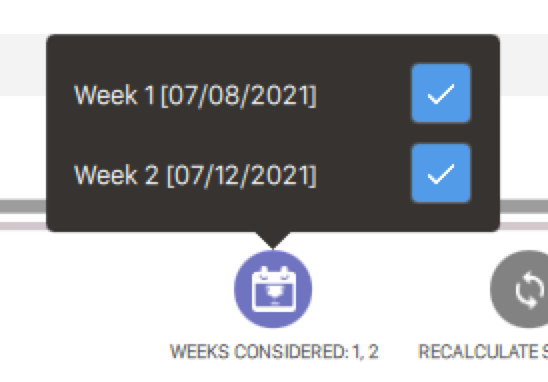
-
Recalculate standings: click on this action to refresh the current standings window
-
Print: click on this action to choose among different print types for the current standing
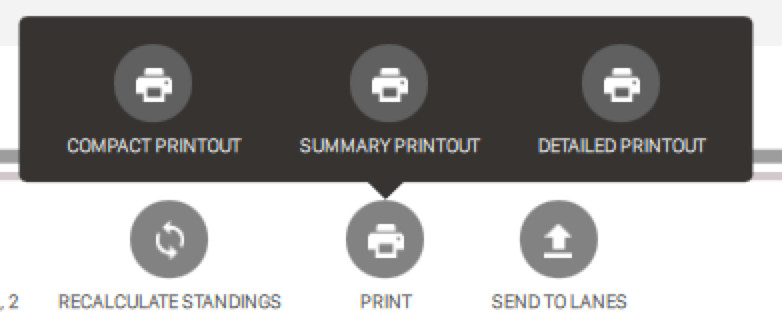
-
Compact printout: generates a pdf report with compacted information layout of the current standing
-
Summary printout: generates a pdf report with information on the team and each player
-
Detailed printout: generates a pdf report with information on the team, each player and the detailed score of each game
-
-
Send standings to lanes: allows you to display the current standings to the lanes’ monitors
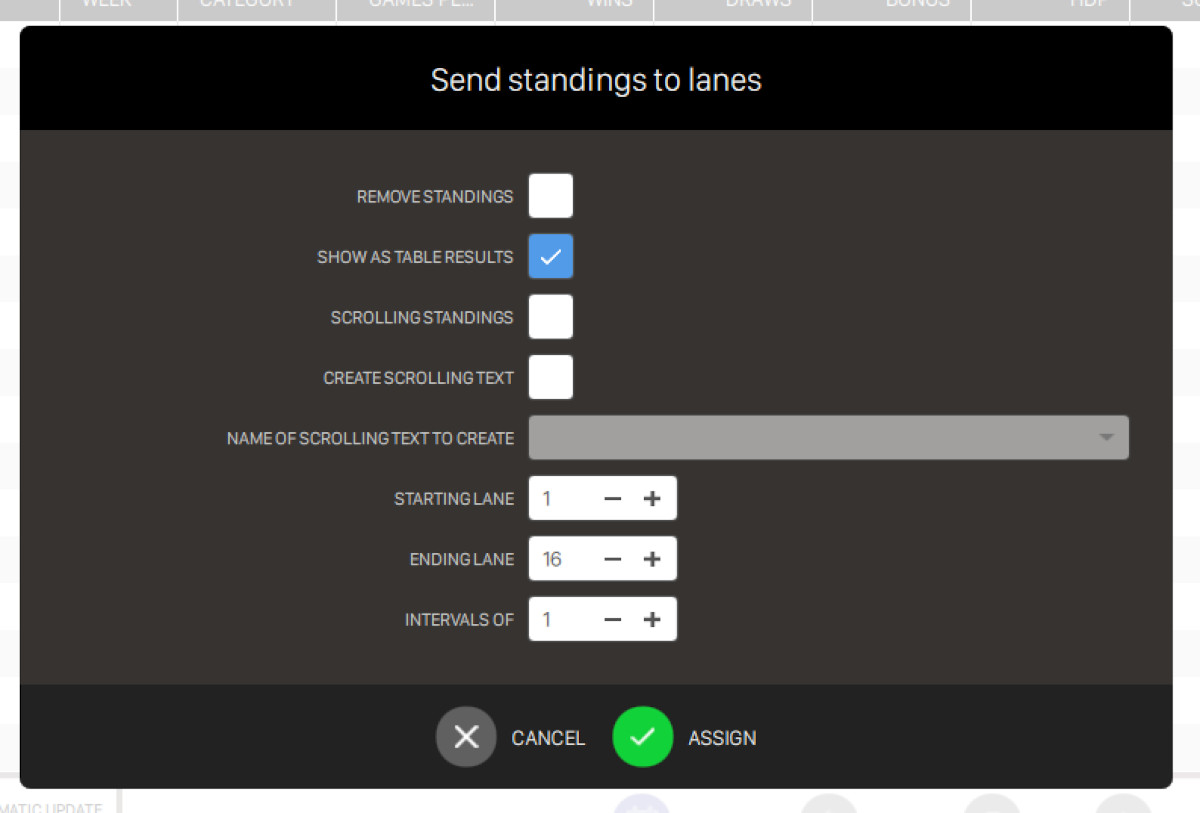
-
Remove standings: allows you to remove the standings from the lanes’ monitors
-
Show as table result: if this option is checked then the standings will be displayed as a full-screen table on the score viewer
-
Scrolling standings: if this option is checked then the standings will be displayed as a scrolling text on the bottom area of the score viewer
-
Create scrolling text: check this option if you want to create a scrolling text automatically filled with the league standings. After checking this option you will be asked to enter a name for the scrolling test. Click on create scrolling text button at the bottom of the window to create the scrolling text. For more information on how to manage scrolling texts please visit the proper section
-
Starting lane: set the starting lane of the lane range where to display the standings
-
Ending lane: set the ending lane of the lane range where to display the standings
-
Intervals of: Sets the interval of the lane range
-
Important: Filters applied to standings (position limit and category) are also applied when:
-
Printing reports (Compact/Summary/Detailed)
-
Sending standings to lane displays
-
Creating scrolling text
This ensures consistency between on-screen view and printed/displayed content.
14.5 Week control
From the league management main page select a week that has not been finished yet and click on Week control room button on the bottom area of the window.
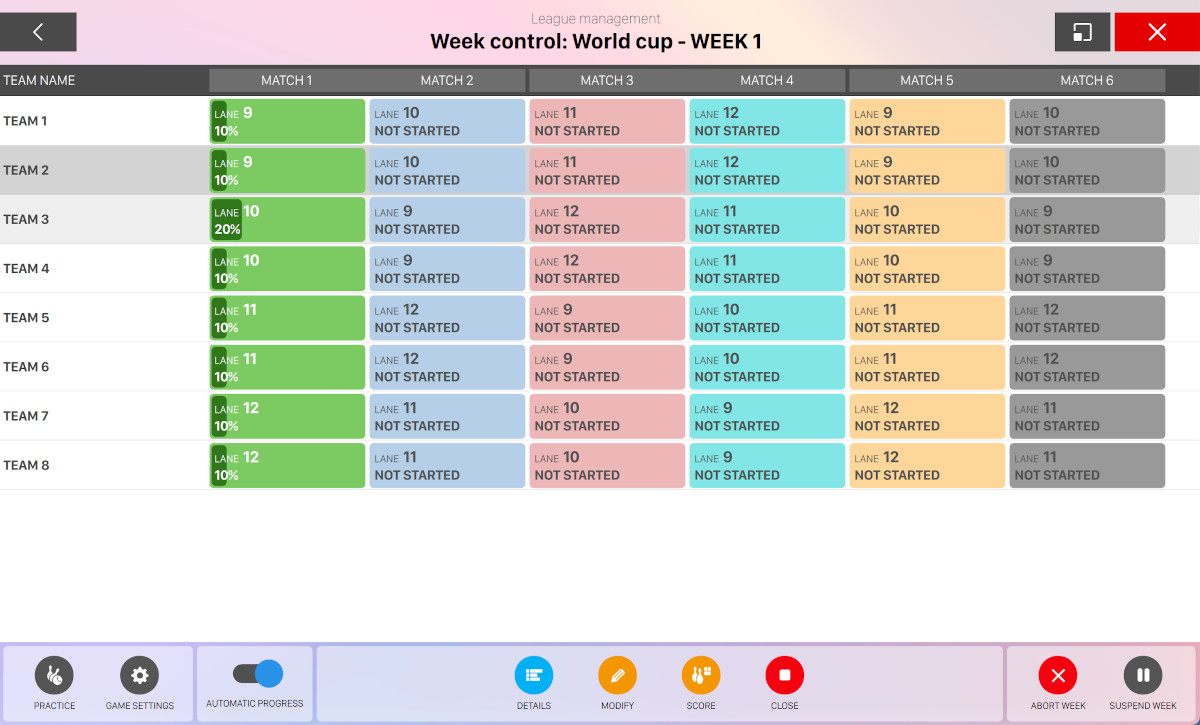
From this window it is possible to control the selected week by editing each single team. On the central area you can find the list of teams that will participate to the selected week. For each team you can read the following information:
-
Name: the name of the team
-
The sequence of matches that will be played, with the relative status and progress. Eeach grid item is displayed with a different background color and you can see the following information:
-
The lane where the match is being played
-
The status of the match
-
The percentage of progress of the match
-
If you click on a team row then you will see an additional list of actions on the bottom side of the window:
-
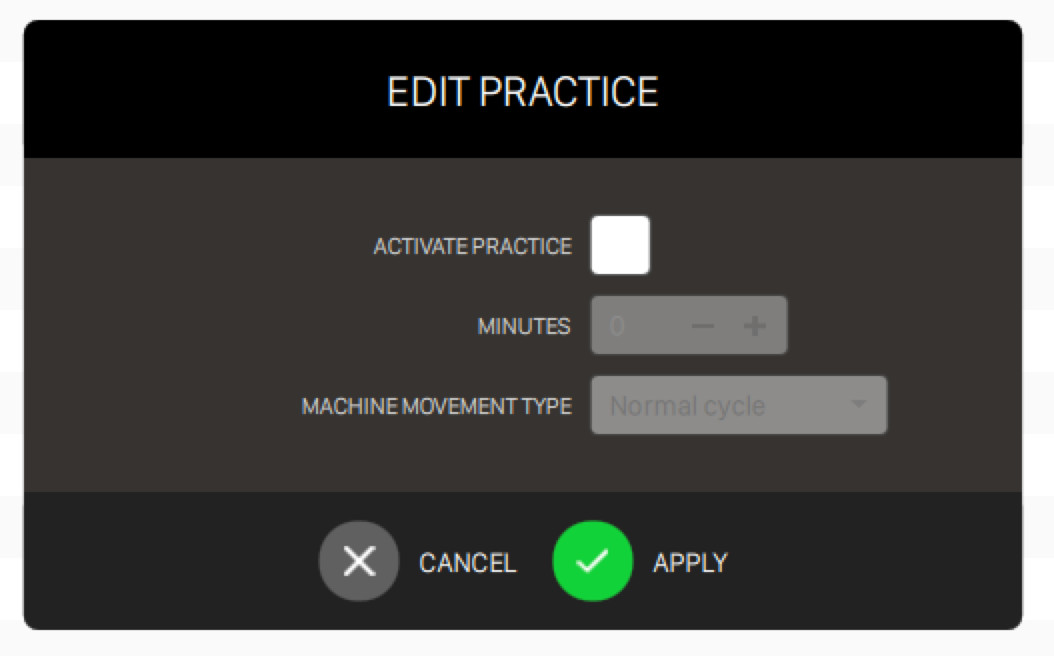
Practice: allows you to edit practice parameters for the current week
-
Activate practice: check this option to enable or disable practice for the current week
-
Minutes: set the amount of minutes for the practice
-
Machine movement type: indicates the type of practice time, the options are:
-
Strike cycle: the pinsetter spots 10 pins after each shot
-
Normal cycle: the pinsetter cycles after each shot like a normal frame
-
Pinsetter stopped: the pinsetter does not cycle
-
-
-
Game settings: redirects you to the Game Settings page from where you can edit all the game parameters
-
Automatic progress: this action will activate the automatic progress of the games. If the week is in manual progress then in order to proceed with the next game it will be necessary to press the manual progress button
-
Modify: redirects you to the match definition page:
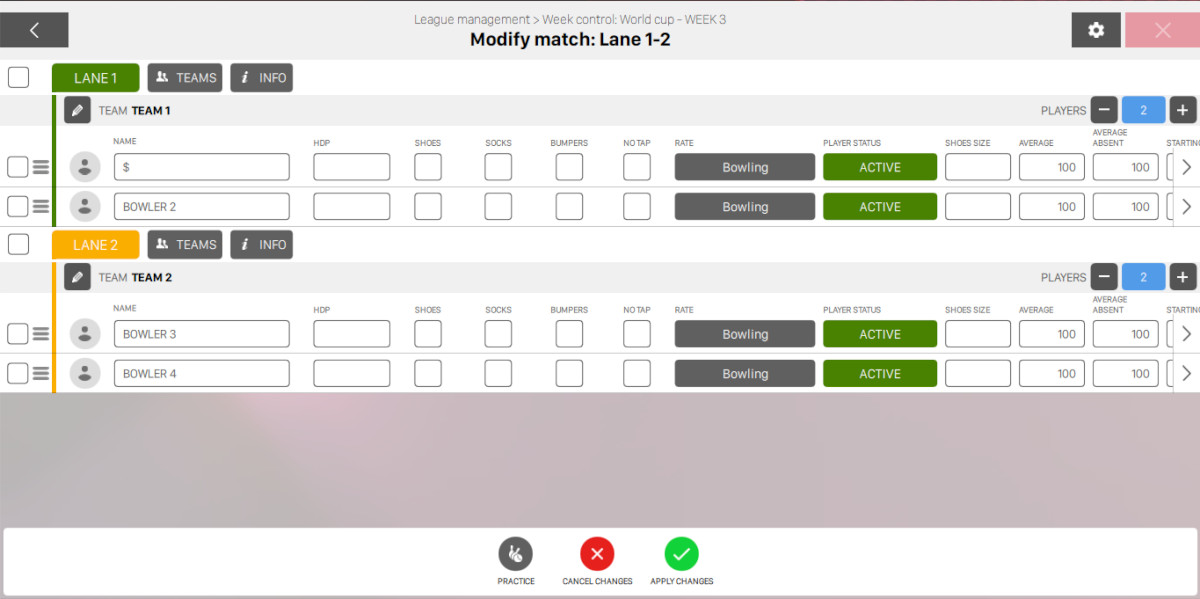
from this window it is possible to modify all the parameters of the selected match. Please see Modify game section for more information on how to setup a match
-
Score: redirects to the score correction page:
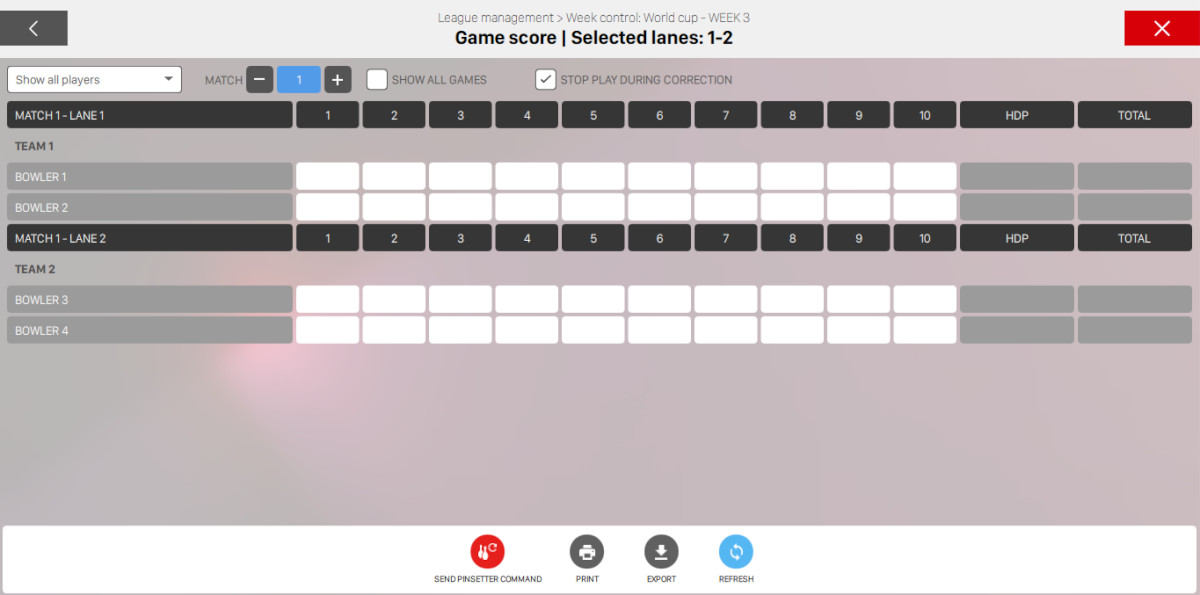
from this window it is possible to modify the score of the current week matches. For more information on how to correct score see game score section
-
Abort week: by clicking on this button the current week will be aborted. A confirmation message will be displayed before proceeding
-
Start week: starts the week and end the edit player modality
-
Suspend week: open the week suspension configuration window
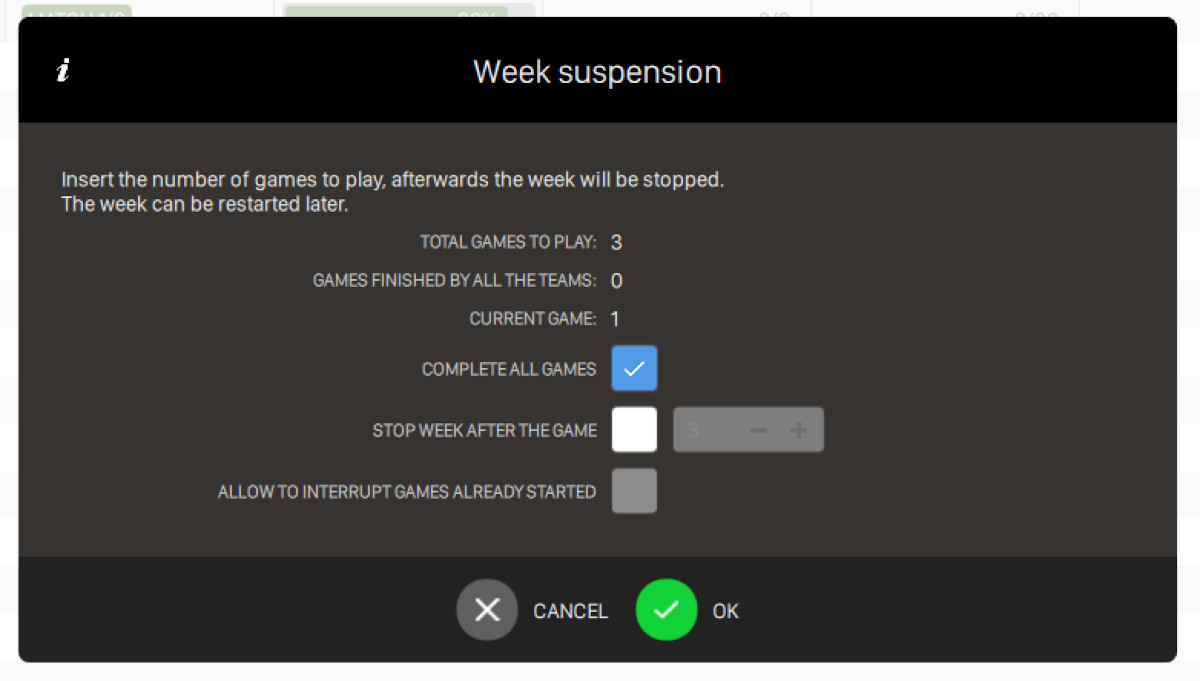
This window allows you to define all the parameters for the suspension of the week
-
Total games to play: readonly field that indicates how many games need to be played to complete the week
-
Games finished by all the teams: readonly field that indicates how many games have been finished by all the teams
-
Current game: readonly field that indicates the current game number
-
Complete all games: the week will be suspended only when all the current games have been completed
-
Stop week after the game: set after how many games the week has to be stopped
-
Allow to interrupt games already started: check this option to allow to interrupt games that have been already started
Press Ok button to confirm the week suspension
-