2.1 Terminology and Definitions
-
by Screen we mean everything that is visible on the monitors screen
-
by Window we mean the partial view of a small screen on top of the main screen or a section of the screen which can be visualized separately from the main screen
-
by Icon we mean a graphic symbol on a computer display screen that represents an object or a function
-
by Menu we mean a window where there is a list of options that can be opened and closed within another window
-
by Click we mean to press the left mouse button when mouse cursor is on a specific area of the screen, or the finger touch of a specific area of the touch screen
-
by Desktop we mean the main Genie screen which appears when the operator login into the system
-
by Swipe we mean to scroll a finger on the screen to move over another page
2.2 Emergency Button
On the top left of the window header you can find the Emergency stop button which will shut down the lanes in case of emergency. A warning screen will appear.
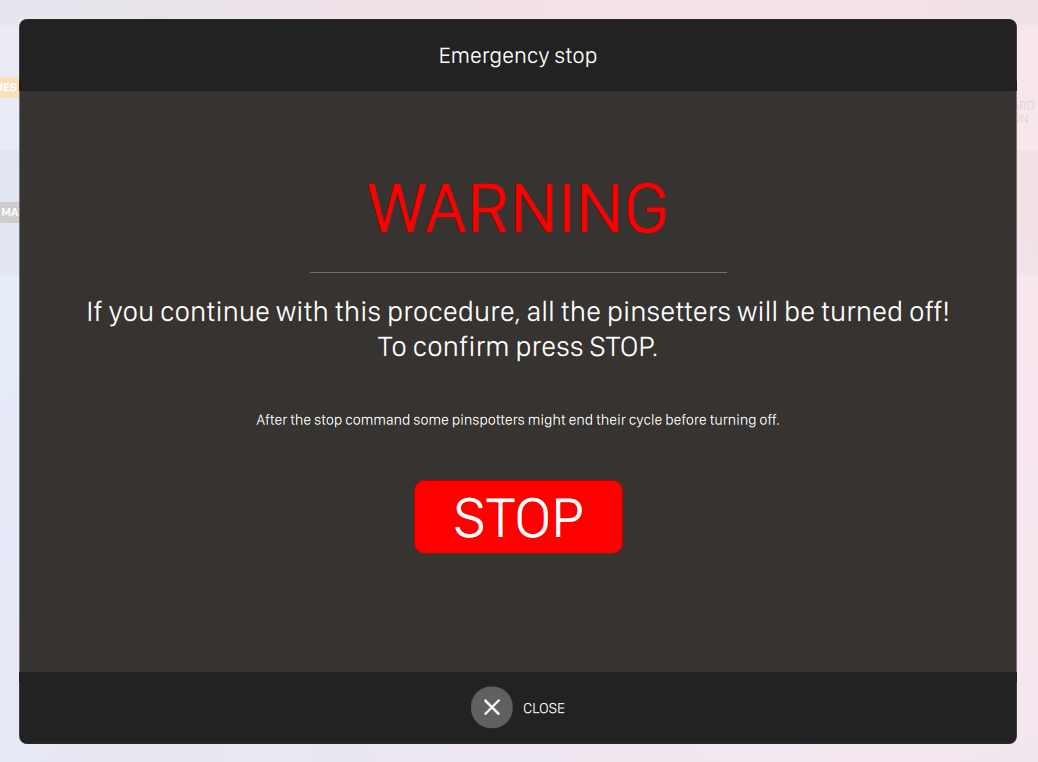
Press stop to proceed or close to go back to the previous screen.
Warning: pressing stop will switch off all the machines immediately!
2.3 Login Screen
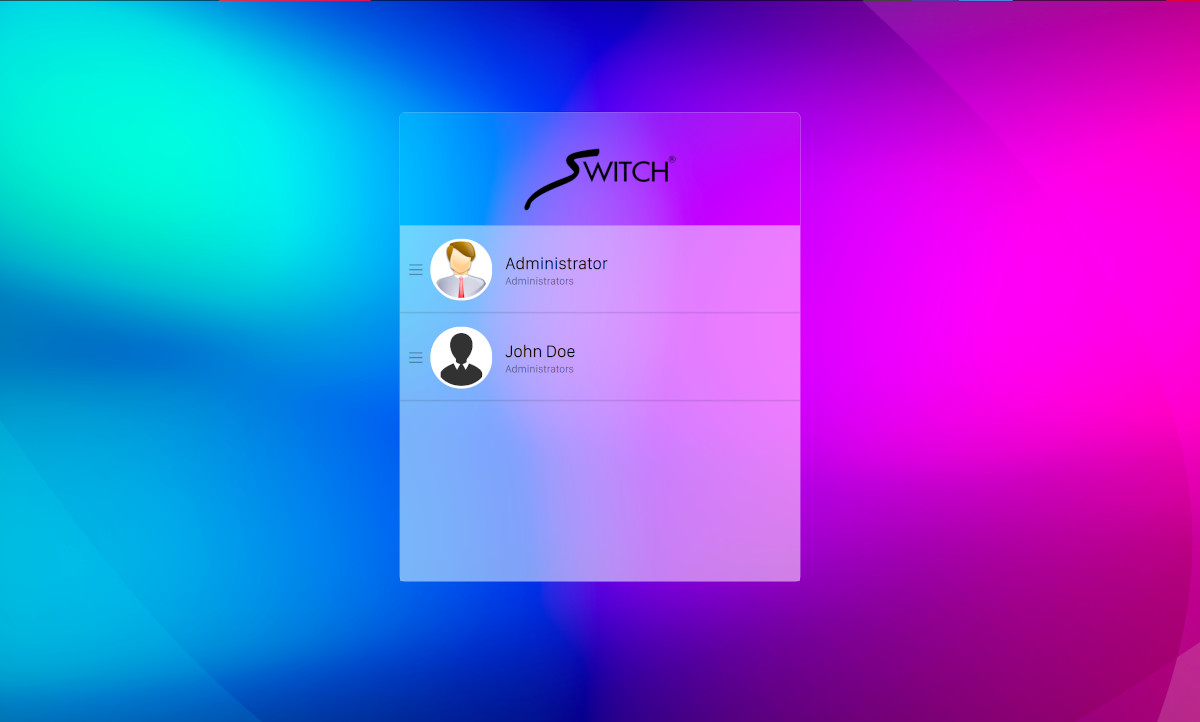
This screen appears when the Genie program is started and it allows the operator/administrator to login with his account. On the center of the screen you can find the list of registered users.
It is possible to sort the list of users by simply using the handle icon on the left of each item and dragging it up or down to the others.
Select a user and enter the corresponding password to login into the software.
Please check the section Operator definition for information on how to add or modify operators. It is also possible to login into the system by swiping your operator’s card and in this case no password is required. If a Fingerprint Reader is available and configured, then operators can use their fingers to login.
The Exit button at the top right of the screen allows you to close the program. See Exit section for more details.
2.4 Lock screen
When an operator does not interact with the software for a preset period of time, or leaves the workstation without logging out, the screen will automatically be locked.
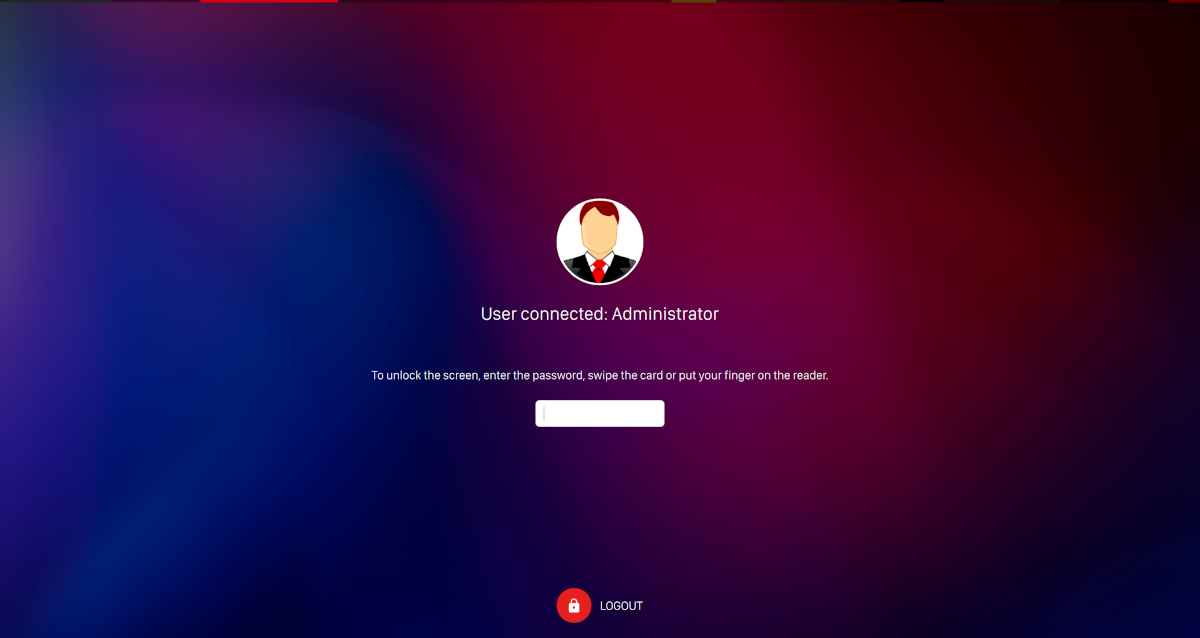
In this case it is necessary to make a new login into the system, by entering password, swiping the card or using the fingerprint. Alternately it is possible to change the current user.
The period of time before locking the screen can be customized at Preferences -> Advanced settings
-> Pos devices section.