After the installation of the software you need to activate your license in order to proceed. When you start the frontdesk and you still need to activate your license, the screen below will appear:
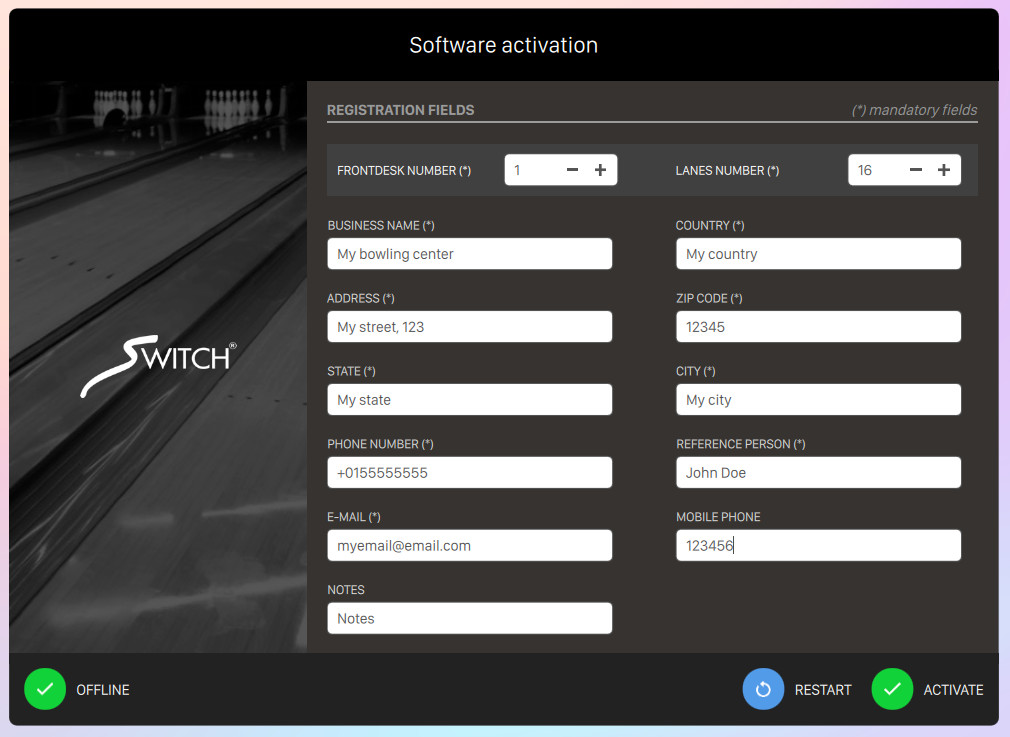
From this form you have to compile all the required fields, marked with an asterisk (*):
-
Frontdesk number: the number of frontdesks of the bowling center
-
Lanes number: the number of lanes of the bowling center
-
Business name: the name of the bowling center
-
Country: the country of the bowling center
-
Address: the physical address of the bowling center
-
Zip code: the zip code of the bowling center
-
State: the state or province of the bowling center
-
City: the city of the bowling center
-
Phone number: the phone number of the bowling center
-
Reference person: the name and surname of a manager of the bowling center
-
Email: the email address of the bowling center
-
Mobile phone: (optional) the mobile phone of the bowling center
-
Notes: (optional) some notes to add to the bowling center
At the bottom of the screen you can find three buttons:
-
Offline...: proceed with the Offline registration procedure
-
Restart: restart the frontdesk
-
Activate: proceed with the online activation of the frontdesk
The online activation procedure will communicate with the distributor’s server and will wait for the reply. Once a positive reply has been sent back a pop-up will appear notifying the user that the activation has been completed.
3.1 Device activation
All the devices that run on the software need to be certified. The certification procedure is currently available only on ScoreViewer and Console made with embedded devices. This procedure takes place during the connection of each device to the local bowling server and determines whether a given embedded device has a corresponding certificate registered on the bowling server. Certificates for the devices can only be created by the software distributor.
If a certificate is missing then a black screen with a message will appear, explaining the user that the device is missing the certificate:
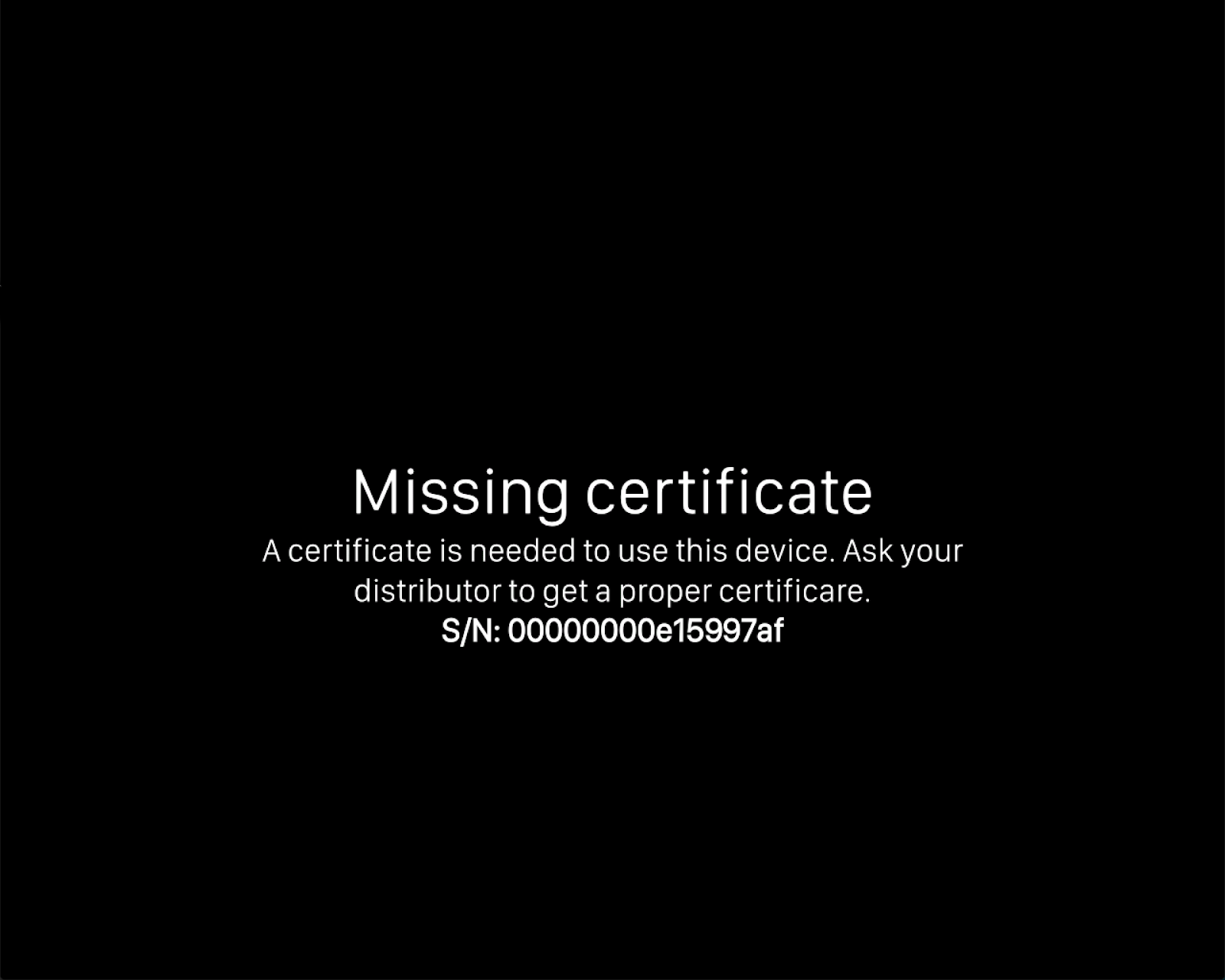
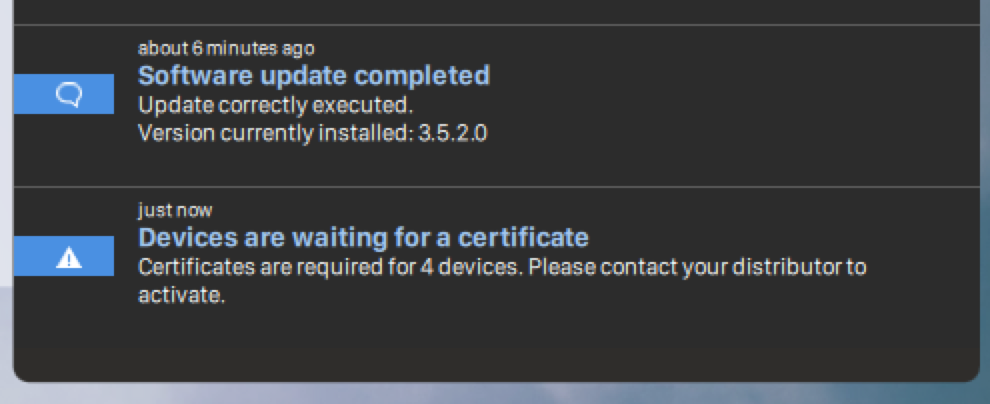
At this point those devices will not be usable until each of them is properly certified. The frontdesk will notify in the proper area that uncertified devices appeared.
3.2 Offline registration
It may happen that the bowling center is not connected to internet for some reasons. In that case online registration and alignment can not be used to register and to get certificates for the devices. The system, therefore, provides a workflow for registering a new installation and to align it, providing certificates.
During the first registration, the frontdesk will show a new button named Offline.
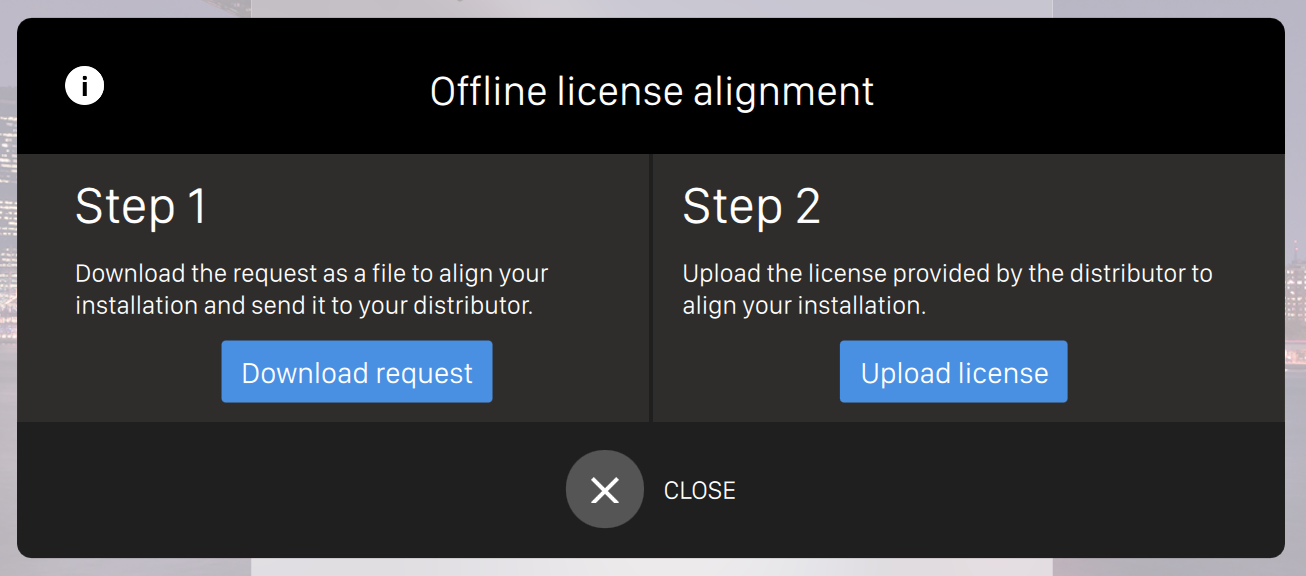
That button will open a dialog including two actions:
-
On the left you can download the license request as a file that needs to be sent to the bowling distributor in order to generate a license
-
Once the distributor has sent you back the license file, you can upload it by clicking on the "Upload license" button on the right side
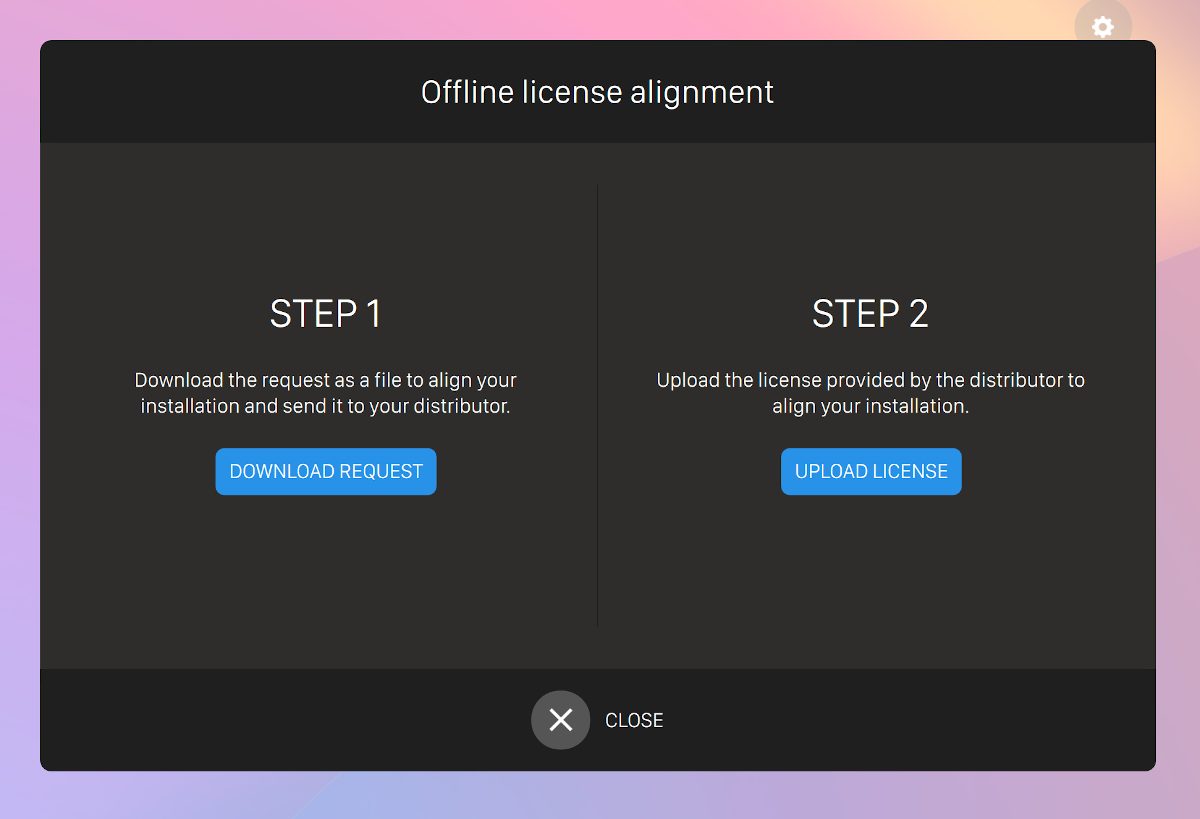
In summary, a complete registration requires to download the file containing a request by clicking on the button on the left and saving it on some removable media device. After that the distributor must receive this file and will reply with a license file. The license file must be uploaded by clicking on the button on the right side.
3.3 License alignment
If some devices were not included in the registration request, an alignment will be needed afterwards. The alignment procedure can also be executed offline by shift-clicking on the logo at the top-left corner of the frontdesk application.
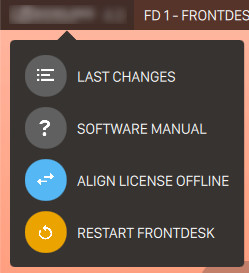
This will show a new dialog, very similar to the one used when registering, and the procedure is identical to the one described for the registration:
-
Download the request file to a removable media with the button on the left
-
Send the request file to the distributor
-
Receive back the license file
-
Upload the license file by clicking on the button on the right