Standalone systems allows your customers to have their own private bowling system without the requirement of a frontdesk, which can be optionally installed alongside with the console. When install Genie you can choose the Standalone option from the list when you are asked about the type of installation.
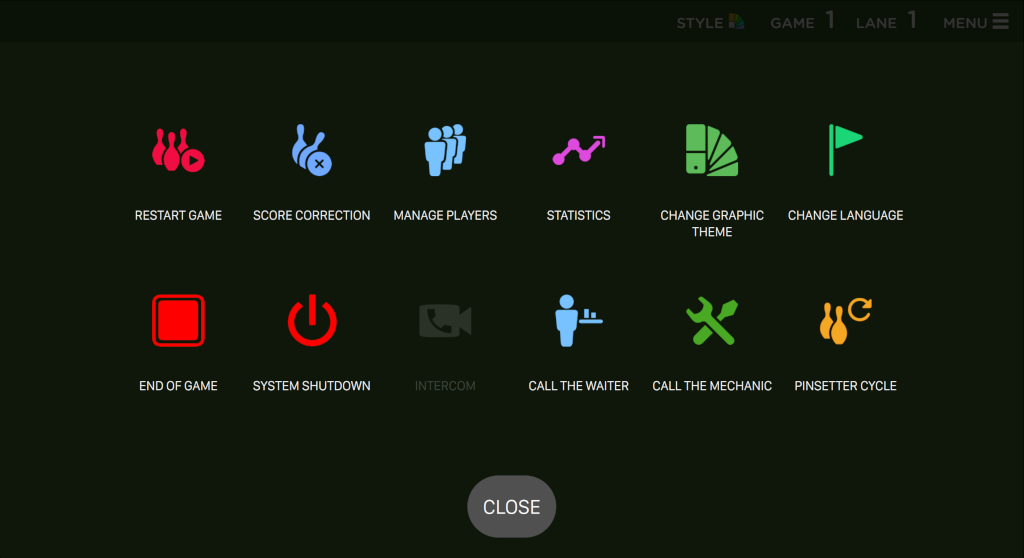
This system works and looks exactly as the console and players can perform different actions:
-
Start or restart a new game
-
Score correction: allows the user to manually correct the score of the current or previous games
-
Manage players: allows the user to add new players or edit/remove existing ones
-
Statistics: view statistics about the bowling games
-
Change graphic theme: change the graphic theme of the console
-
Change language: change the language of the interface
-
End of game: end the current game. This is an extra feature available only for standalone systems
-
System shutdown: shut down the whole system. This is an extra feature available only for standalone systems
-
Call the waiter: if the frontdesk is configured then it allows to comunicate with it and call the waiter
-
Call the mechanic: if the frontdesk is configured then it allows to ask for technical support
-
Pinsetter cycle: send a ‘pinsetter cycle’ command to the pinsetter machine
D.1 Configuration
In order to configure the standalone you need to access the console system settings by clicking on the bottom left corner of the windows multiple times. At this point the administration password is required to continue. If the standalone mode is enabled then you will see a button on the top right corner of the window called Standalone page, which will take you to Standalone setup page.
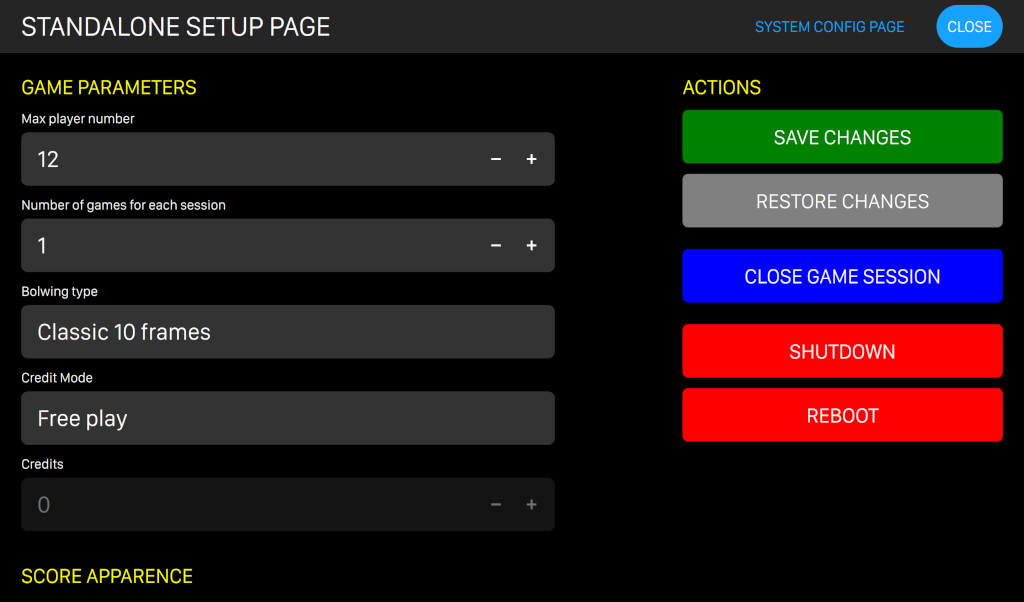
From this window you can change the standalone game parameters in order to customize the game experience. Settings are grouped by different categories:
-
Game parameters
-
Max player number: indicates the maximum number of players for a bowling game
-
Number of games for each session: indicates the number of games to be played for each session
-
Bowling type: choose the bowling game type from different options:
-
Classic 10 frames
-
8 frames
-
5 frames
-
3 frames
-
Duckpin
-
-
Credit mode: indicates the mode to be used with credits. A credit can be collected from a customer with different methods, including MDB system or a simple token dispenser. If credit mode is enabled then the number of credits will be shown on the bottom section of the console window. From this options it is possible to decide how customers can spend their credits inside the system:
-
Free play: in this case no credit is required to play a game
-
1 credit x session x player: a player can spend one credit to play a game
-
2 credit x session x player: a player can spend two credits to play one game
-
3 credit x session x player: a player can spend three credits to play one game
-
4 credit x session x player: a player can spend four credits to play one game
-
-
Credits: if credits are enabled then this option set the number of credits for the current standalone console
-
-
Score appearance
-
Score graphic theme: select the theme category to be used for the console. After each game the theme will change randomly between the available themes of the selected categories. If allowed, players can also switch select a theme from the category
-
Show the pindeck panel: indicates whether to show or hide the pindeck panel on the console
-
Show numbers on the pins: indicates whether to show or hide the number of the pins
-
View 5 frames on the active player: change the view of the frames for the active players on the console to 5 frames instead of showing all frames
-
Show the animations: indicates whether to show or not the animations on the console
-
Show ball speed: indicates whether to show or hide the ball speed
-
Ball speed unit: indicates the unit of the speed between Kmh and Mph
-
Show the App code: indicates whether or not to show the Bowl App code on the console
-
Use shared photos as background (the videos will be invisible): indicates whether to use the shared photos as background of the console
-
Show the player picture: indicates whether to show or hide the player picture on the console
-
-
Console options
-
Allow to select the game type on start: indicates whether to allow players to decide the game type before starting a new game
-
Allow to select the theme on start: indicates whether to allow players to choose the theme before starting a new game
-
Allow to change the name of players: indicates whether to allow players to change their names
-
Allow to add/remove players: indicates whether to allow players to add or remove other players
-
Allow to change bumpers/pintap: indicates whether it is possible to add bumpers and pintap options to players
-
Allow to change player HDP: indicates whether it is possible to change players’ handicap
-
Allow to change player status: indicates whether it is possible to change players’ status
-
Allow to change player Photo: indicates whether it is possible to change players’ photos
-
Allow score correction: indicates whether players are allowed to correct scores
-
Allow to change graphic theme: indicates whether players can change the graphic theme of the console
-
Allow to change language: indicates whether players can change the language of the interface
-
Allow mechanic call: indicates whether players can ask the frontdesk for a technical support
-
Allow service call: indicates whether players can call the waiter from the console (only if frontdesk is configured)
-
Allow game restarting: indicates whether players are allowed to restart games
-
Allow shutdown: indicates whether players are allowed to shut down the system
-
Allow close game: indicates whether players are allowed to close an existing game
-
Use light glow: indicates whether the lane is using light glow
-
Active fault signal: indicates whether the fault signal on the lane is active or not
-
-
Pinsetter configuration
-
Pinsetter type: choose the model of the pinsetter from an existing set of options
-
Enable PBZ control: this option is used only for AMF 82-70 pinsetters. It allows you to change from 1st to 2nd ball without cycling the machine
-
Ignore Second Ball Input: this is used to align the scoring with the pinsetter so that they are both on the same ball cycle. If this is not the case, the scoring will cycle the pinsetter to realign it to the 1st or to the 2nd ball. This option should only be disabled when no second ball signal is present
-
Enable Eco Mode: enables, if available, the Economy mode on the machine. This means that, when a gutter ball is thrown, both in first and in second ball, the machine does not cycle, saving power
-
Enable Solenoid (if available): if solenoid mode has been installed on the pinsetter then check this option to enable it. This feature is enabled only on specific pinsetters
-
Double cycle enabled: this option allows to send the cycle command twice in case the pinsetter needs to be realigned. This feature is available only in specific circumnstances and pinsetters
-
Ball Hook (mm): indicates the diameter of the ball in millimetres read by the photocells. The default setting is 190 mm (7.48")
-
Triggering Photocell Distance from Pit (mm): indicates the distance between the photocells and the 7-10 line on the pindeck in millimetres. The default setting is 3800. During installation, or later, this value can be increased by 500 or 1000 increments if the readings are not accurate due to either late falling pins, or wobbling pins. Note: do not exceed a value of 4800
-
Minimum FOUL FC time (ms): indicates the minimum time delay for a foul in milliseconds. The default value is 300. This gives enough time for a ball to pass the photocell without activating the foul signal
-
Maximum Foul Duration (0.1sec): indicates the length of time the foul detector buzzer will be on in tenths of a second. The default value is 130, equal to 13 seconds
-
Additional time for pinsetter movement (ms): indicates the delay the machine start after the ball passed the photocell to add time for the pin count. The value is in milliseconds
-
1st ball verification delay (ms): enables the delay between the cycle start signal and the reading of the pins on 1st ball. Do not exceed a value of 3000 (3 seconds)
-
2nd ball verification delay (ms): enables the delay between the cycle start signal and the reading of the pins on 2nd ball in milliseconds
-
Waiting time for realignment at the end of a game (ms): this value is only applicable to Brunswick A and A2 machines. In the event that the game ends with the machine in second ball, it automatically cycles the machine to bring it back to first ball. The value is in milliseconds. The value set for this function must allow the machine enough time to complete the cycle and reach the ’zero’ position. The value is usually set to 15000 (15 seconds)
-
The machine supports only the DuckPin game: check this option to indicate that this machine only supports DuckPin games, which is a special bowling game with different features
-
Show the interface of timing calibration: when enabled, it shows a diagnostic screen on the lane monitors.
-
-
MDB device (1): if MDB is enabled select the first "Multi Drop Bus" device to connect with
-
MDB device (2): if MDB is enabled select the second "Multi Drop Bus" device to connect with
-
MDB communication
-
MDB Enabled: indicates whether MDB system is enabled on the console
-
Communication Speed (baud rate): indicates the communication speed of the MDB device. Leave this option with its default value unless you have a specific requirement
-
On the right sidebar you can find a list of buttons to perform some actions:
-
Save changes: save the current configuration
-
Restore changes: restore the previously saved changes
-
Close game session: close the current game
-
Shutdown: shut down the system
-
Reboot: reboot the system
D.2 MDB devices
MDB device are peripheral devices that you can connect to the console to manage payments for the standalone mode. These devices will accept any cashless payment methods, for instance wristbands or credit cards. This method of payment currently works only with credits so you need to enable them in order to work with MDB. The configuration of MDB devices can be found on the Standalone setup page described above.
Once MDB device(s) are configured then customers can buy credits to play bowling games. How credits can be used (credit mode) can be configured from the game parameters section of the Standalone setup page. When a customer use the MDB device a screen is shown on the console, asking how much credits to buy:
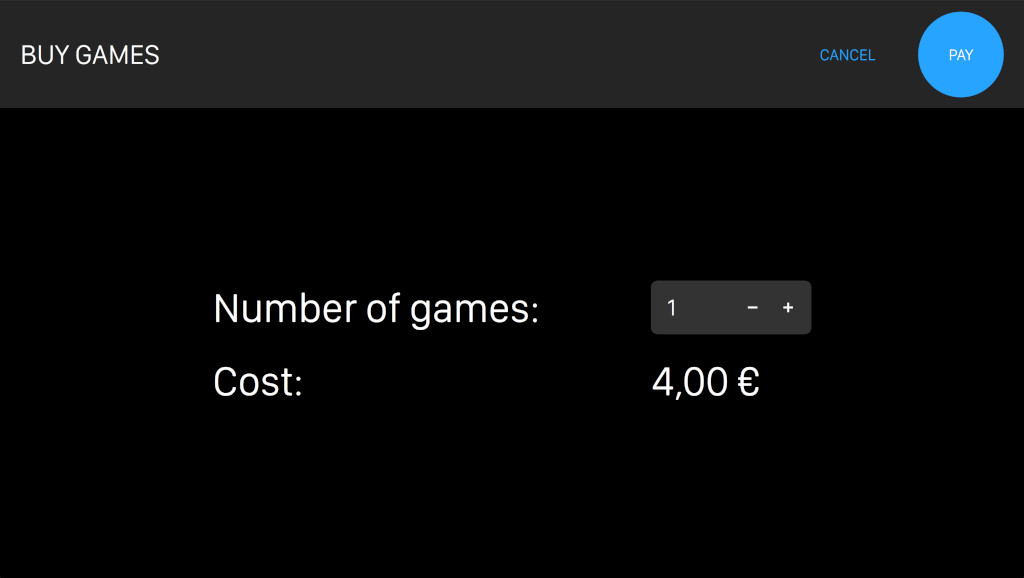
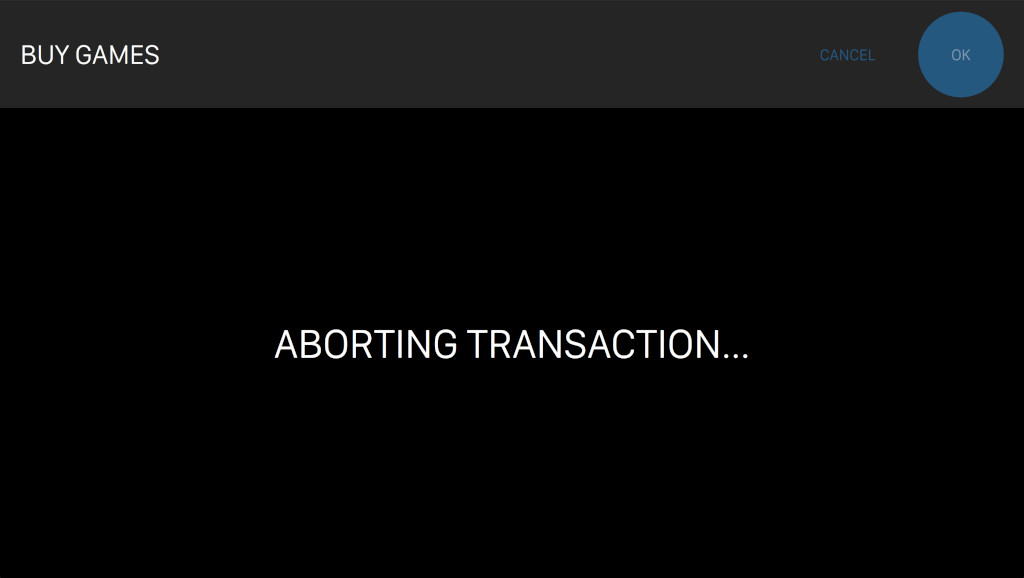
From this window you can choose the number of games and can see the relative cost. The cost calculation is retrieved from the configuration of the frontdesk. Once the number of games has been selected click on the Pay button to start the transaction. At this point a new window is shown informing that the transaction is in progress. If you click on the cancel button the transaction is aborted
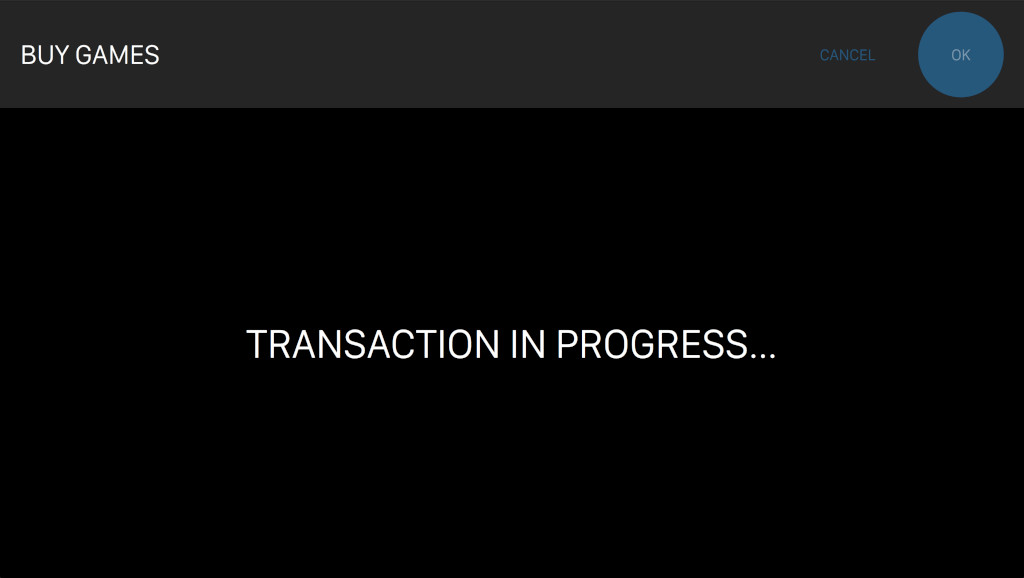
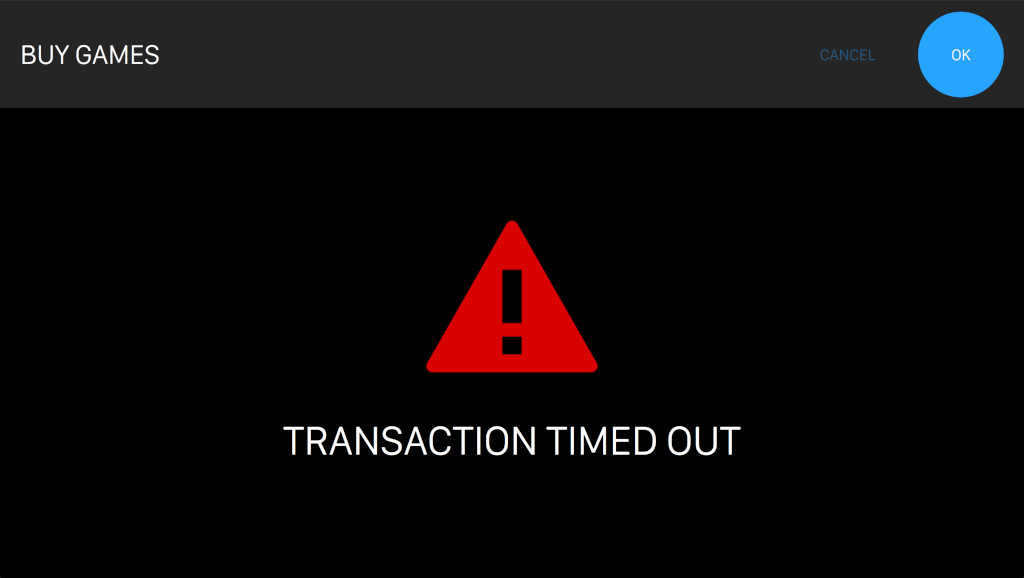
If anything goes wrong with the transaction process an error window is shown describing the error that occurred:
On the other side if the transaction is completed a success window is shown:
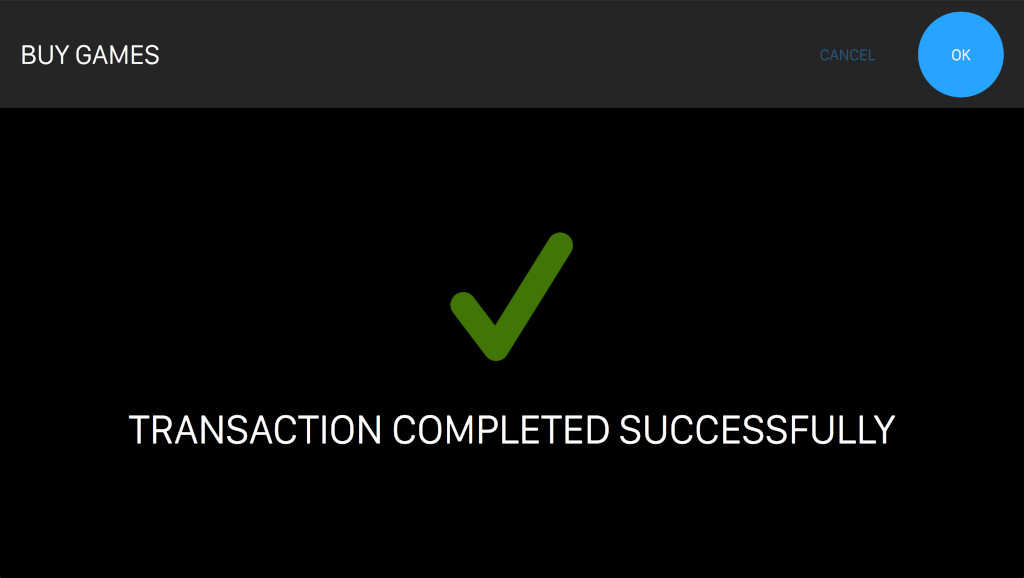
At this point you will see that the number of credits has been increased and you can start a new game or add players to an existing game.