The following section describes the console features.
A.1 Main Screen
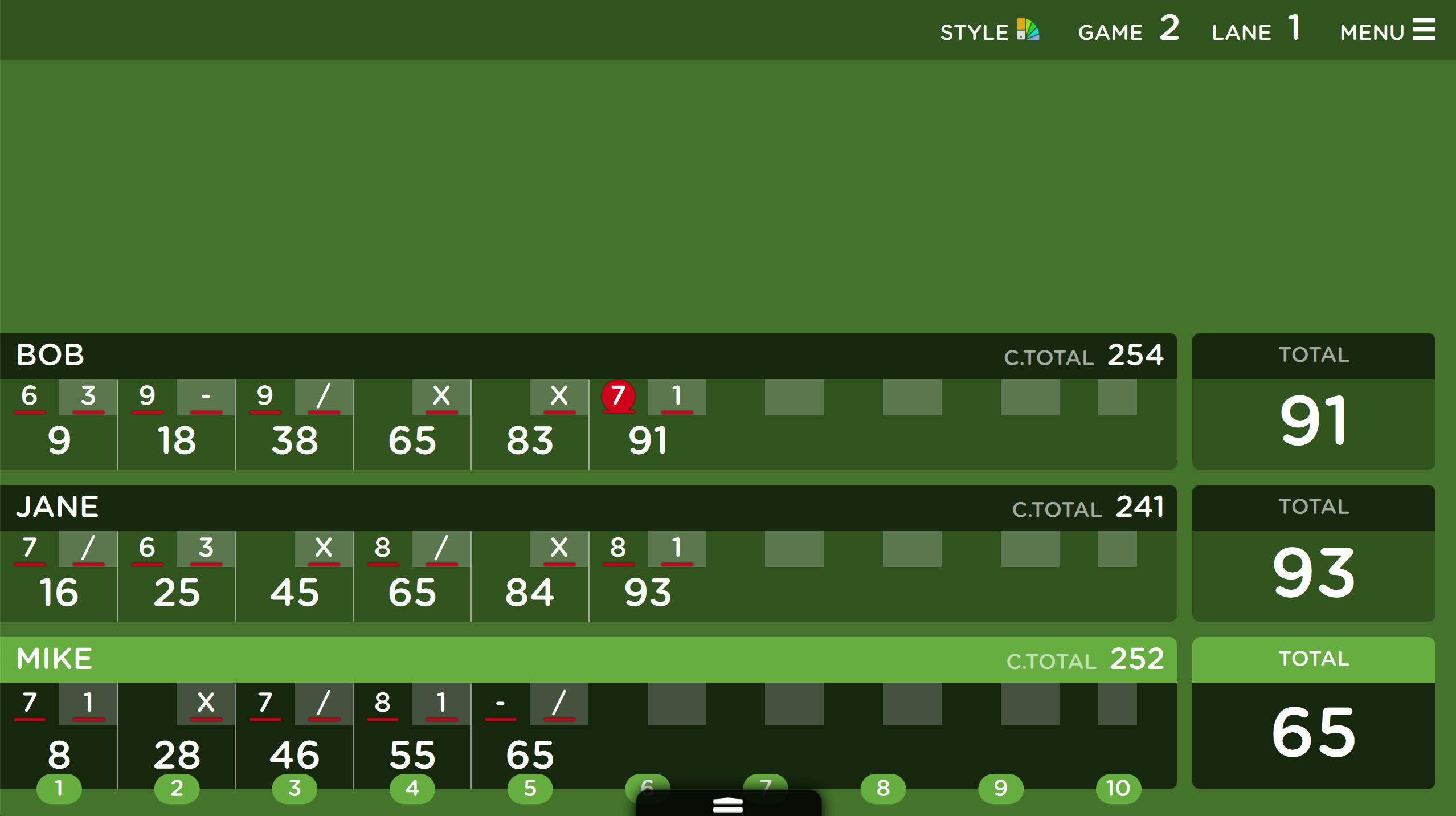
The above screen shows the Console monitor. Customers can use the buttons and the Menu to access to all the features.
A.1.1 Style
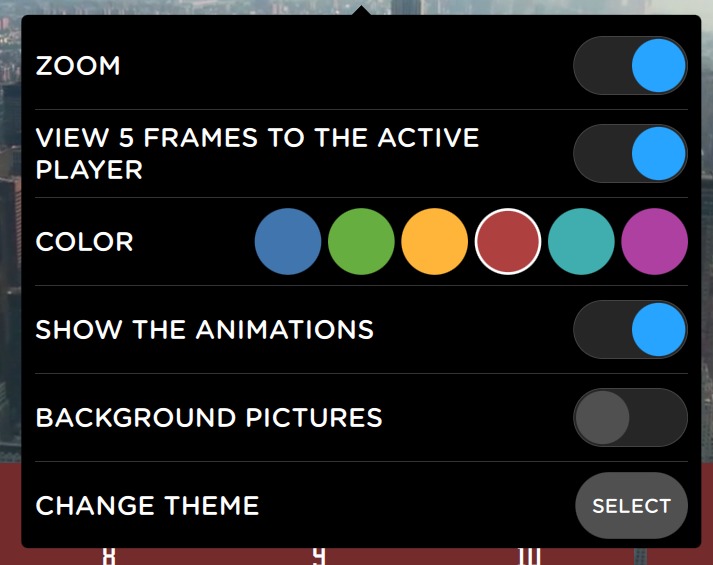
From this section your customers can customize the style of the console, by setting different options:
-
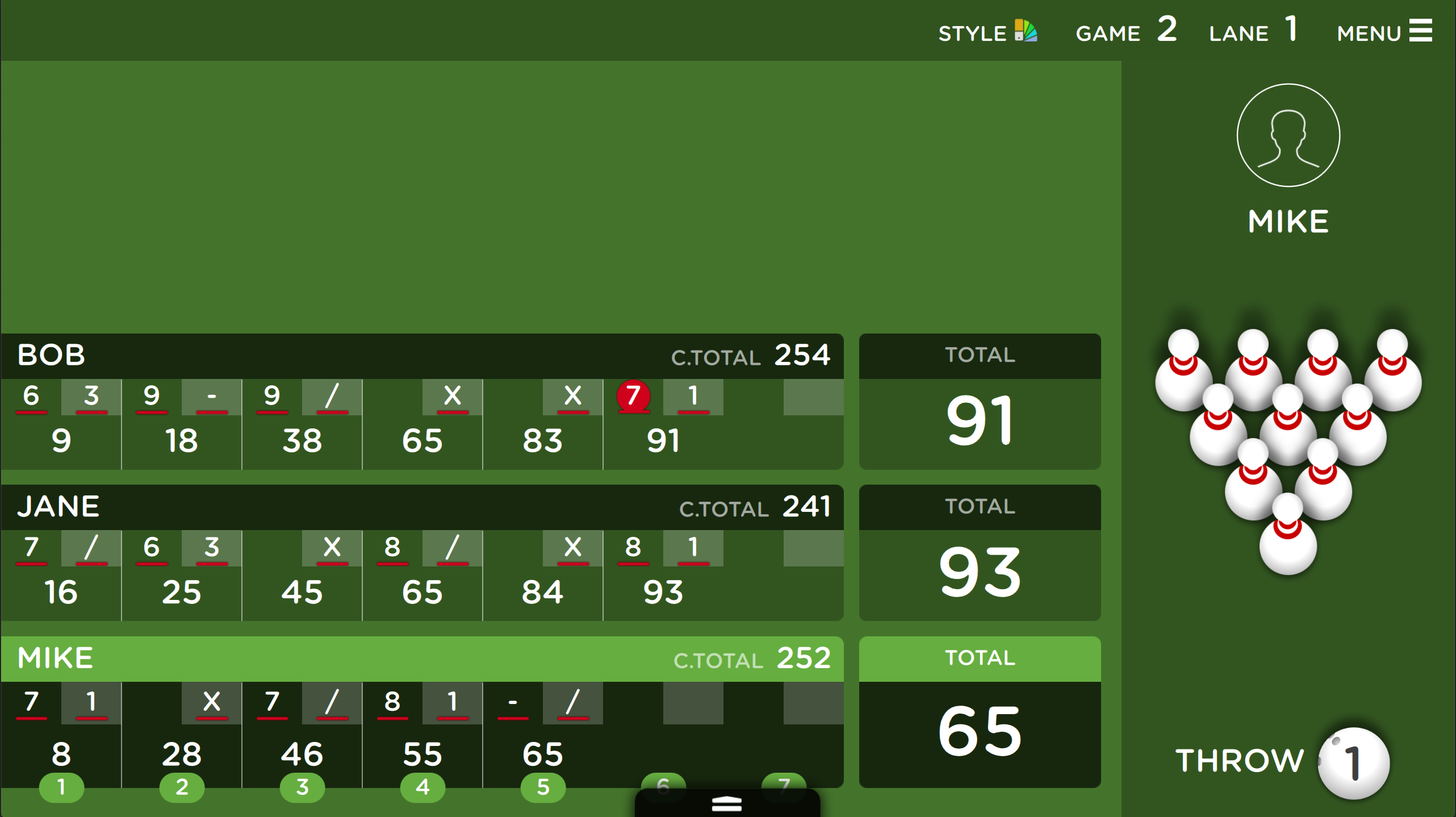
Zoom: if enabled, this option allows you to display all the frames of the games in a wide format. If not then displays less frames and a graphic image of the pins in a narrow format
-
View 5 frames to the active player: allows you to show only the last 5 frames
-
Color: allows you to change the background color of the console
-
Show the animations: allows you to enable or disable the animations
-
Background pictures: allows you to show or hide, in the background, the pictures that the customer took, once approved by the operator. See section Shared photos
-
Change theme: allows you to change the Theme of the screen. Touch ‘select’ to go to the window theme selection screen. Touch the desired theme and then ‘OK’. Note: when the ‘background picture’ option is enabled, the theme cannot be displayed
Next to the ‘Style’ button you can find two more options, plus the ‘Menu’ button:
-
Game: shows the total game played
-
Lane: shows the lane used
The arrow at the bottom center of the screen allows you to go to the STATISTICS screen.
A.2 Menu
Press the menu Menu on the top right corner of the Console screen to access the Console functions.
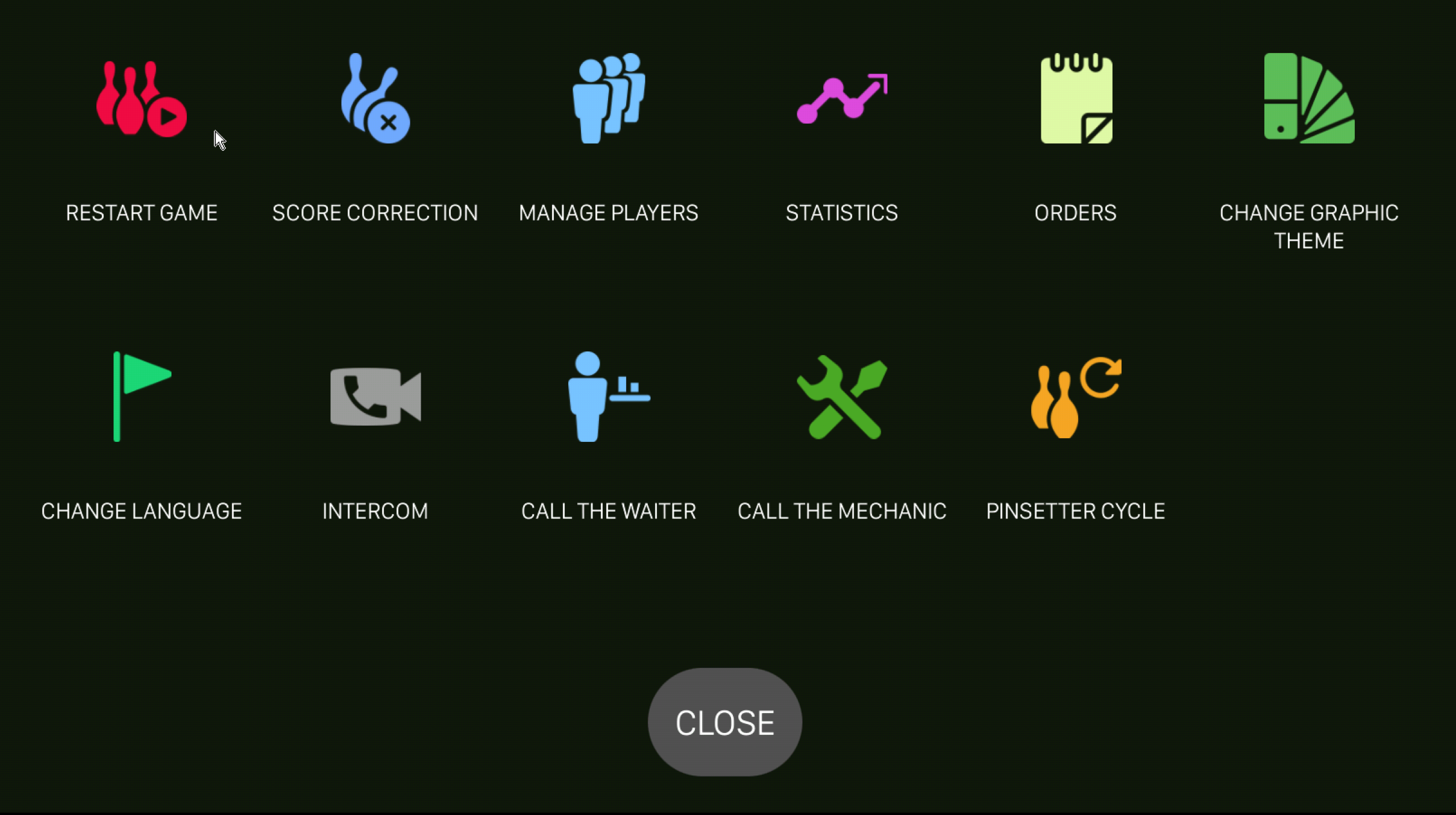
The menu allows the customer to use the following functions:
-
Start game
-
Score correction
-
Manage players
-
Statistics
-
Orders
-
Change graphic theme
-
Change language
-
Intercom
-
Call the waiter
-
Call the mechanic
-
Pinsetter cycle
All these functions can be enabled or disabled by the operator from the GAMES SETTINGS screen.
A.2.1 Restart Game
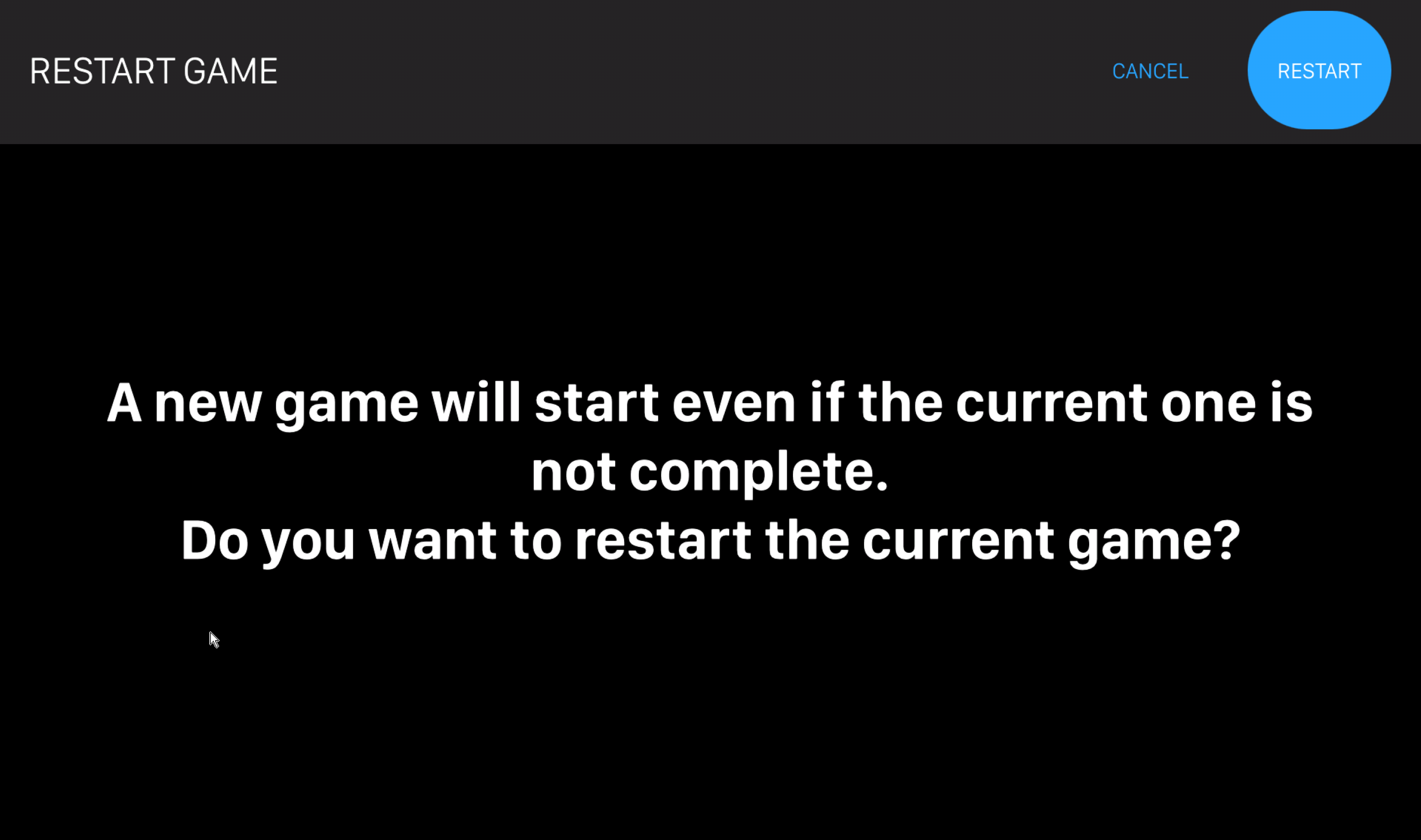
This feature allows the customer to start a new game, even if the previous game did not finish. Touch ‘RE-OPEN’ button to start a new game.
A.2.2 Score Correction
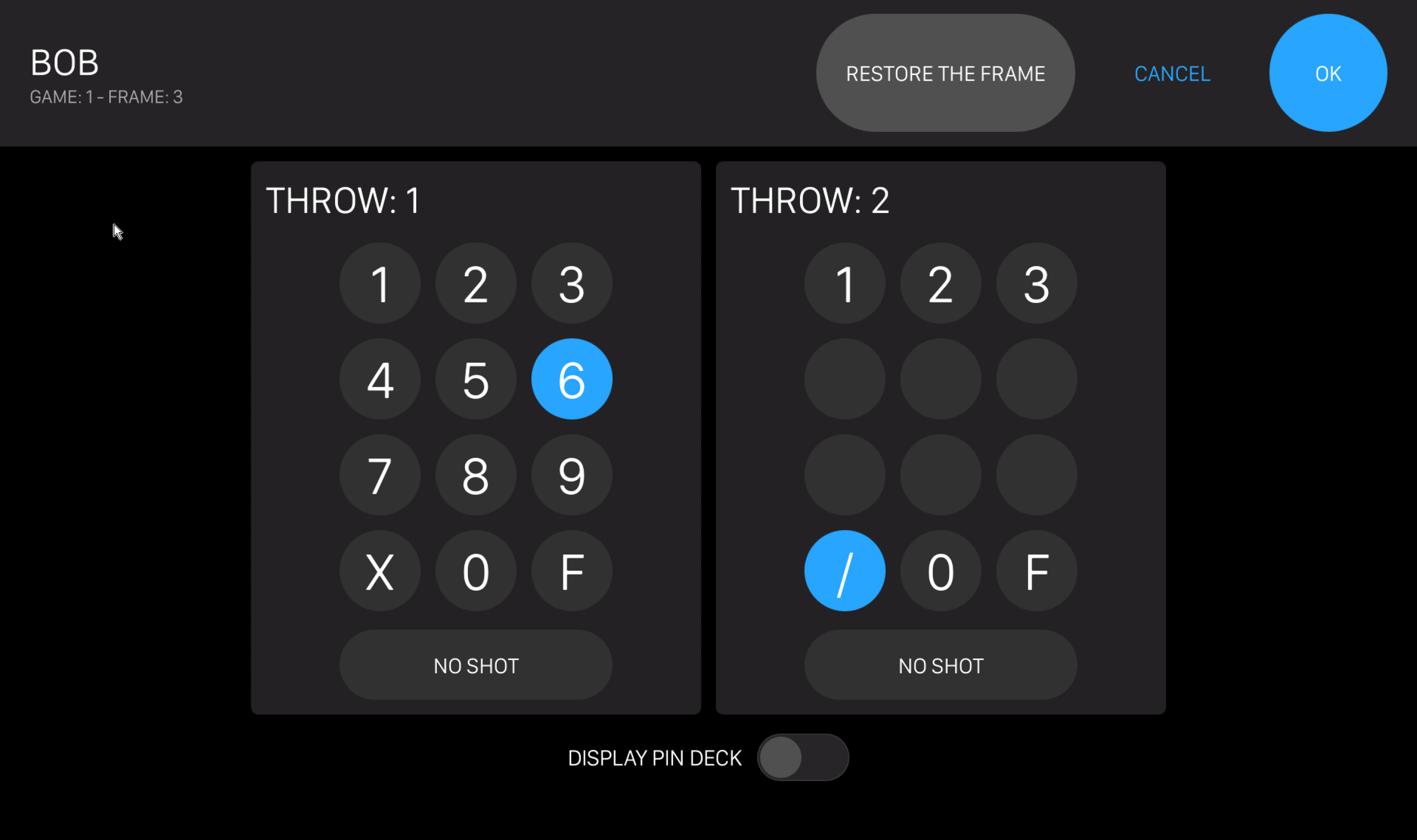
This feature allows the customer to manually correct any frame played in the current game or in previous games. Choose the game and touch the frame that you want to correct to open the following screen:
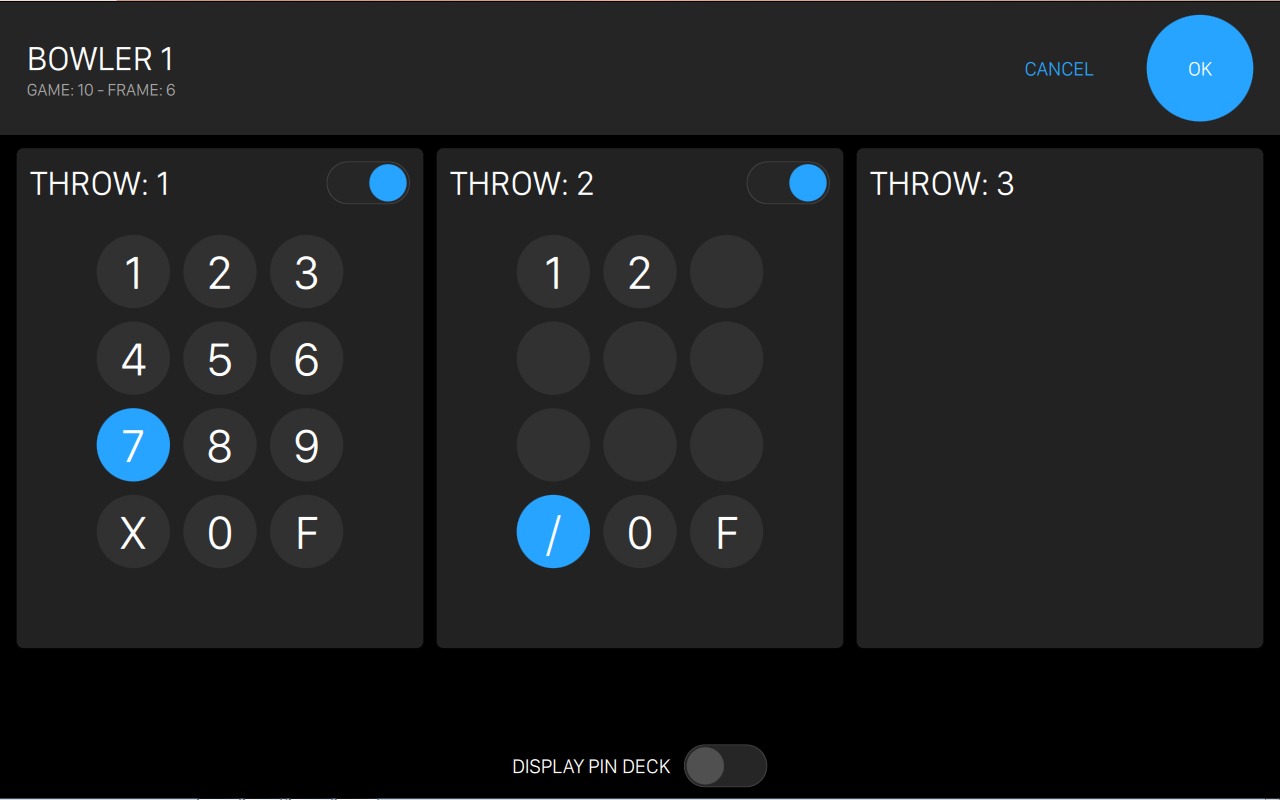
Touch the correct number of pins for each throw to change the score. Once done, press OK. At the bottom of the screen there is a toggle DISPLAY PIN DECK that allows to see the graphic image of the pins. Touch the pins to correct the score.
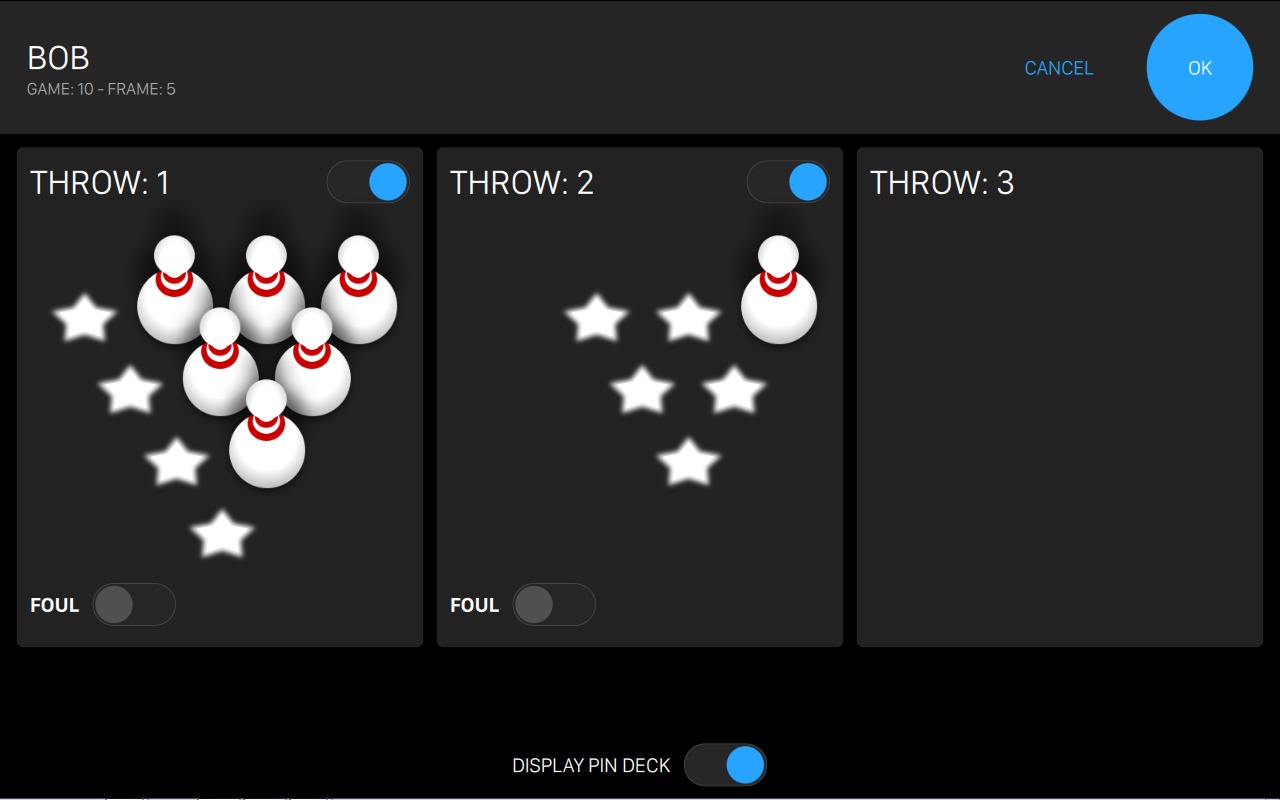
Press the Cancel button to discard the current changes made. Press Restore the frame button to clean the selected frame, like no throws have been made.
A.2.3 Manage Players
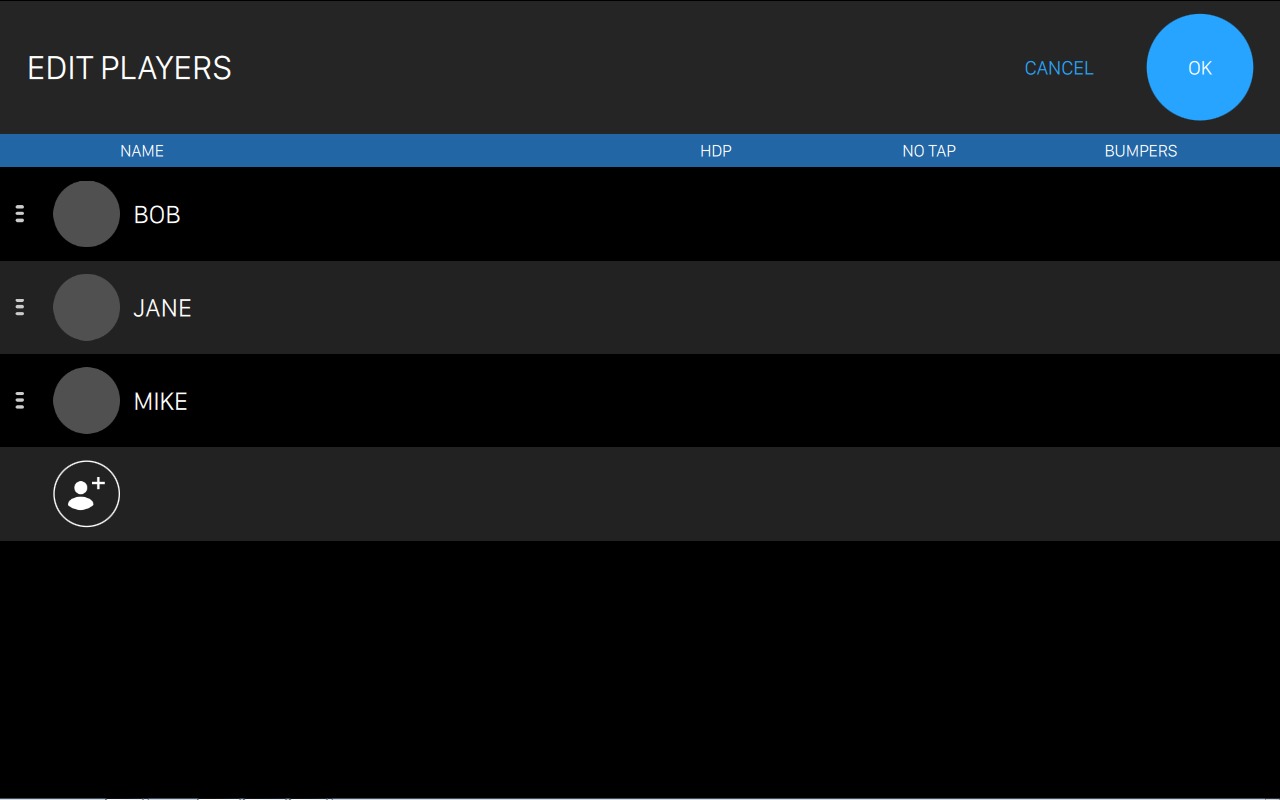
This screen allows the customers to edit the players data. You can drag and drop each player by clicking the three lines icon on the left of player name and update his position. If you click on any line of a player you can then customize his parameters:
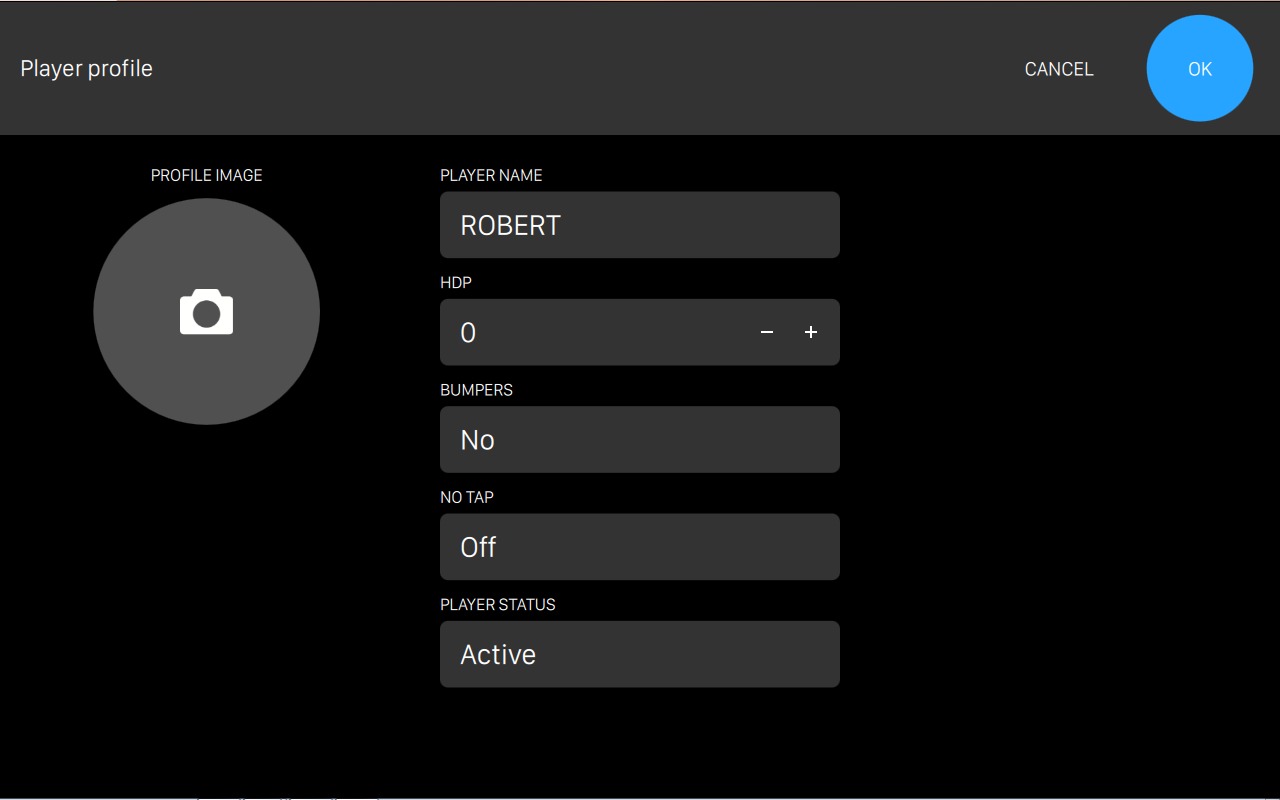
-
Picture: allows the customer to change the avatar that will be displayed on the console. Click on the picture on the left side of a player to select or edit his avatar.
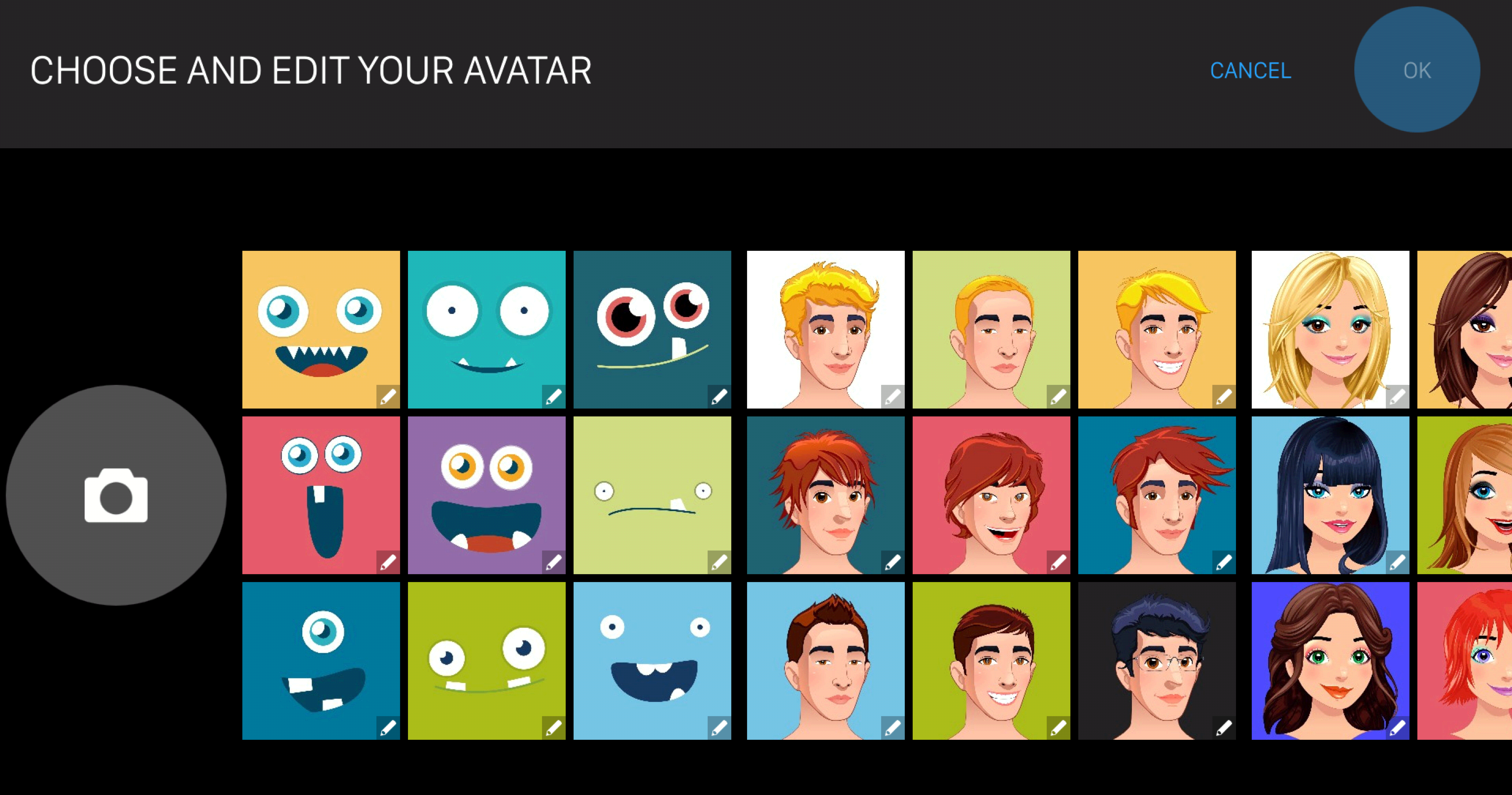
From this screen you can scroll the list and choose the avatar that you want. When available you can also customize an existing avatar, by setting some specific parameters, depending on the avatar type.
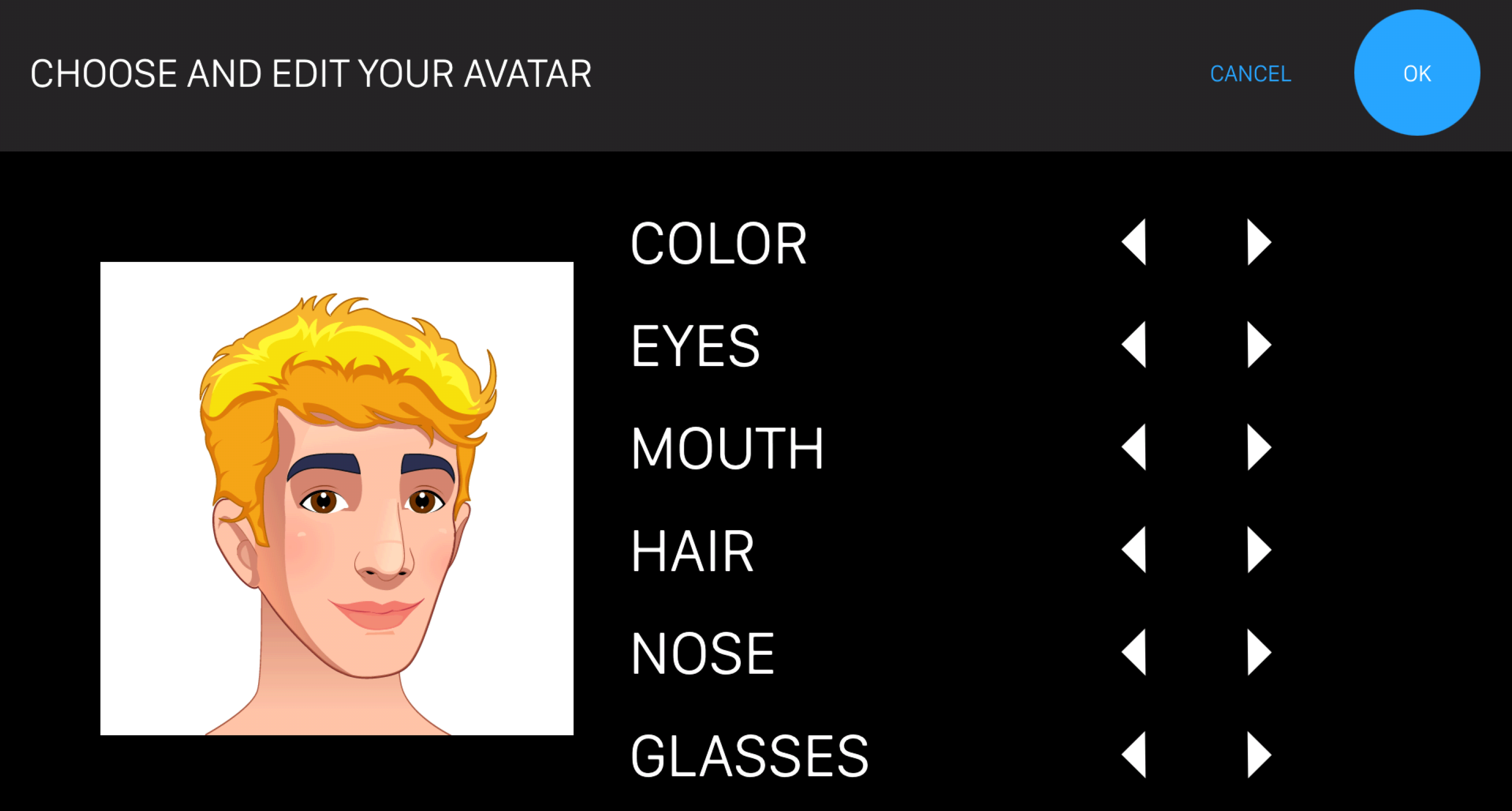
In this case you can customize:
-
The background color
-
The shape and color of the eyes
-
The shape of the mouth
-
The color and style of the hair
-
The shape of the nose
-
The style of glasses (if any)
-
-
Player name: allows the customer to update the player name
-
HDP: allows the customer to add or modify the handicap
-
Bumpers: allows the customer to enable or disable the bumpers for that specific player
-
No tap: allows the customer to play in No-Tap mode and to select the No-Tap number of pins
-
Player status: allows the customer to change the player status, which can be: active or not active
Touch the button below the players list to add a new player.
A.2.4 Statistics
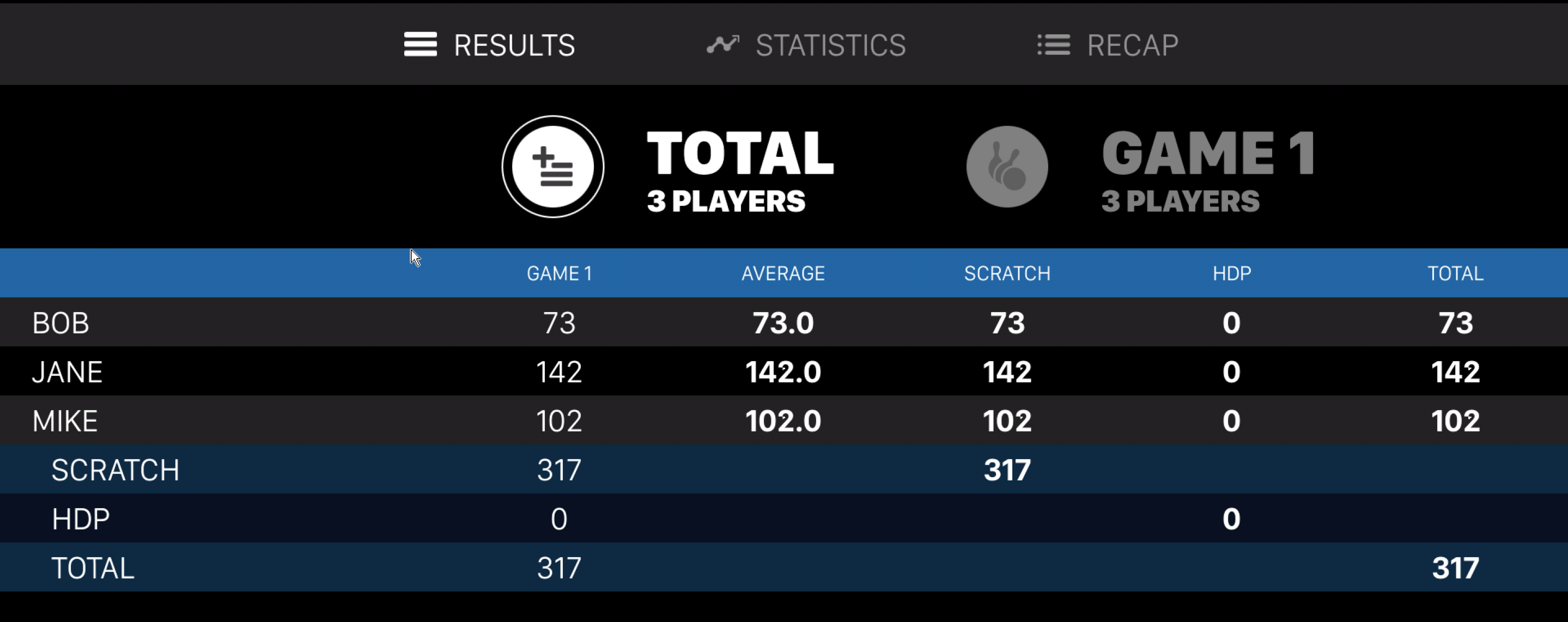
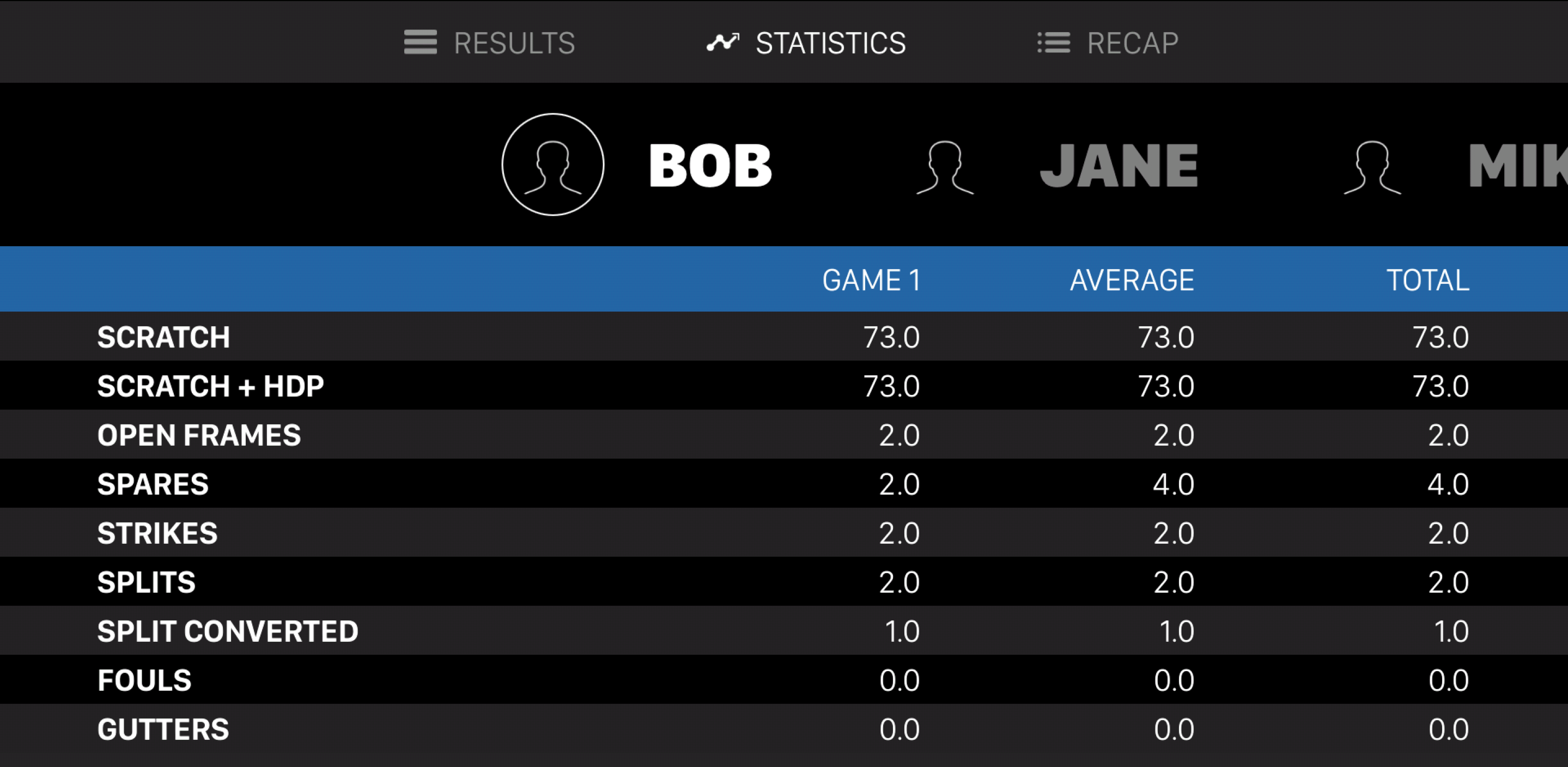
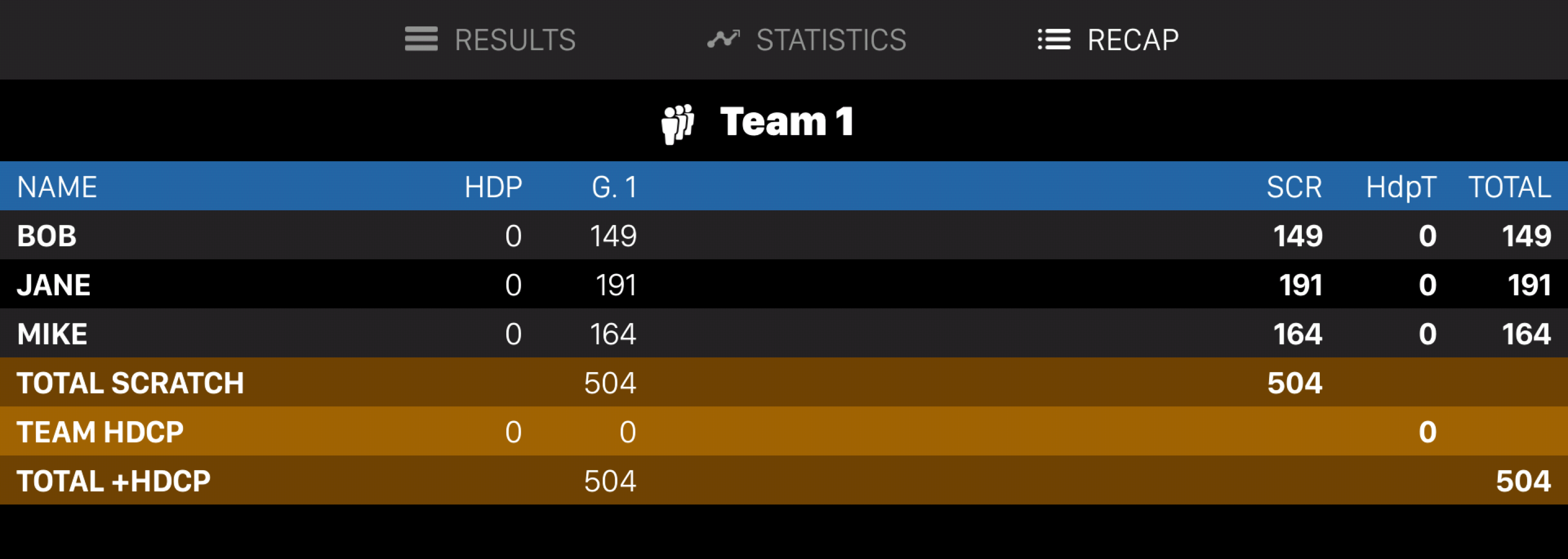
This feature allows the players to view all the statistics related to the games played. On this window you can find three tabs:
-
Results: allows the customer to view the results of all the games or for some specific games
-
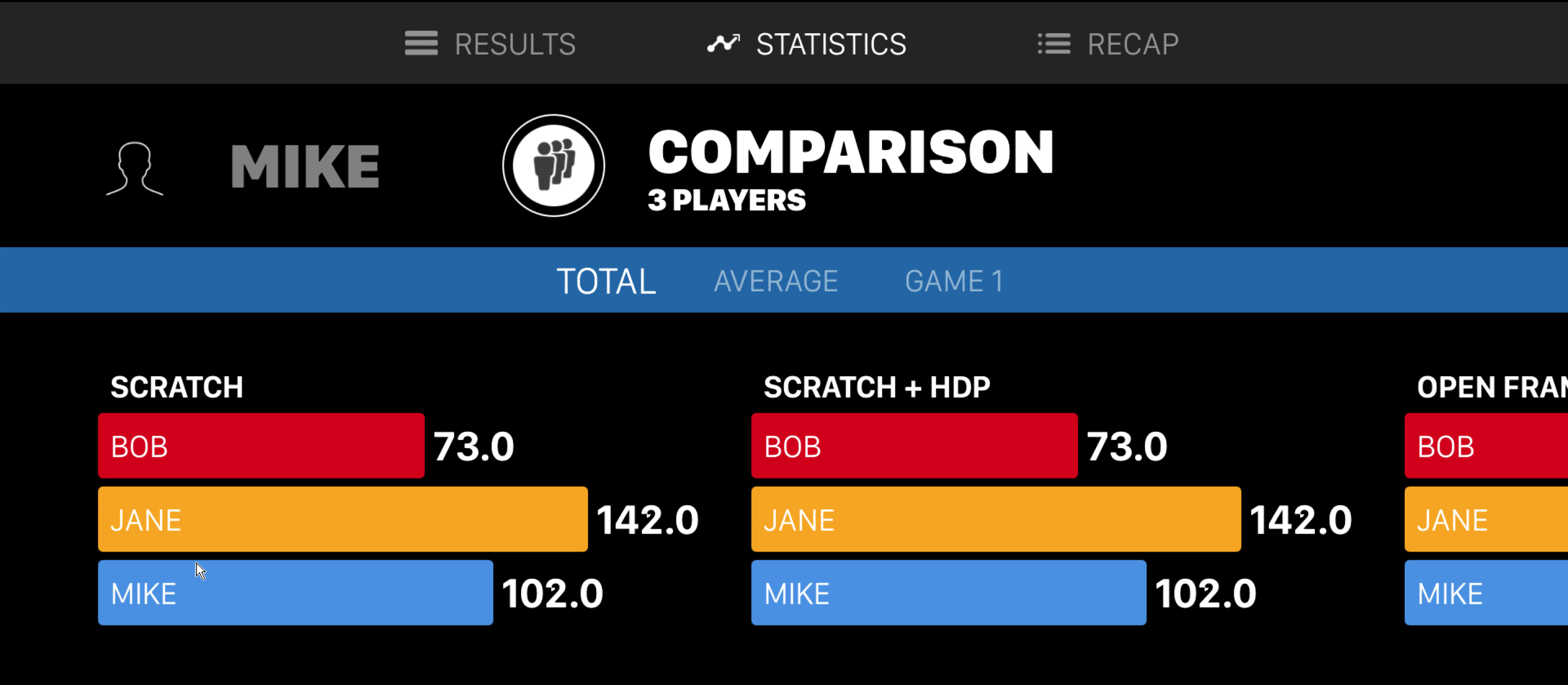
Statistics: allows the customer to view the players’ statistics for each bowler and for each game. It also shows, in a graphic format, the comparison between the total scores, the average scores and the single game played, of all the players.
You can also compare the statistics of all the players:
-
Recap: allows the customer to view a recap of all the games, grouped by team
A.2.5 Orders
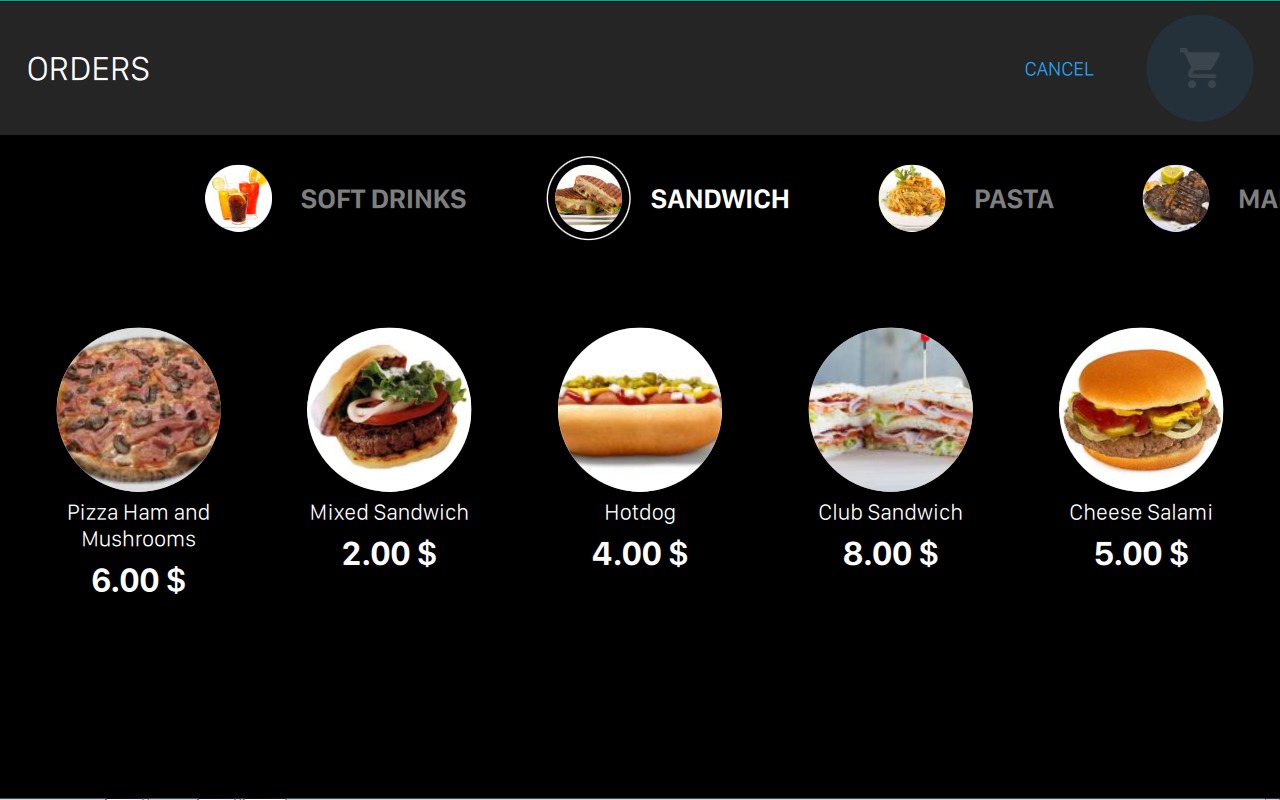
From this screen customers can select multiple items, such as drinks or food, and create an order. Items are grouped by category. At the top of the screen, just above the title you can find the list of available categories. If you select a category then you will see the list of items that belong to that category. Click on any item to add it to the order.
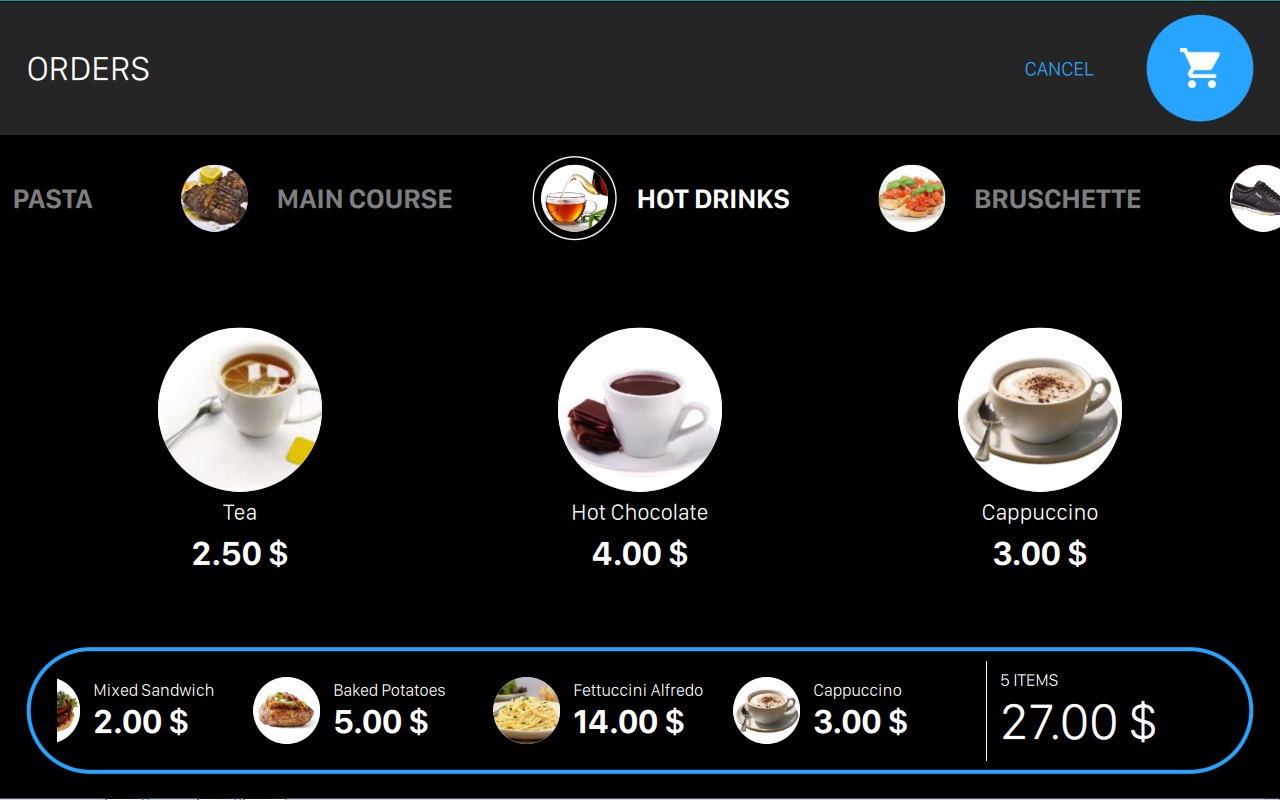
To remove items ordered, touch the item that must be removed and the following screen appears:
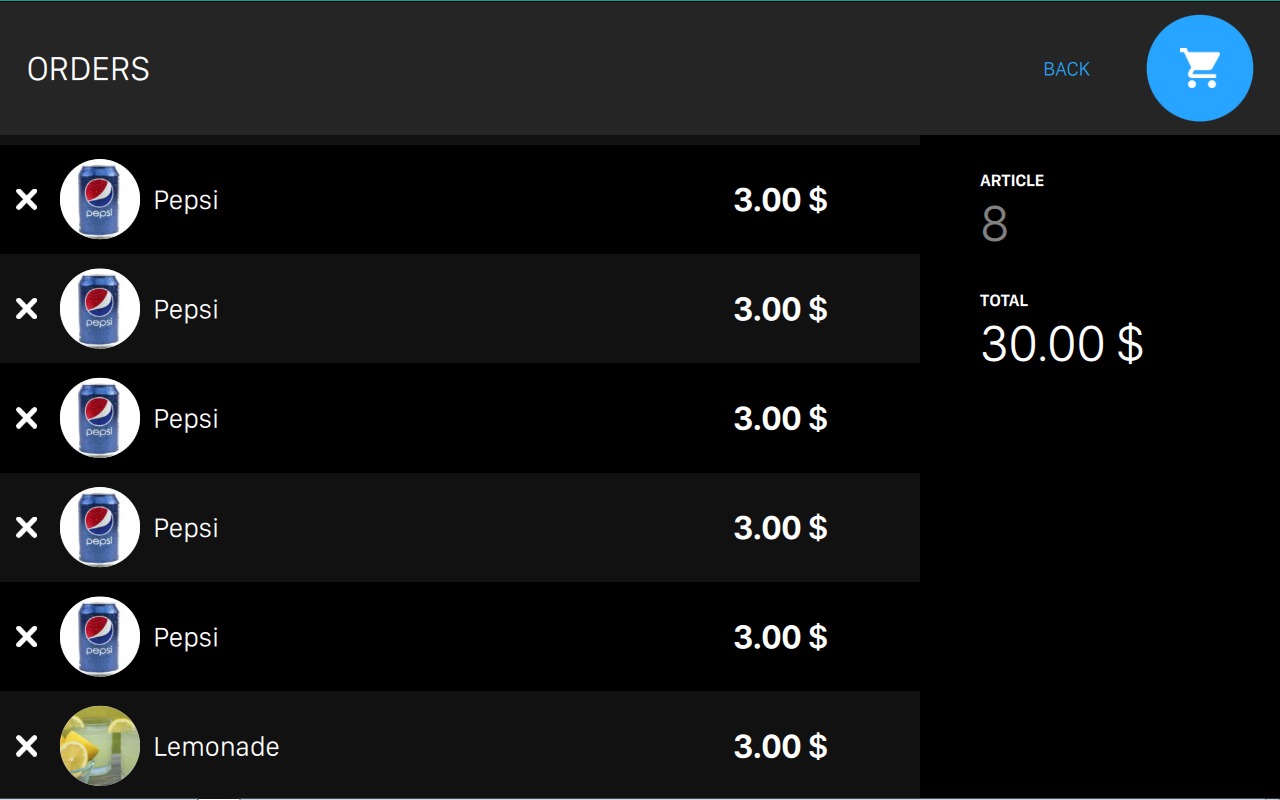
Touch the X button on the left of the item to remove it from the order. Once finished, touch the CART icon at the top right of the screen. You will be asked to confirm the order.
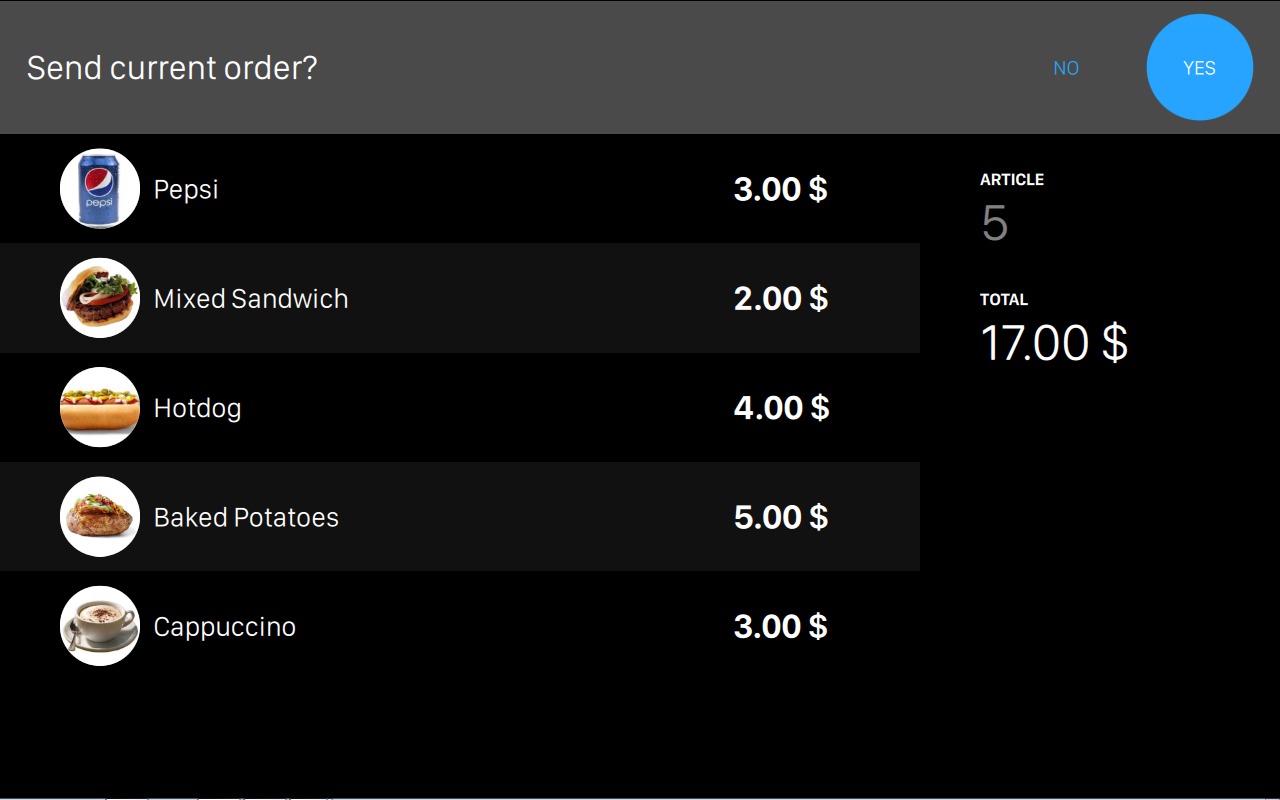
Press Yes button to send the order or No to return to the previous screen.
A.2.6 Change Graphic Theme
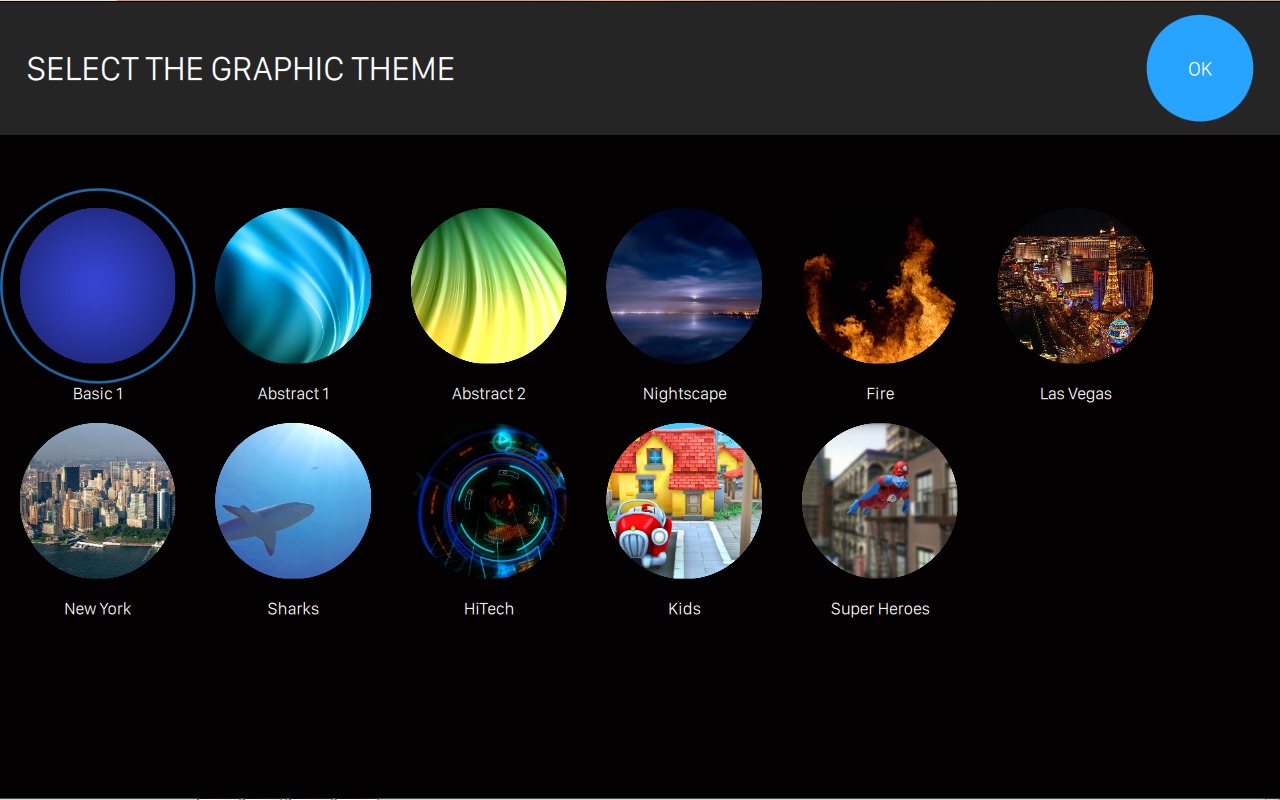
This screen allows the customer to change the graphic theme of the console. Scroll all the theme variants and select the one you prefer. The console will automatically change its appearance with the selected theme. See CHANGE THEME screen for more details on how to setup themes.
A.2.7 Change Language
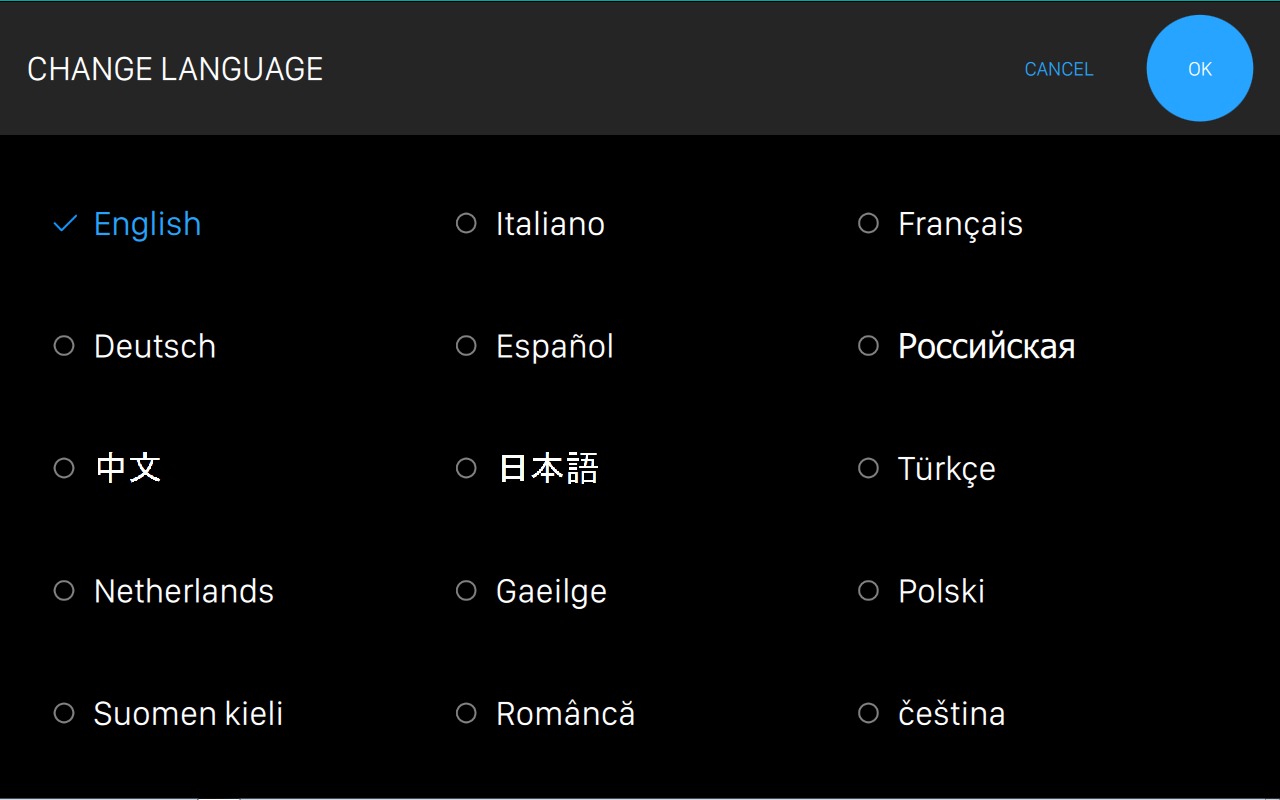
This screen allows the customer to change the console language. Touch the preferred language to use it on the console. Once the language has been selected the console will be restarted and the user interface will be presented with the selected language.
A.2.8 Intercom
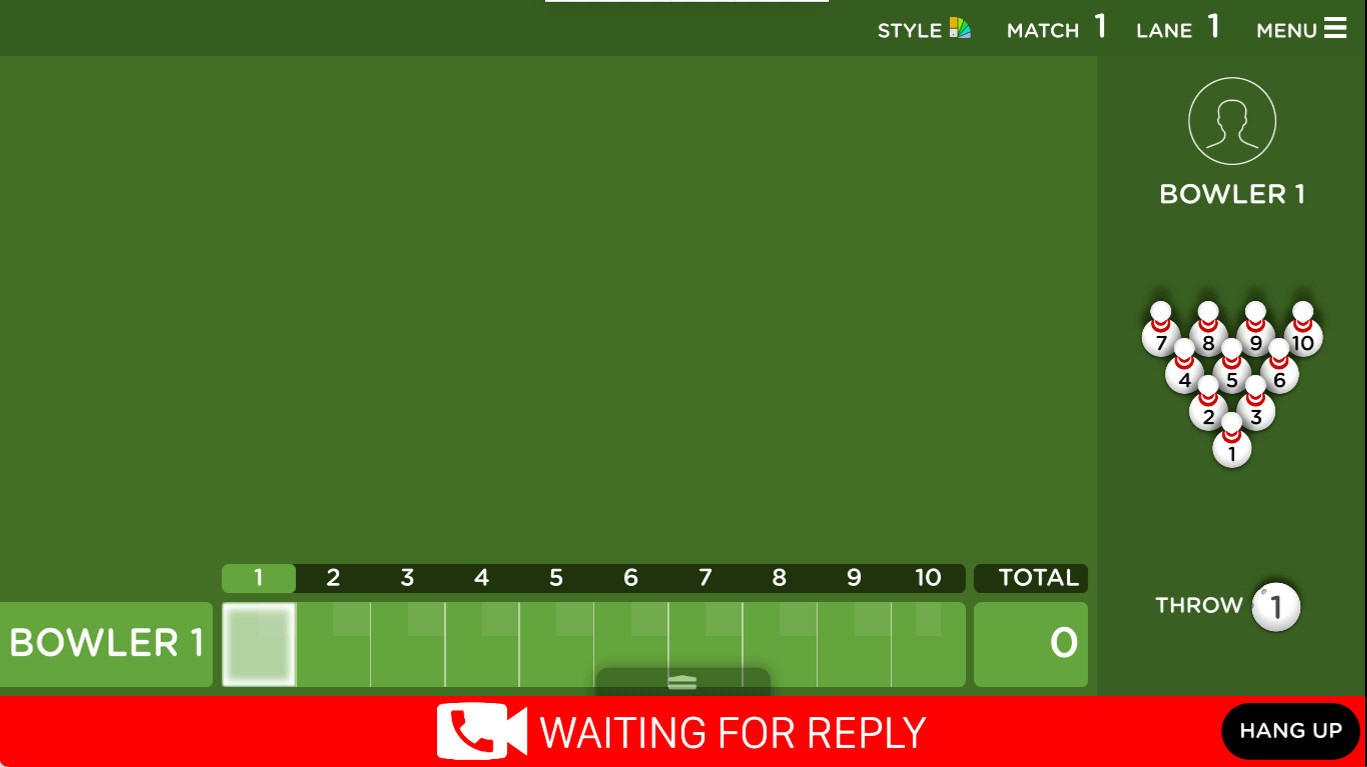
This feature allows the customer to video call the frontdesk. When the customer starts a call the operator will be notified from the frontdesk and can decide whether to accept or not the request of video call. If the operator accepts then a video call will be started with the customer.
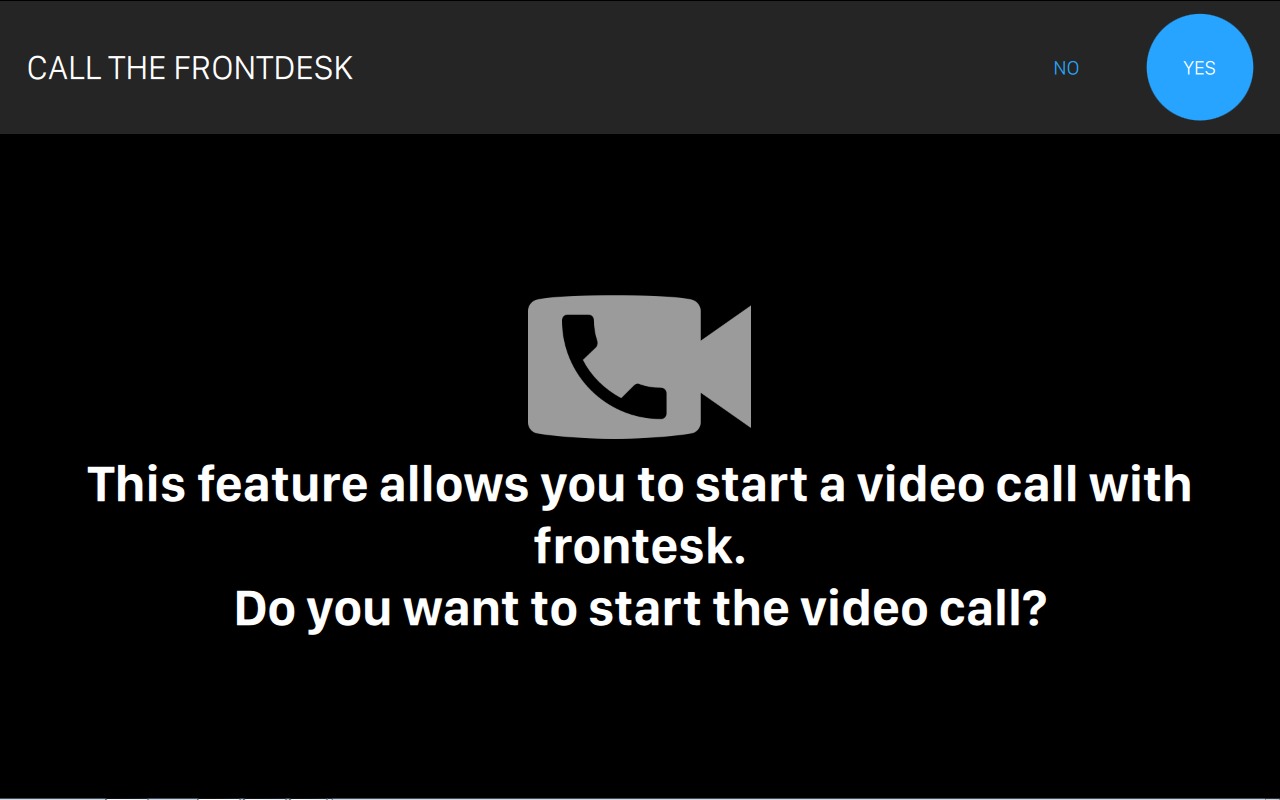
From the console you can press ‘Hang up’ button to terminate the conversation and return to the console. On the right side of the console you will see the video of the operator and the video of the customer in two different frames.
A.2.9 Call The Waiter
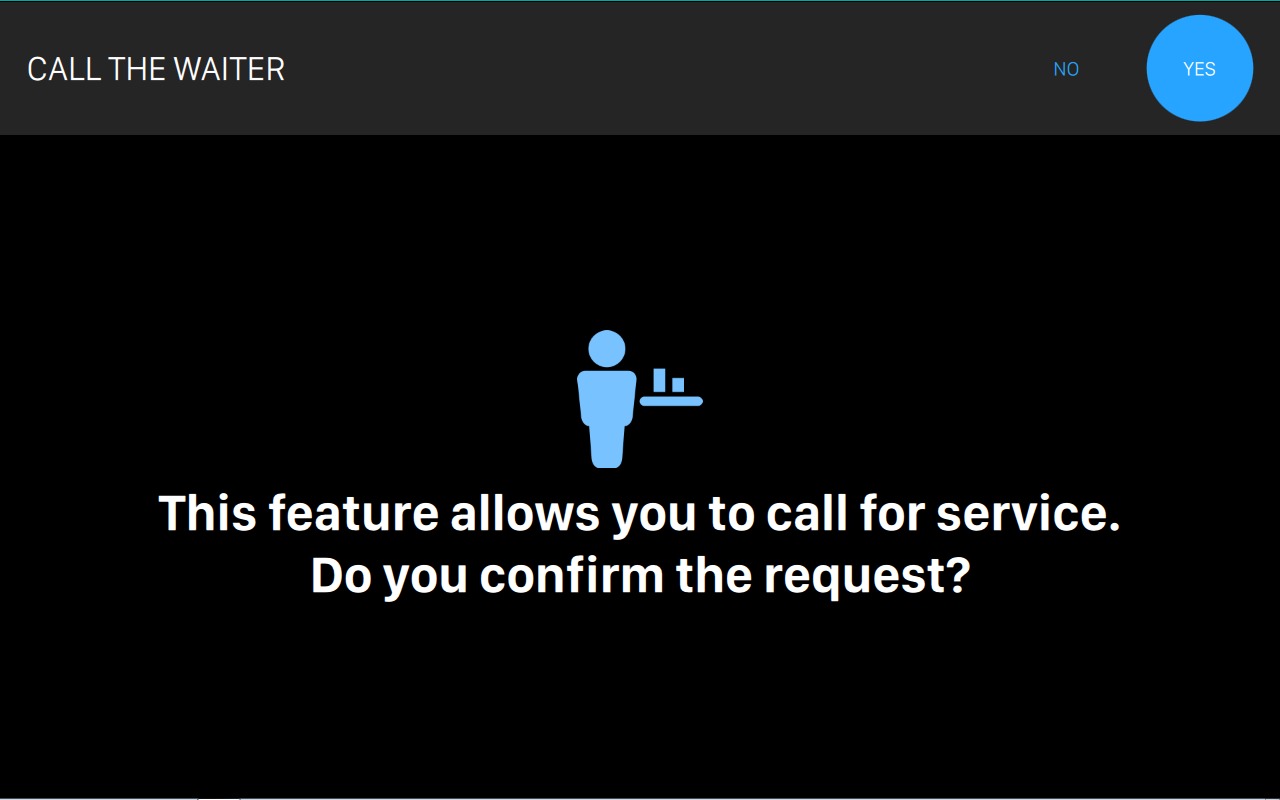
This feature allows the customer to ask for a waiter for service on the lanes. Touch YES to confirm and send the request. A message will pop up on the frontdesk.
A blinking icon and a message will stay on the bottom of the screen until the MESSAGES is read and archived on the frontdesk.
A.2.10 Call The Mechanic
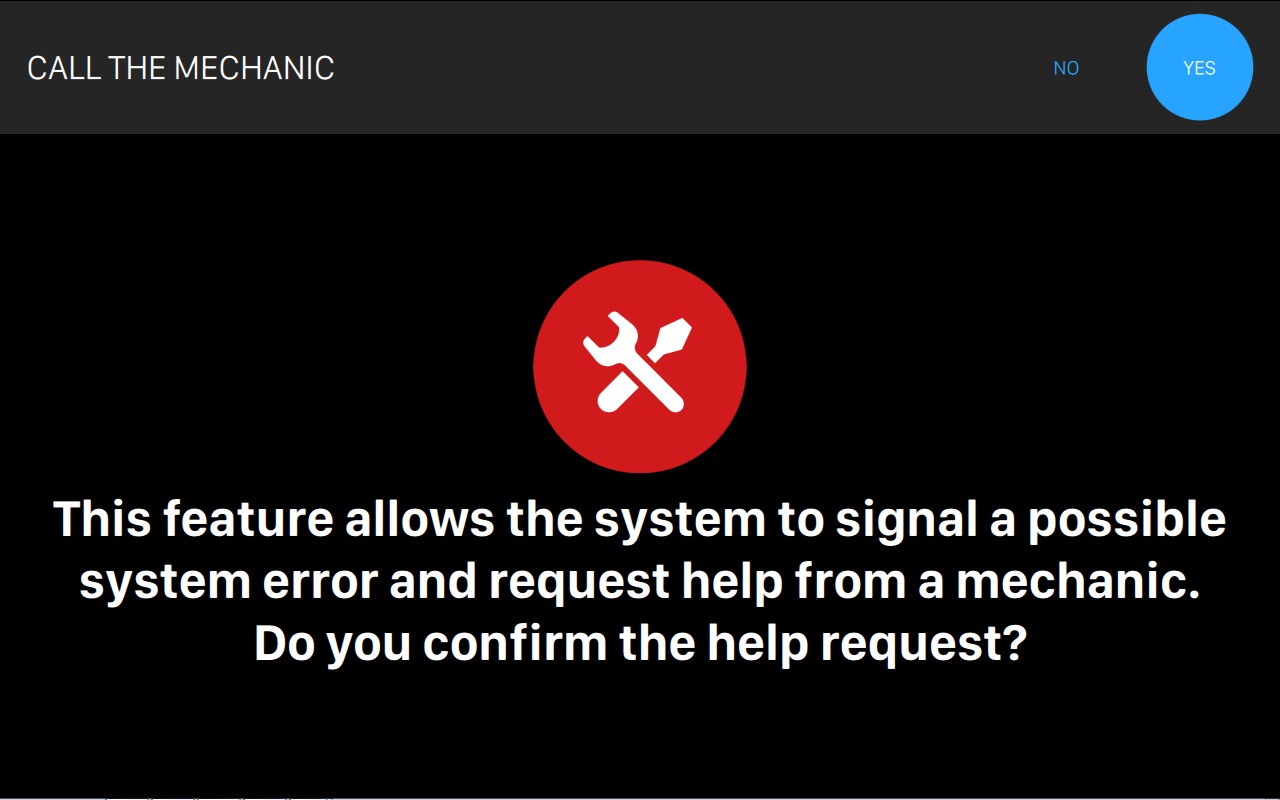
This feature allows the customer to ask for the technician’s help in case that the machine or the lane is encountering some issues. Touch yes to confirm the request. A message will pop up at the frontdesk and on the console will be displayed the following screen:
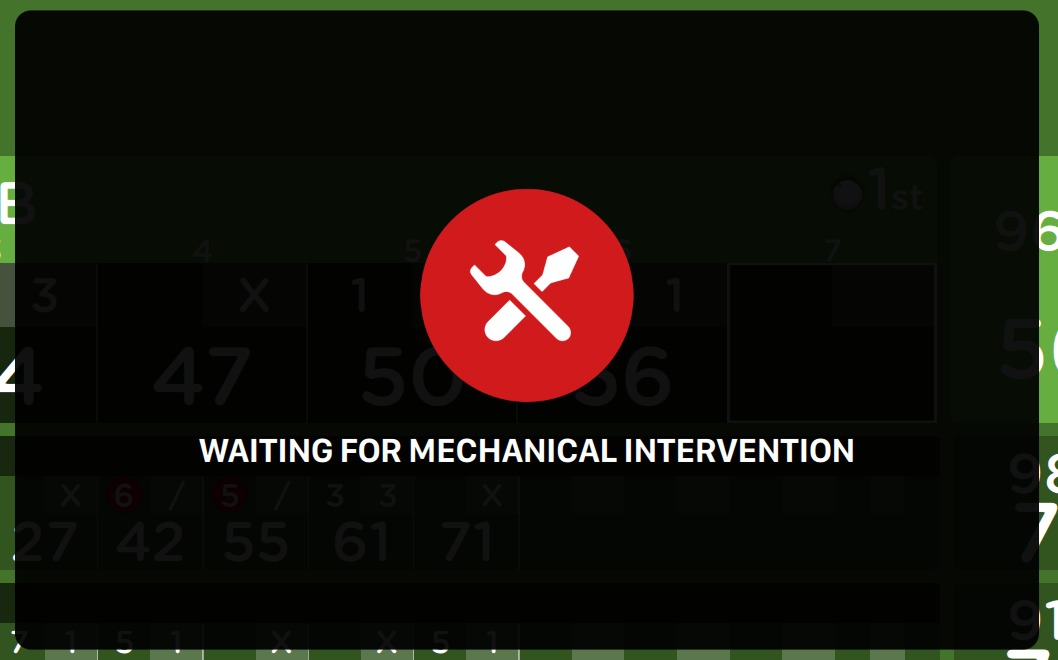
The lane will be unavailable until the MESSAGES is read and archived on the frontdesk.
A.2.11 Pinsetter cycle
Click this button to perform a machine cycle on the pinsetter.
A.2.12 Download Bowl App
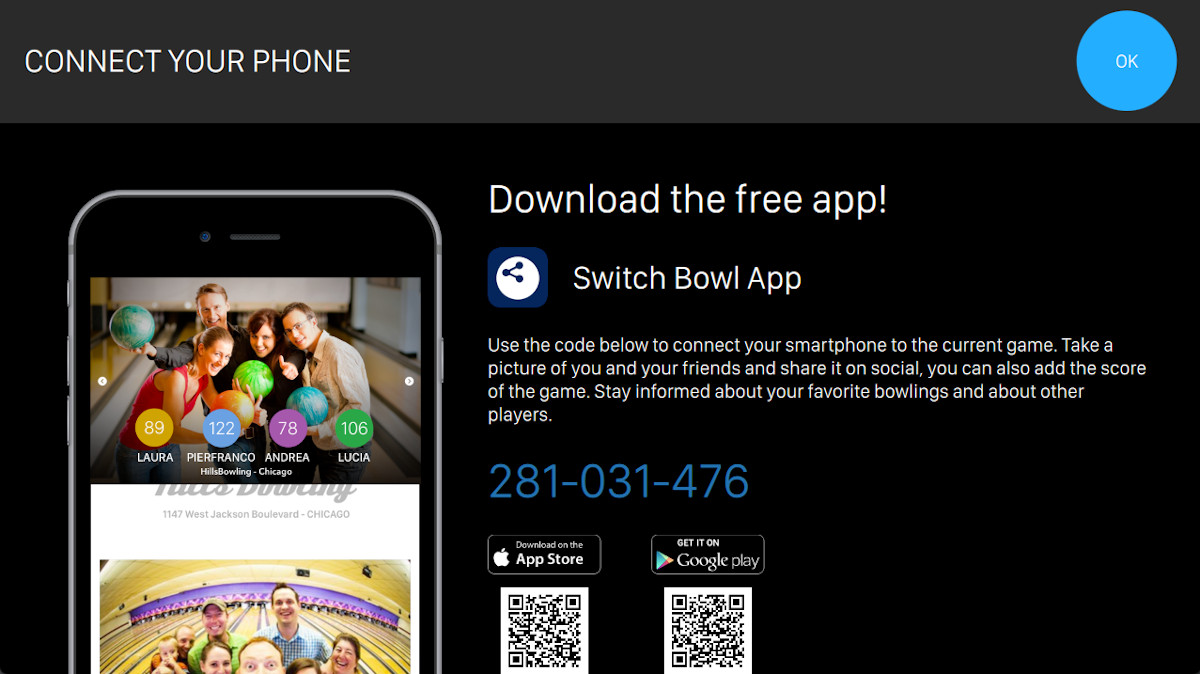
In this page you can find the CODE to access to the Bowl App application. The two QR codes allow the customers to download the Bowl App application from both the Apple Store and from Google Play Store.